
How to Fix "Could not connect to Hermes gateway"
Two separate parts of Hermes are both called the gateway, which is why the obvious command does not help. The desktop needs the backend server on port 9119, and the fastest test is to start it by hand and let the app attach to it.
Hermes Desktop shows an error screen reading Could not connect to Hermes gateway. Your agent may be working perfectly everywhere else. Your Telegram bot may be answering messages right now. The window still will not open.
There is one thing to understand before you try anything, and it will save you an afternoon.
Two different things are called the gateway
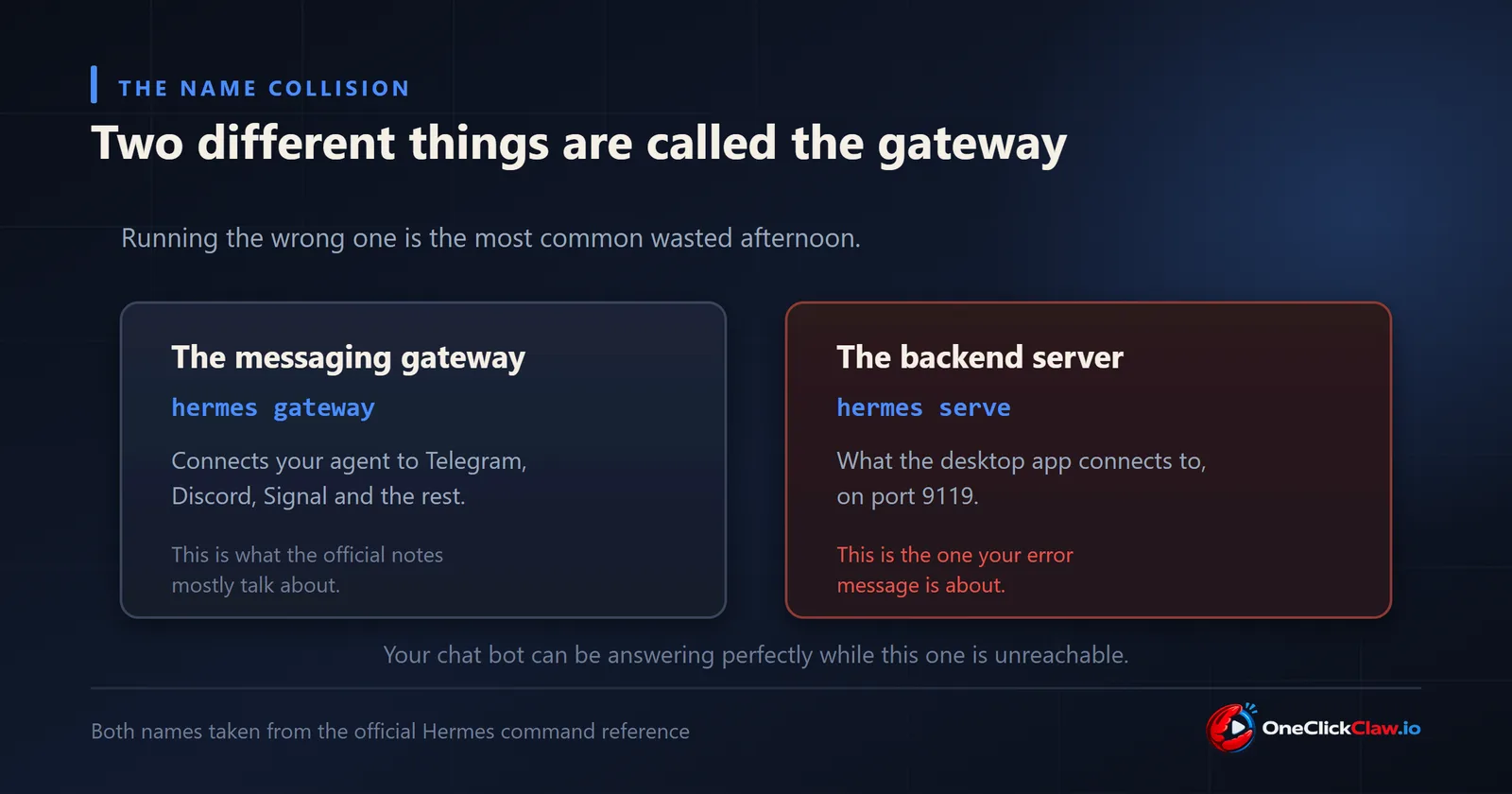
This is the reason the obvious advice fails for most people who hit this error.
- The messaging gateway. The part that connects your agent to Telegram, Discord, Signal and the rest. Started with
hermes gateway start, and the one the official troubleshooting notes discuss. - The backend server. Started with
hermes serve, described in the official command reference as the gateway that the desktop app and remote clients connect to. It listens on127.0.0.1:9119by default.
The desktop error is about the second one. One reporter put it plainly: the desktop showed this message while their messaging gateway was running perfectly and delivering messages, in issue 73083.
So running hermes gateway start will not fix a desktop that shows this error. It is a healthy command for a different job.
Why it fails when the backend looks fine
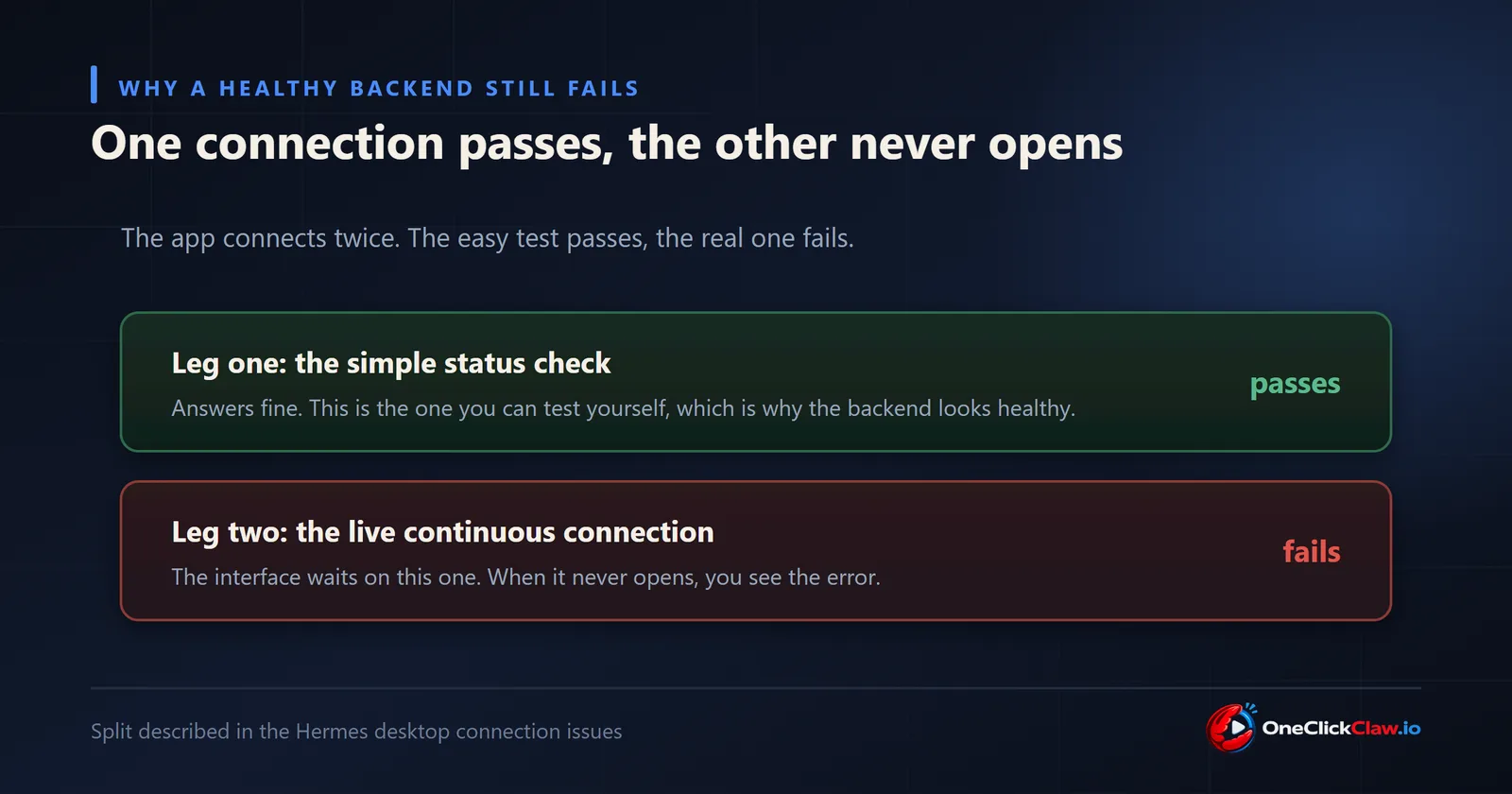
The desktop app connects in two separate steps, and they can disagree with each other.
First it asks a simple status question over an ordinary web request. That usually succeeds. Then the part of the app you actually see opens a live continuous connection, and that is the one the interface waits on. When step one passes and step two fails, you get this message: the backend looks ready by every simple test, and the app still cannot come up.
That gap is why people check the backend, find it perfectly healthy, and conclude the app is lying. It is not. It is failing on the half nobody thinks to test.
The single most useful thing to try
Close Hermes Desktop. In a terminal, start a backend yourself and leave it running:
hermes serveNow open Desktop. It will attach to the backend that is already there instead of starting and managing its own.
If that works, you have the most common cause. On Windows the backend can freeze for fifteen to twenty seconds while loading a large piece of itself during startup, and the app gives up waiting at ten. Starting it yourself moves that pause out of the way. The fingerprint in the logs is a pair of lines about a stalled loop and a failed ready signal, described in issue 74874.
There is a worse version of the same fault, and it is worth recognising because it destroys work. The app can interpret that momentary freeze as a dead installation and trigger a full repair and reinstall, which tears down a perfectly healthy backend and starts the cycle again. If your app is looping through reinstalls rather than failing once, that is this. It was fixed upstream, so updating is the answer.
The other cause you can fix yourself in a minute
If starting the backend by hand did not help, check for a stale access token.
Each time the app launches, it hands the backend a fresh one-time password for the session. If an old one has been written permanently into your settings file, it overrides the fresh one, and the backend refuses a connection carrying a password it no longer recognises.
Open ~/.hermes/.env, remove any line beginning HERMES_DASHBOARD_SESSION_TOKEN, quit the app fully and start it again. The confirming clue is a log line mentioning a token mismatch, described in issue 39349.
If your Hermes runs on another machine
Connecting a desktop app to a backend on a different computer, over your network or a private tunnel, had its own separate fault. The backend had two admission checks that no remote desktop could satisfy at the same time: one demanded the connection come from the same machine, the other only accepted the app's identity when it did. There was no configuration that passed both.
A project collaborator confirmed this on issue 38412 and named the commits that repaired it, so an up to date build should be fine. If you are stuck on an older one, the workaround that people report working is to make the remote machine look local by forwarding the port over an encrypted tunnel, then pointing the app at your own machine's address.
The order to work through
- Decide which gateway you actually have a problem with. A silent chat bot is the messaging gateway. A desktop app that will not open is the backend. Do not mix the commands.
- See whether a backend is already running, with
hermes serve --status. - Run the built in checker,
hermes doctor, and thenhermes doctor --fixif it offers to repair something. - Start a backend by hand and open Desktop against it. This is the highest value single test in the list.
- Check for a stale token in
~/.hermes/.env. - Read the logs. Windows keeps them at
%LOCALAPPDATA%\hermes\logs\, macOS and Linux at~/.hermes/logs/.
Why this whole family of problems exists
Step back from the specific message for a second, because the pattern matters more than the fix.
Every failure above lives in the same place: the desktop app on your own computer, trying to start and reach a second program on that same computer. Your antivirus, your PATH, your Python installs, your disk speed, whether the machine just woke up. None of that has anything to do with your agent doing useful work, and all of it can stop it starting.
An agent that lives on a server you never turn off skips this entire category. There is no desktop shell to boot, no local handshake to time out, and no laptop lid to close in the middle of a job. It starts once and stays up.
That is what we do at OneClickClaw. Today you can put an OpenClaw agent on a dedicated European server of your own, set up for you, from EUR 14.99 a month, with 7 days free and just an email to start. Hermes Agent hosting is on the way, so if you are here for Hermes, the OpenClaw side will show you exactly how the managed version feels while you wait.
Frequently asked questions
- My Telegram bot works. Why does the desktop app say the gateway is unreachable?
- Because two different parts of Hermes are both called the gateway. Your bot uses the messaging gateway. The desktop app connects to the backend server, started with hermes serve, which the command reference also calls a gateway. They are separate, so one can be perfectly healthy while the other is unreachable.
- Will hermes gateway start fix this?
- No, and it is the most common wasted step. That command starts the messaging gateway, which is a different subsystem from the one the desktop app is trying to reach. The desktop needs the backend server instead, which is hermes serve.
- Why does the backend look healthy when I test it?
- The desktop connects in two stages. The simple status check that you can test easily usually passes, and the live continuous connection that the interface actually waits on is the one that fails. That is exactly why a healthy looking backend and a broken app can be true at the same time.
Related guides
- OpenClaw 2026.8.1 to 2026.9.2 Upgrade Crash Loop: The Fix OrderTwelve upgrade reports were filed against OpenClaw 2026.8.1 and against the 2026.9.1 to 2026.9.2 path between August 31 and September 7, 2026. This page groups them by symptom, quotes the command each reporter used, and gives the order that avoids discovering the blockers one restart at a time.
- Hermes Install Fails on Ubuntu 24.04: The Fix OrderThree open Ubuntu reports (issues 88529, 89343, 87460) describe silent install.sh failures. The fixes: install the official prerequisites plus libatomic1 before the script, give the Chrome for Testing download real time, then hermes doctor.
- Hermes Agent Memory Not Working: What Breaks ItFour documented reasons Hermes Agent memory looks broken: the frozen snapshot loaded at session start, the 2,200 and 1,375 character limits, issue 85622 where an external provider suppresses the built-in files, and two agents sharing one home directory.
- Hermes Agent Not Responding on Telegram: 4 FixesFour documented reasons a Hermes Agent goes silent on Telegram: a stopped gateway, an authorization gap, a model under the 64K context floor (issue 24140), and a model retired by the provider, plus the stuck typing indicator that only looks like a hang (issue 28004).