
Talk to Hermes and OpenClaw by Voice, Free, with FU Flow
Talk to Hermes Agent and OpenClaw by voice with FU Flow, a free open source dictation app for your PC. Eleven steps, each with a screenshot.
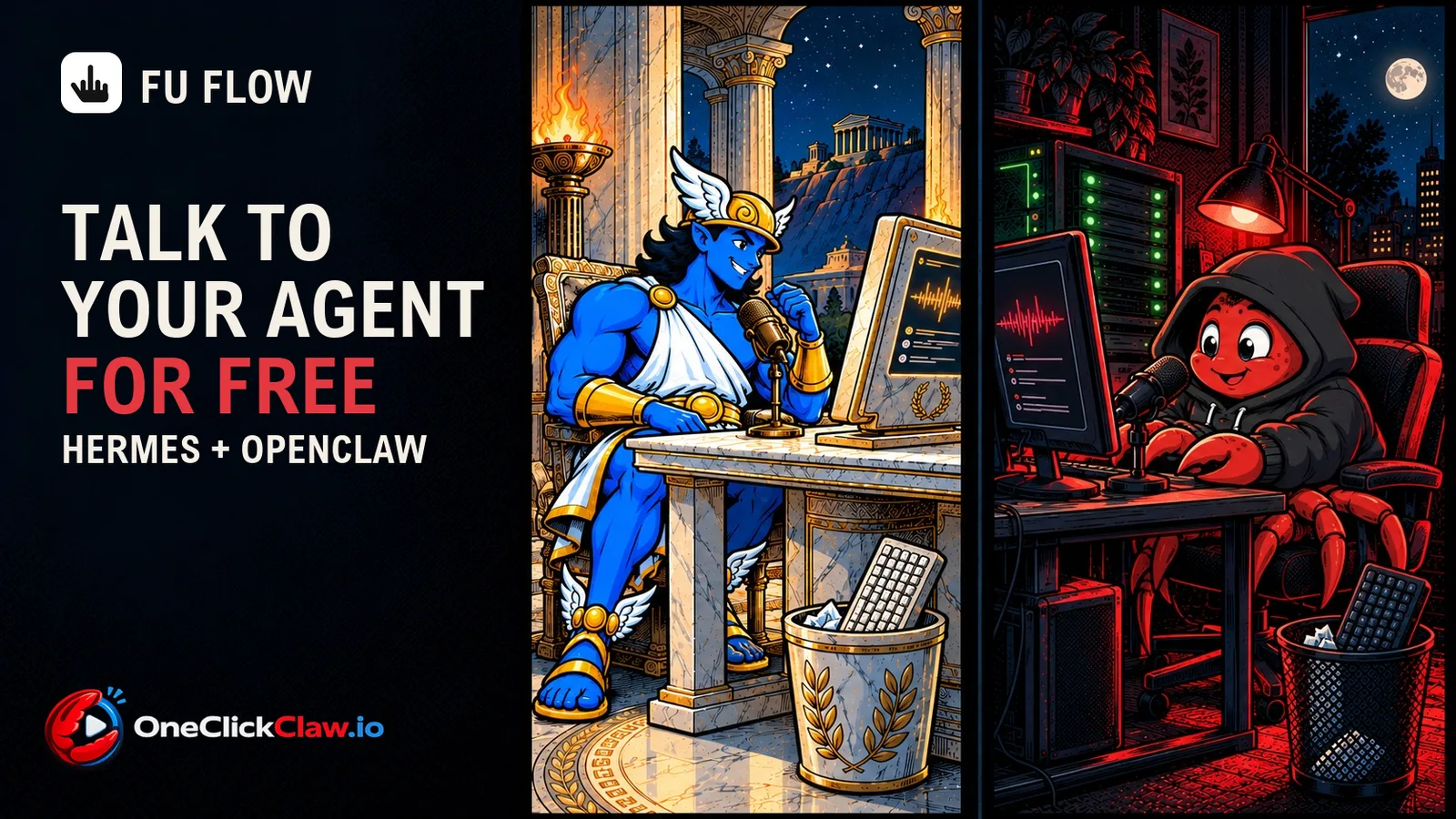
You can talk to your AI agent and skip the typing. FU Flow, a free dictation app that runs on your own PC, turns your voice into text right inside the chat box of Hermes Agent and OpenClaw, with no subscription to pay.
This guide shows the whole setup in eleven short steps, each with a screenshot. The steps follow a test OneClickClaw ran on the 30th of October 2026 on a Windows 10 PC.
What FU Flow does, in plain words
Think of FU Flow as a typist who sits inside your PC. You speak, and the typist writes your words into whatever box your cursor is in, whether that is an email, a document or the chat box of your agent. The typist works for free, keeps no count of your words and needs no account.
For an agent, that matters more than it seems. You can describe a task the way you would explain it to a colleague, with all the small details, in the time it takes to say it. Your agent receives the full message as text, ready to act on.
FU Flow's website, read on the 30th of October 2026, lists these points:
- Free and open source. The app is free and published under the MIT licence, meaning anyone can read and reuse the code, which sits on GitHub. Luram AI Agency in Thessaloniki built it.
- Runs on your own PC. It works on Windows 10 and 11, currently in beta, and on Ubuntu Linux 22.04 or newer. It uses Whisper, a speech model OpenAI published on the 21st of September 2022, with its code and weights under the MIT licence.
- Many languages. It handles English, Greek and 97 more languages, and detects the language on its own.
- Clean text. It adds periods, commas and question marks, removes "um" and "uh", and applies the corrections you make while speaking.
What it costs
FU Flow's website lists no subscription, no weekly word cap and no account for local dictation.
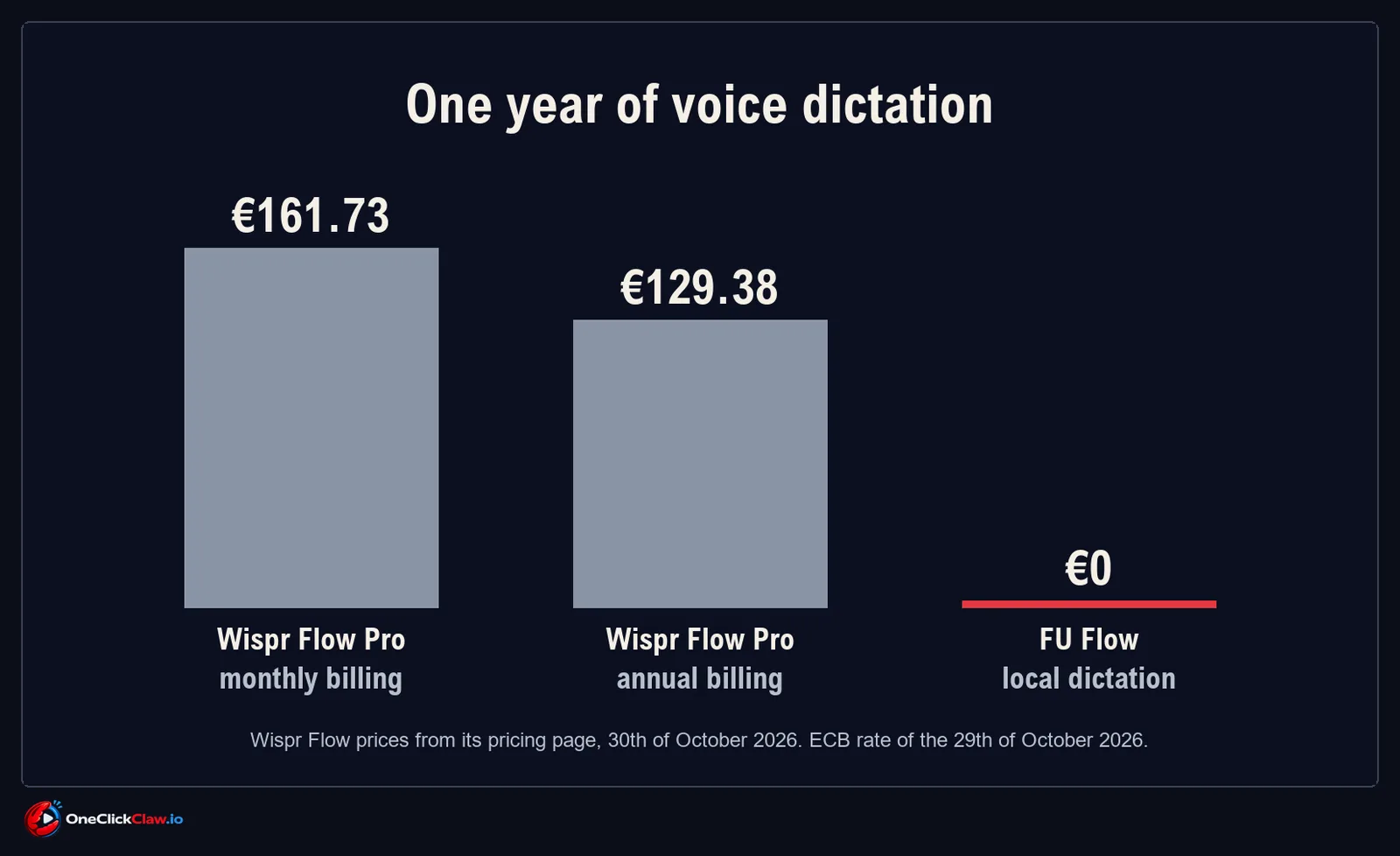
For comparison, Wispr Flow's pricing page, read on the 30th of October 2026, lists its Pro plan at $15 (€13.48) per month, or $12 (€10.78) per month billed annually. Over a year that comes to $180 (€161.73) with monthly billing and $144 (€129.38) with annual billing.
The euro amounts use the European Central Bank reference rate of the 29th of October 2026, when 1 euro equalled 1.1130 US dollars.
Before you start
- FU Flow installed. Download it from FU Flow's website. The site lists the download at about 1.7 GB, because the speech models come included. On Ubuntu you can choose a Debian package or an AppImage.
- Your agent's dashboard open in the browser. Hermes Agent and OpenClaw both have a dashboard that opens in a browser tab. That tab is where you will speak to your agent.
Step by step: talk to Hermes Agent and OpenClaw by voice
Set up FU Flow
Step 1. Open FU Flow and look at its main window. FU Flow's website names four sections you will use in this guide: "History", "Dictionary", "Statistics" and "Settings". On first start, the app picks the speech model that fits your machine, the site says. It uses your graphics card on NVIDIA, AMD and Intel through Vulkan, a common graphics standard, and falls back to the processor when needed, which is slower. Once setup is done, local dictation works offline. Downloads and updates use the internet.
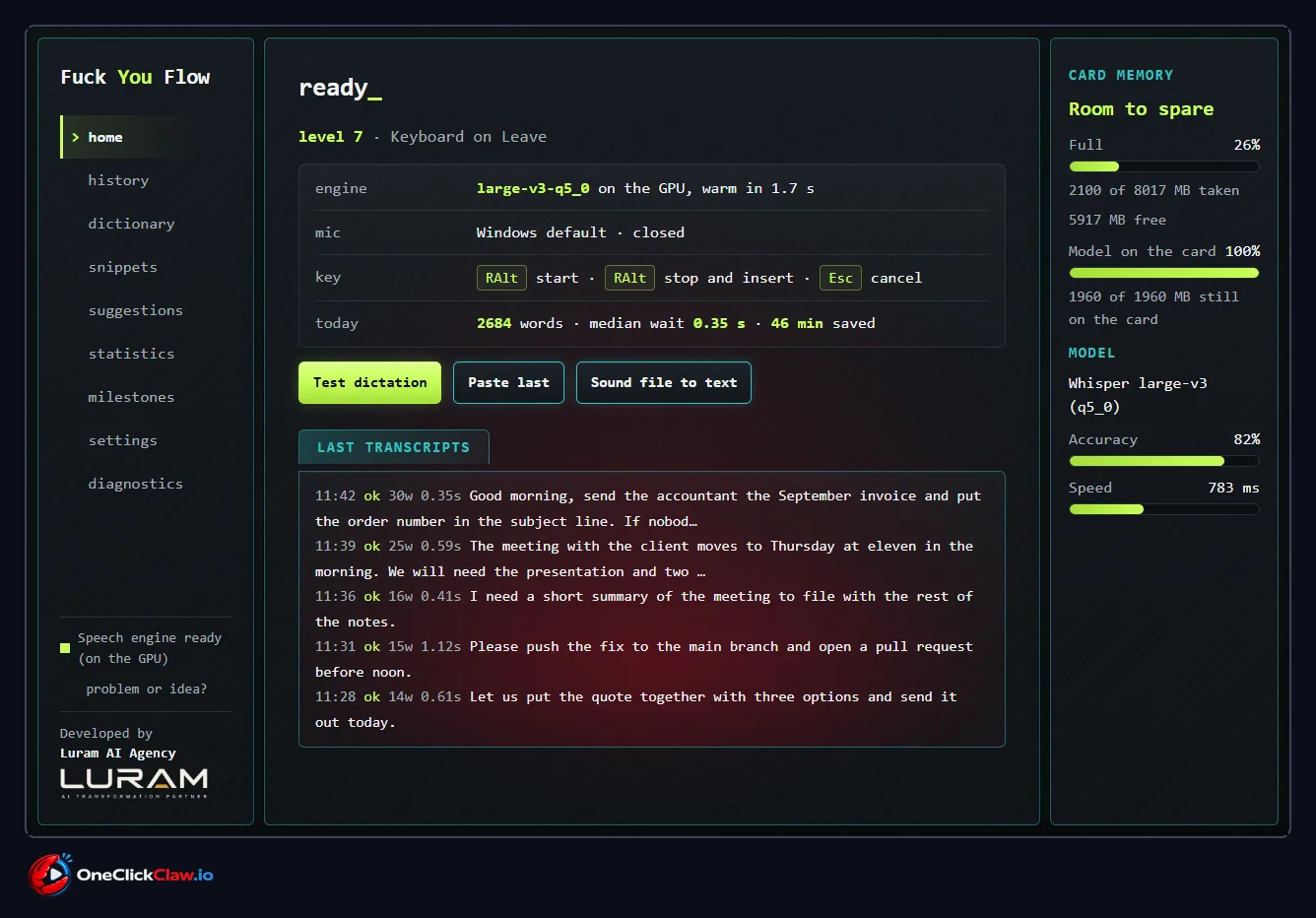
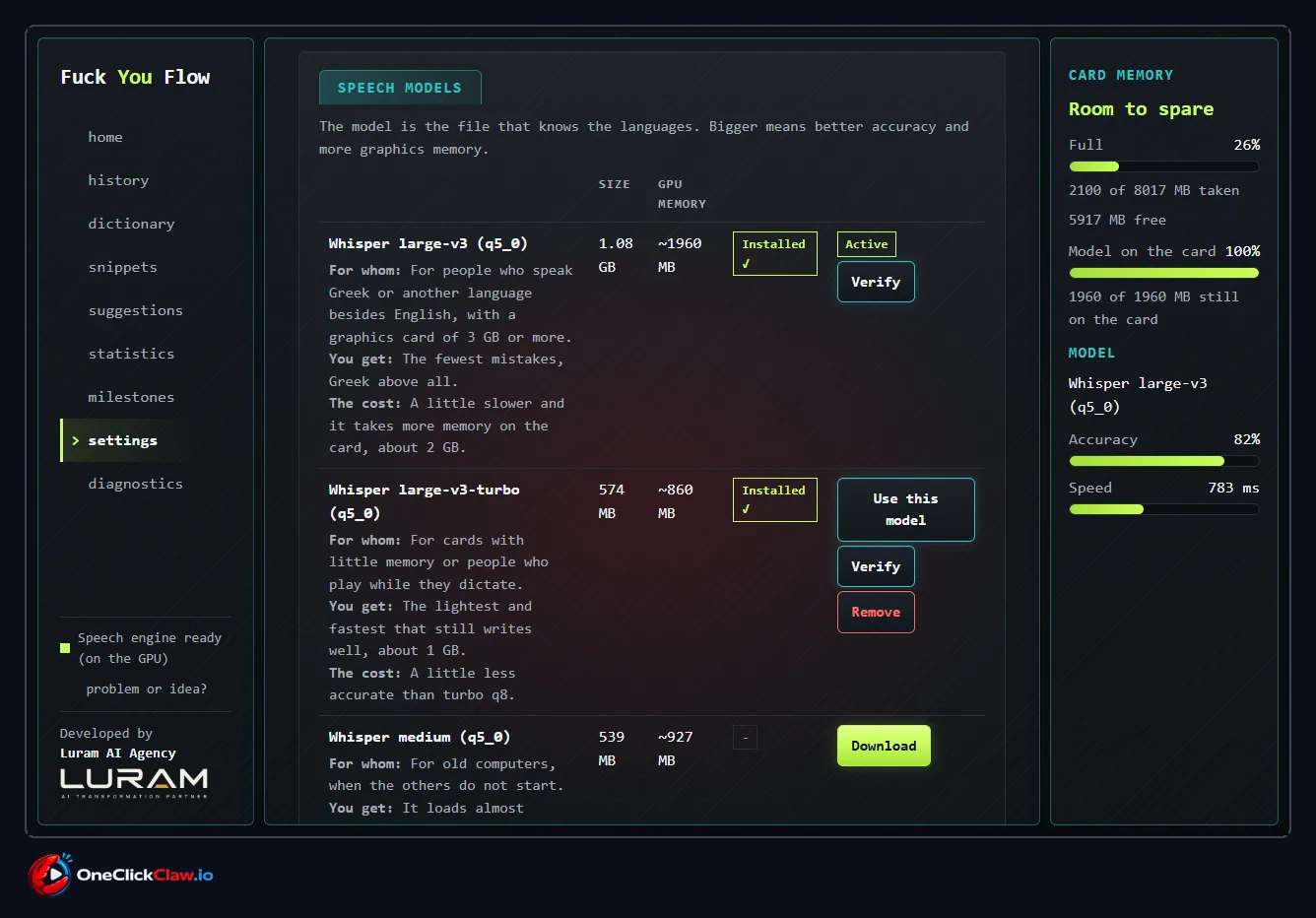
Step 2. Open "Settings" in FU Flow. Here you choose three things: the key you press to dictate, the microphone and the speech model. FU Flow's website describes the "Right Alt" key as the dictation key, so check that it is the key shown, then pick the microphone you speak into. The default local engine keeps your speech on your PC, according to the website. You can choose a remote speech provider as an option, and in that case your audio goes to that provider.
Talk to Hermes Agent
Step 3. Open the Hermes Agent dashboard in your browser and click inside the chat box, so the cursor blinks there. Press the "Right Alt" key once. A small window with a waveform appears on screen and says "Listening". That window tells you FU Flow is ready for your voice.
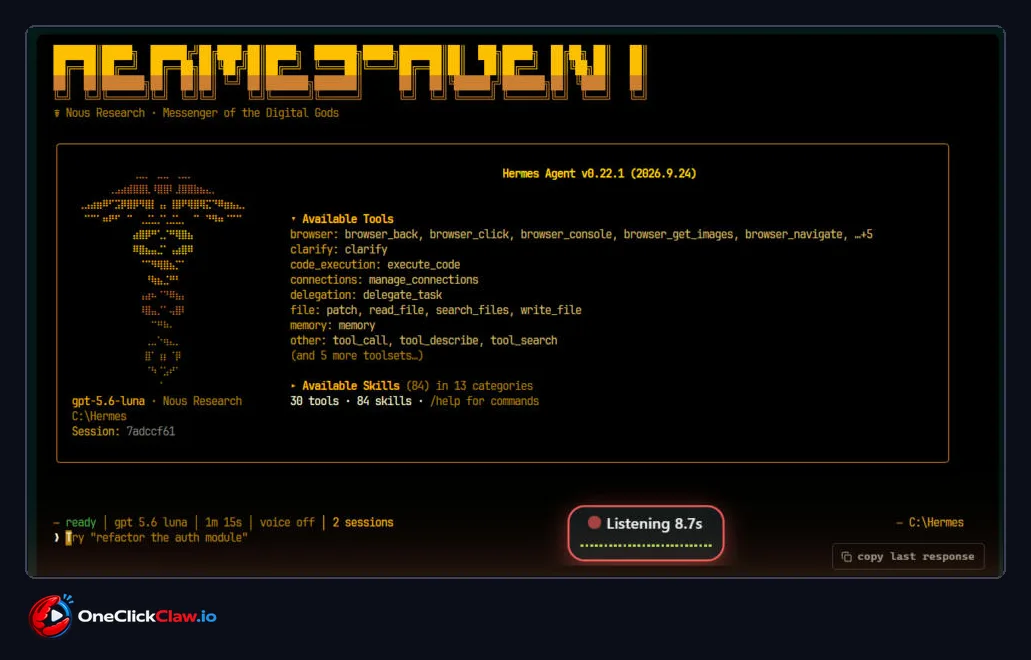
Step 4. Speak your message, then press "Right Alt" again. The text lands in the Hermes chat box, where your cursor was, with periods, commas and question marks. On the 30th of October 2026, OneClickClaw dictated this sentence: "Hermes, what can you help me with today? Give me three short ideas." The sentence appeared in the chat box.
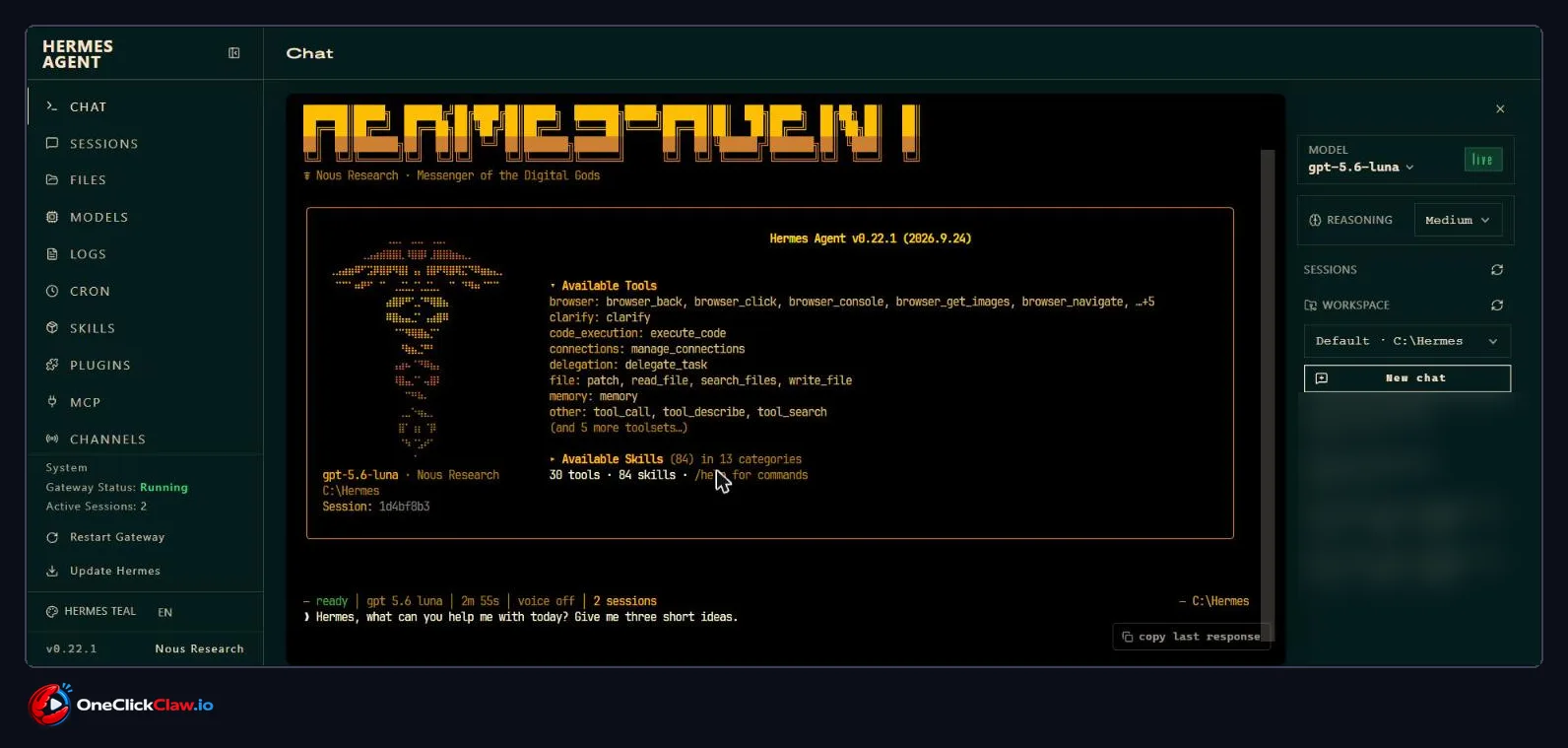
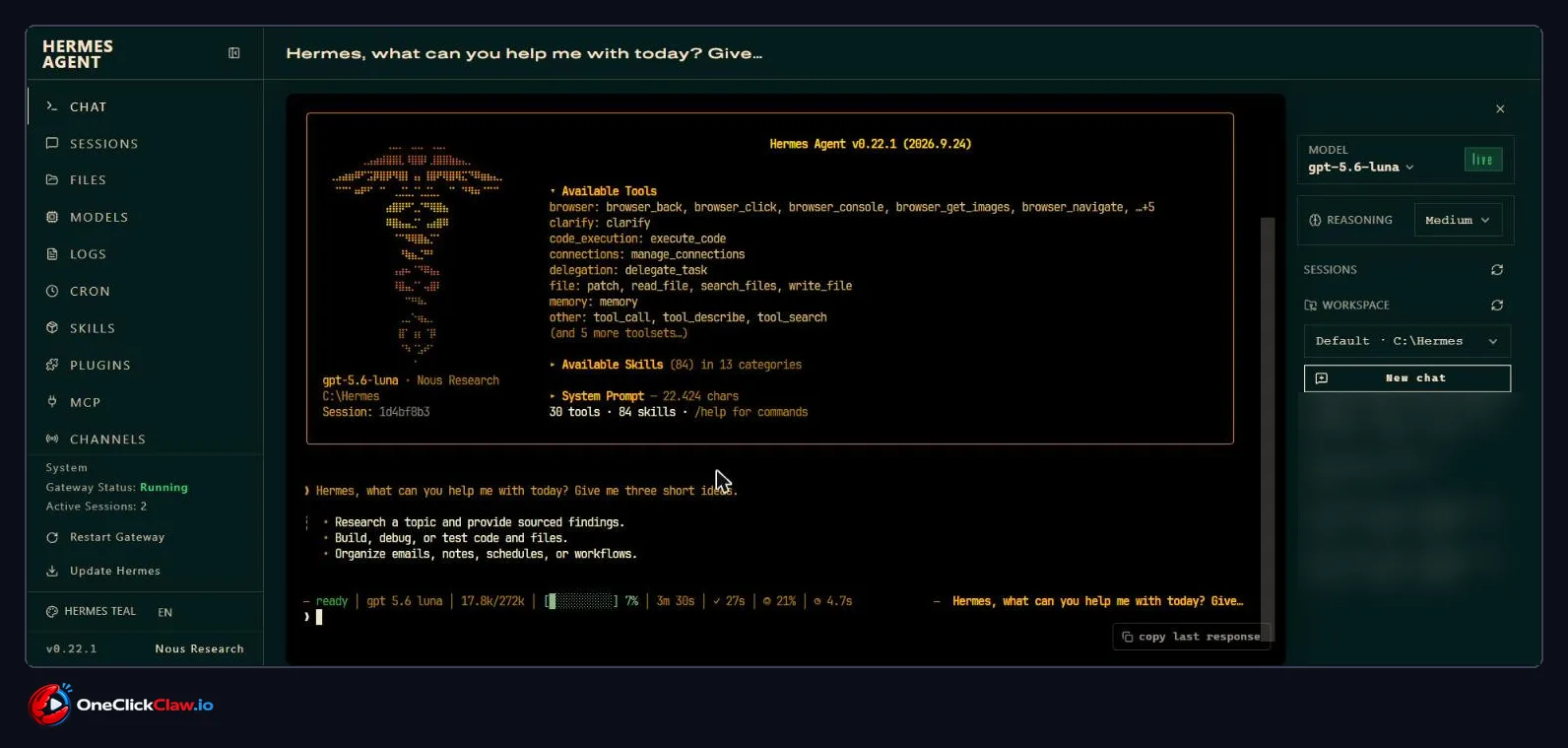
Step 5. Send the message the way you always do in the Hermes chat, then look at the conversation area for the answer. In the OneClickClaw test, Hermes replied with three ideas: research a topic, build or debug something, and organise emails. From here you can keep the conversation going by voice, one "Right Alt" press at a time.
Talk to OpenClaw
Step 6. Open the OpenClaw dashboard in your browser and click inside its chat box. In the OneClickClaw test, the OpenClaw agent was named "Rambot". Press "Right Alt" and the same "Listening" window appears. FU Flow's website says the app types into compatible text fields of Windows apps, including Chrome, so any agent dashboard opened in the browser can take your voice.
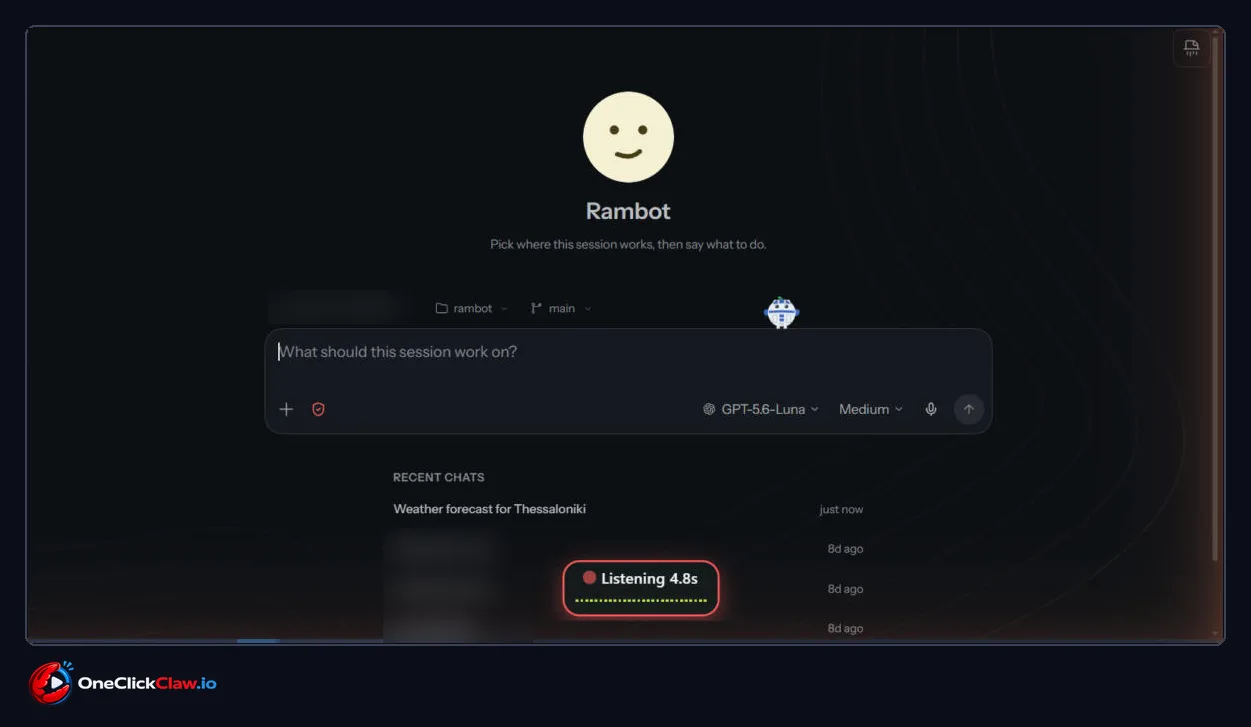
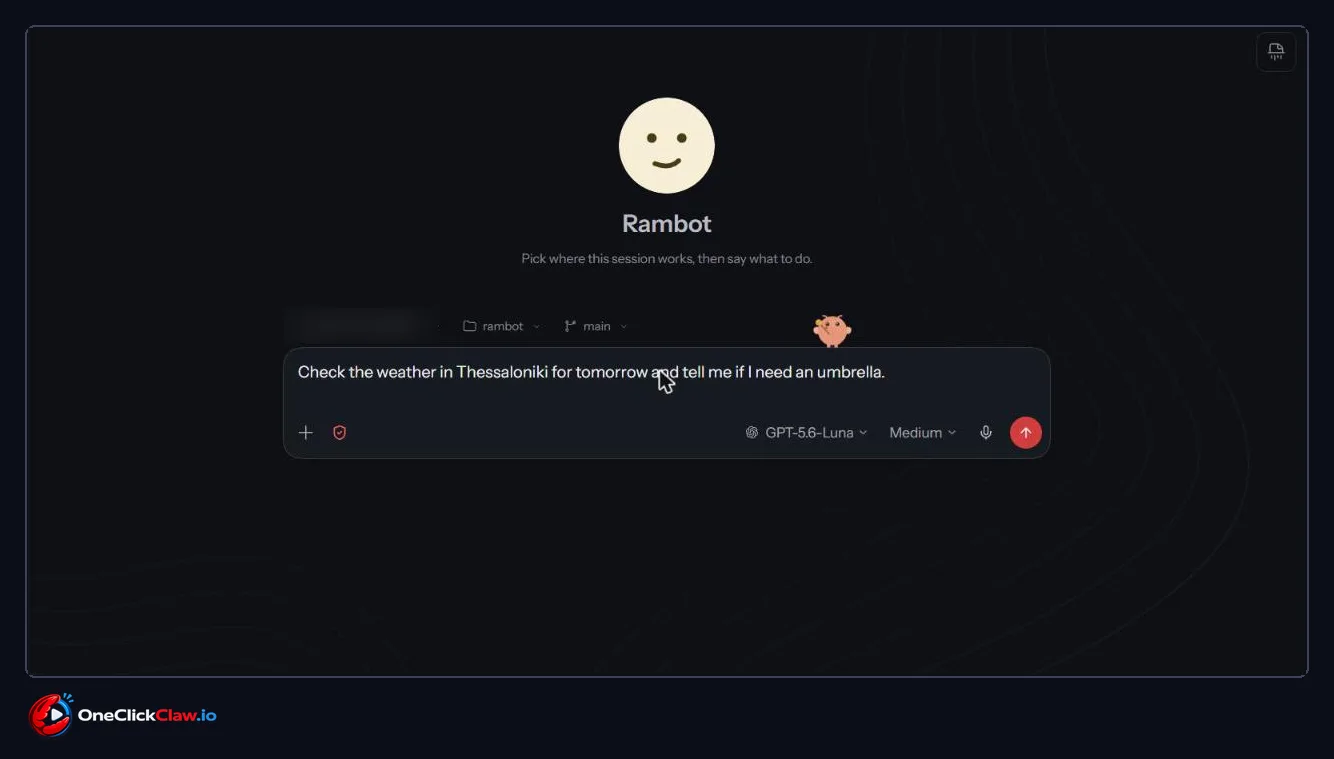
Step 7. Speak, then press "Right Alt" again to drop the text into the OpenClaw chat box. On the same day and the same PC, OneClickClaw dictated: "Check the weather in Thessaloniki for tomorrow and tell me if I need an umbrella." The question appeared in the chat box.
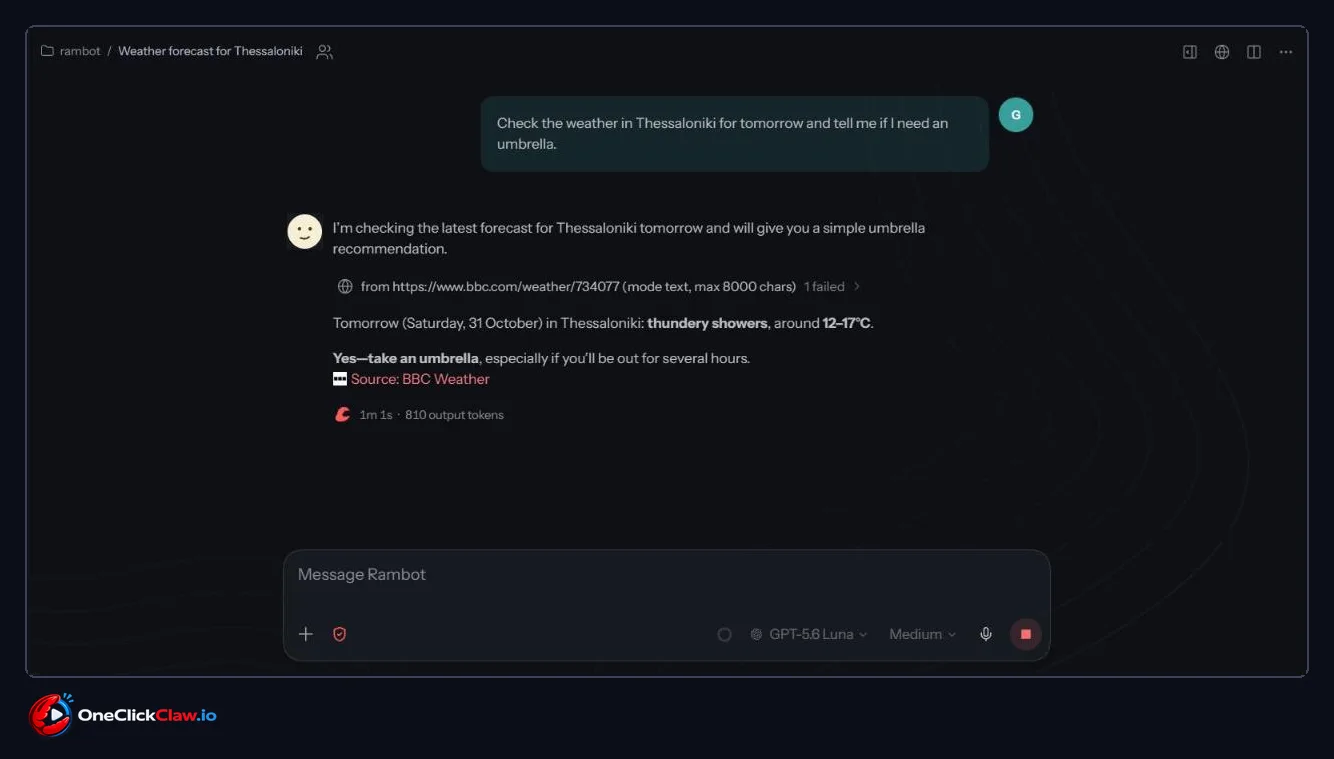
Step 8. Send the message and read the reply in the conversation area. OpenClaw answered with tomorrow's forecast for Thessaloniki, thundery showers at about 12 to 17 degrees, and said yes, take an umbrella. It named "BBC Weather" as its source.
Teach FU Flow your words
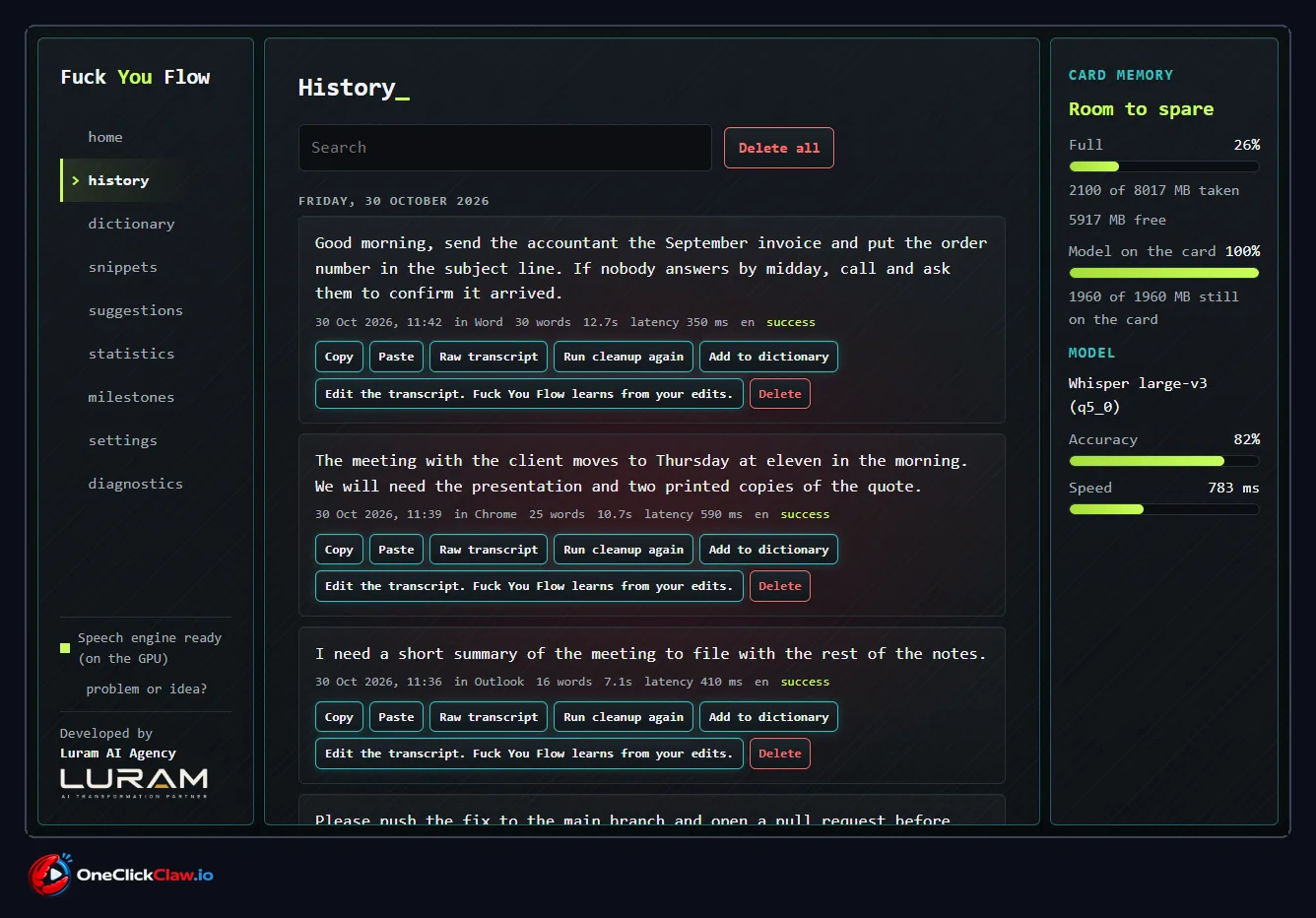
Step 9. Open "History" in FU Flow. According to the website, History keeps every dictation in one file on your disk. When a word comes out wrong, fix it there and the fix becomes a dictionary rule for next time. History also helps when automatic paste fails: your text waits there, ready to copy into the chat box.
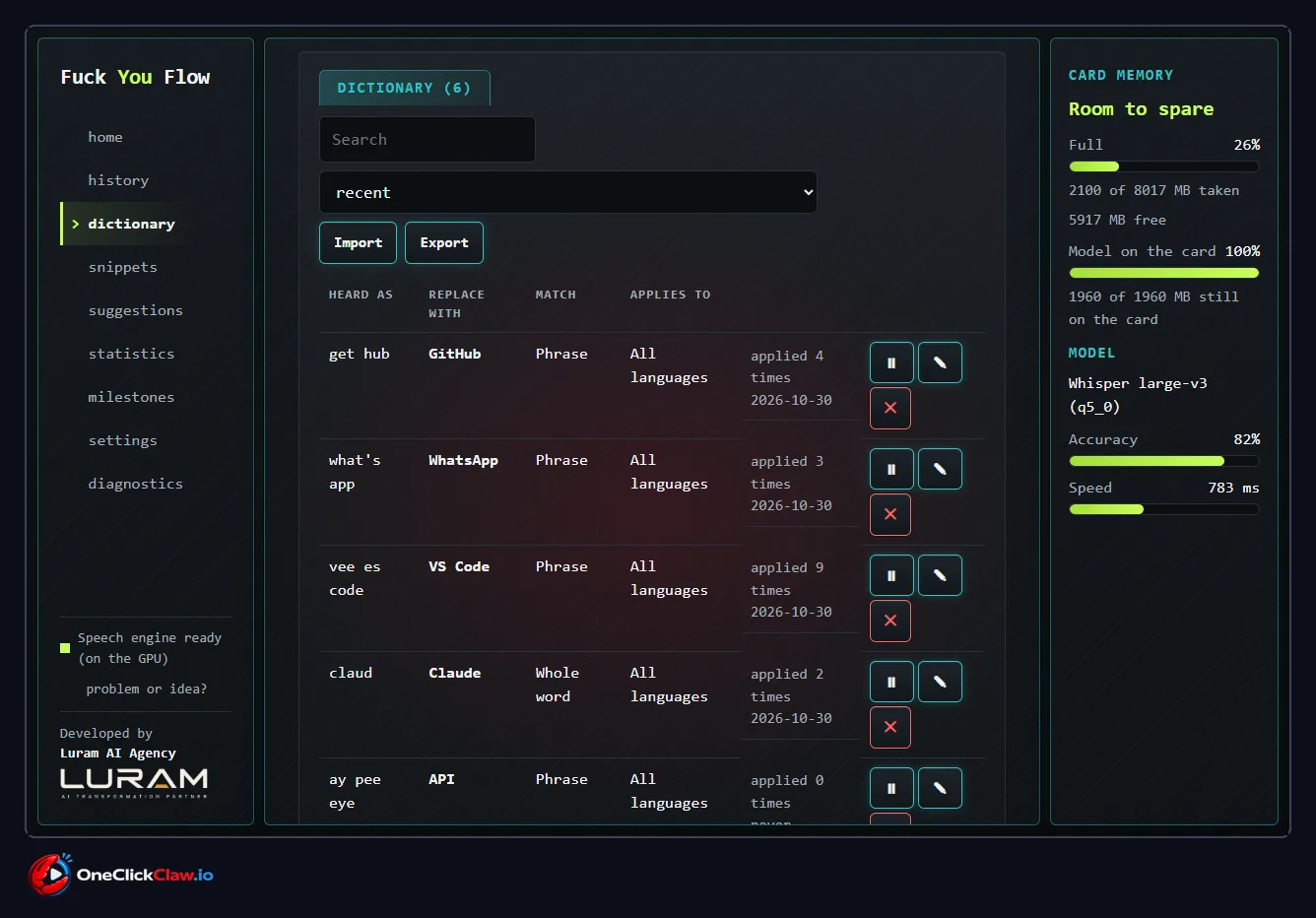
Step 10. Open "Dictionary". FU Flow's website lists it as the place for names, brands and trade terms. Add your agent's name, your company and the tools you mention often, so they come out spelled your way every time you talk to Hermes Agent or OpenClaw.
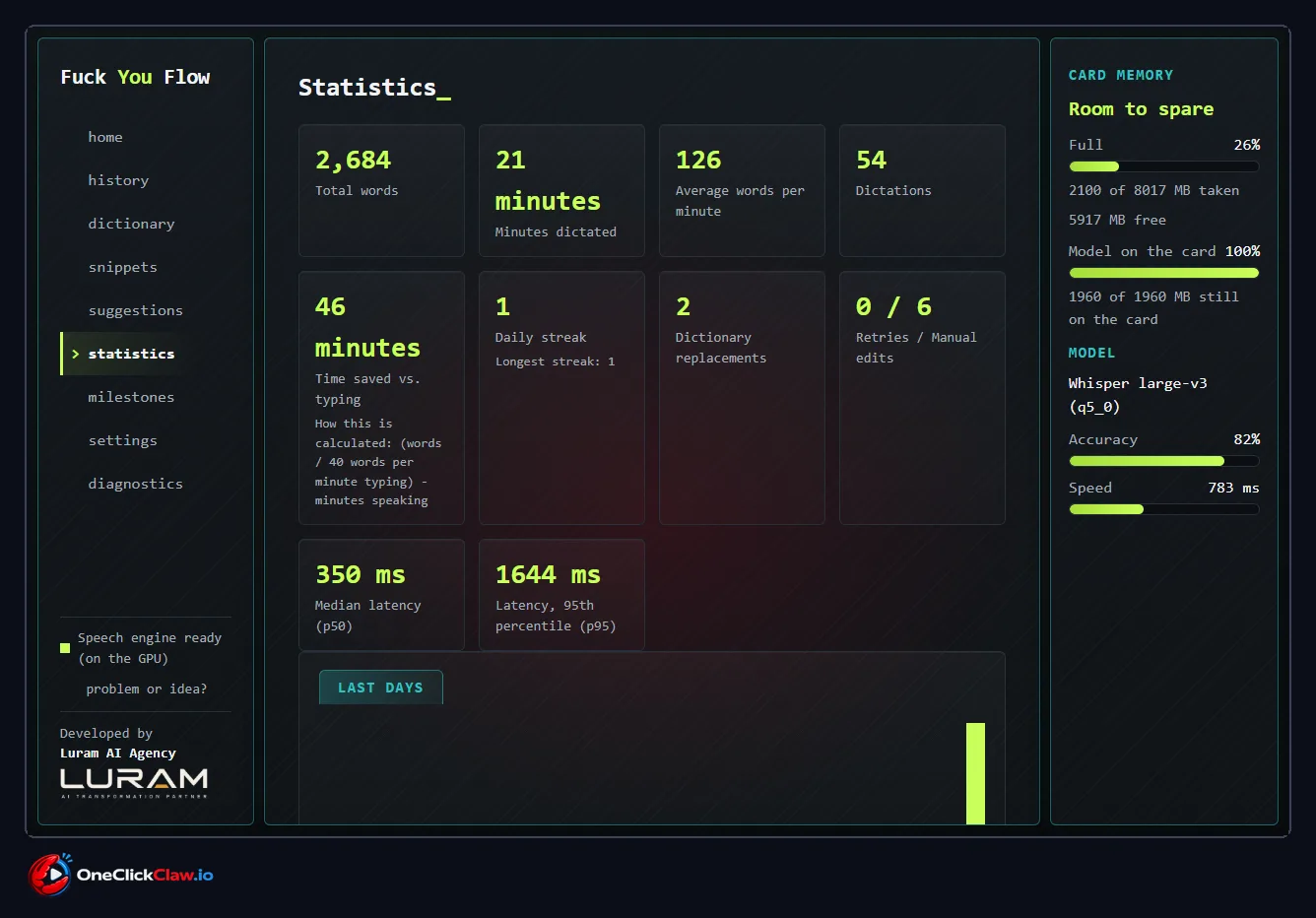
Step 11. Optionally, open "Statistics" to see the words you dictate per day and the minutes you save. FU Flow's website publishes its own speed test on an RTX 3070 graphics card with the large model: 108 words spoken in 82 seconds, with the text arriving 0.17 seconds after the speaker stopped. A longer run of 312 words in 152 seconds waited 0.88 seconds. The site adds that results vary with hardware.
Quick answers
Does FU Flow cost anything?
FU Flow's website lists the app as free, with no subscription, no weekly word cap and no account for local dictation.
Does my voice leave my PC?
The default local engine keeps your speech on your PC, according to the website. Your audio goes to an outside service only if you choose a remote speech provider in "Settings".
Do I need a powerful PC?
FU Flow's website says the app uses the graphics card on NVIDIA, AMD and Intel through Vulkan, and falls back to the processor when no suitable card is available, which is slower. On first start it picks the speech model that fits your machine. The site adds that its own speed results vary with hardware.
What if the text lands in the wrong place?
Click back into the chat box and open "History" in FU Flow. The website says every dictation is kept there, so you can copy the text and paste it where you want it. Your words stay saved on your disk, ready for another try.
Does it work with my agent on OneClickClaw?
Yes. On OneClickClaw, Hermes Agent and OpenClaw each run on their own server, 24 hours a day, 7 days a week, and the dashboard opens in the browser from any PC. FU Flow types into the browser chat box the same way it did in the steps above, while your agent keeps working on its server around the clock.
Related guides
Related guides
- Run OpenClaw 24/7: keep your agent online all the timeKeep your OpenClaw agent online day and night. The four ways to run it 24/7, eight screens that show it is awake, tips found inside the interface and the mistakes new users make.
- OpenClaw dreaming: what it does and how to switch it offOpenClaw dreaming tidies your agent's memory every night at 3 in the morning. A beginner guide with a screenshot for every step: what it does, what it costs and where the switch is.
- Hermes Agent Secure Login: Sign In Without Pasting Passwords in ChatHermes Agent can sign in to websites while the AI model never sees your password. How to save a login, use 1Password or Bitwarden, handle two-factor codes and approve card fills, step by step.
- ChatGPT Sign-In on Your Agent Waits or Times Out: Turn On Device Code Sign-InA hosted agent signs in to ChatGPT with a one-time code, and ChatGPT accepts those codes only after one switch in its security settings is on. This guide shows the switch, how to sign in again on the crab (OpenClaw) and on Hermes, and what each message means.