
Run OpenClaw 24/7: keep your agent online all the time
Keep your OpenClaw agent online day and night. The four ways to run it 24/7, eight screens that show it is awake, tips found inside the interface and the mistakes new users make.
Your OpenClaw agent can answer on Telegram, run scheduled jobs and check in on its own. All of that happens inside one program called the Gateway. According to the official OpenClaw documentation, "the Gateway must be running for schedules to fire". This guide shows the ways to keep your agent online around the clock, then walks through eight screens where you can check that it is. The screenshots come from a real OpenClaw 2026.10.5 install, opened on the 23rd of October 2026.
Always on, in plain words
Think of the Gateway as the shop that keeps your agent's lights on. Every chat connection and every scheduled job lives inside it. When the computer it runs on goes to sleep, the shop closes and messages wait outside.
- The Gateway carries every connection to Telegram, WhatsApp, Slack and Discord, plus every scheduled job.
- Saved jobs are kept. A restart loses no schedule, and by default missed runs catch up when the Gateway comes back.
- A laptop sleeps. The official FAQ says sleep, network drops, updates and reboots interrupt a laptop Gateway. It adds: "Want 24/7 reliability? Use a VPS."
Four ways to keep it running
-
Your own computer, with OpenClaw as a background service, a program that starts by itself and runs with no open window. The official getting started page gives this command:
openclaw gateway installOpenClaw then starts again after every reboot, on Mac, Linux and Windows. The computer still has to stay awake. The desktop companion has a "Keep computer awake" option in its tray menu, switched off at first.
-
A small machine that stays on. The FAQ says "a Mac mini is a popular always-on host choice, but a small VPS, home server, or Raspberry Pi-class box works too". A Raspberry Pi needs at least 1 GB of memory, 2 GB or more recommended.
-
A VPS, a rented computer that runs day and night in a data centre. The official minimum is 1 processor core, 1 GB of memory and about 500 MB of disk. The recommendation is 2 GB of memory or more. The documentation lists guides for 14 hosting providers.
-
A managed server, where a company runs OpenClaw for you. Details at the end of this guide.
Before you start
- Your OpenClaw Control UI open in your web browser. This is the screen where you chat with your agent and change its settings.
- To be signed in as the owner of that OpenClaw.
Step by step: check that your agent stays online
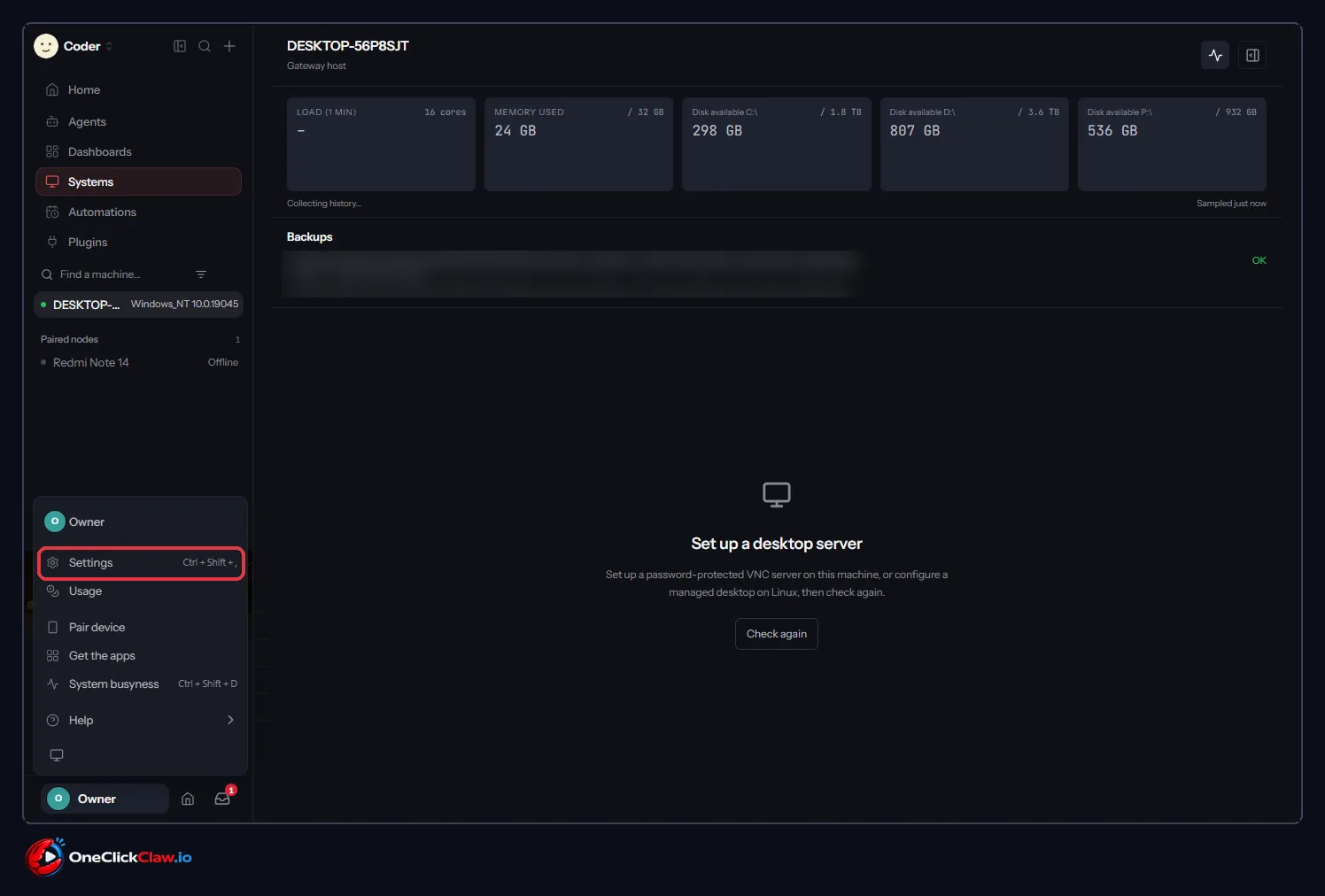
Step 1. At the bottom left of the screen, click your name. On this install it is "Owner". A menu opens with "Settings" as the first entry. You can also press Ctrl + Shift + comma.
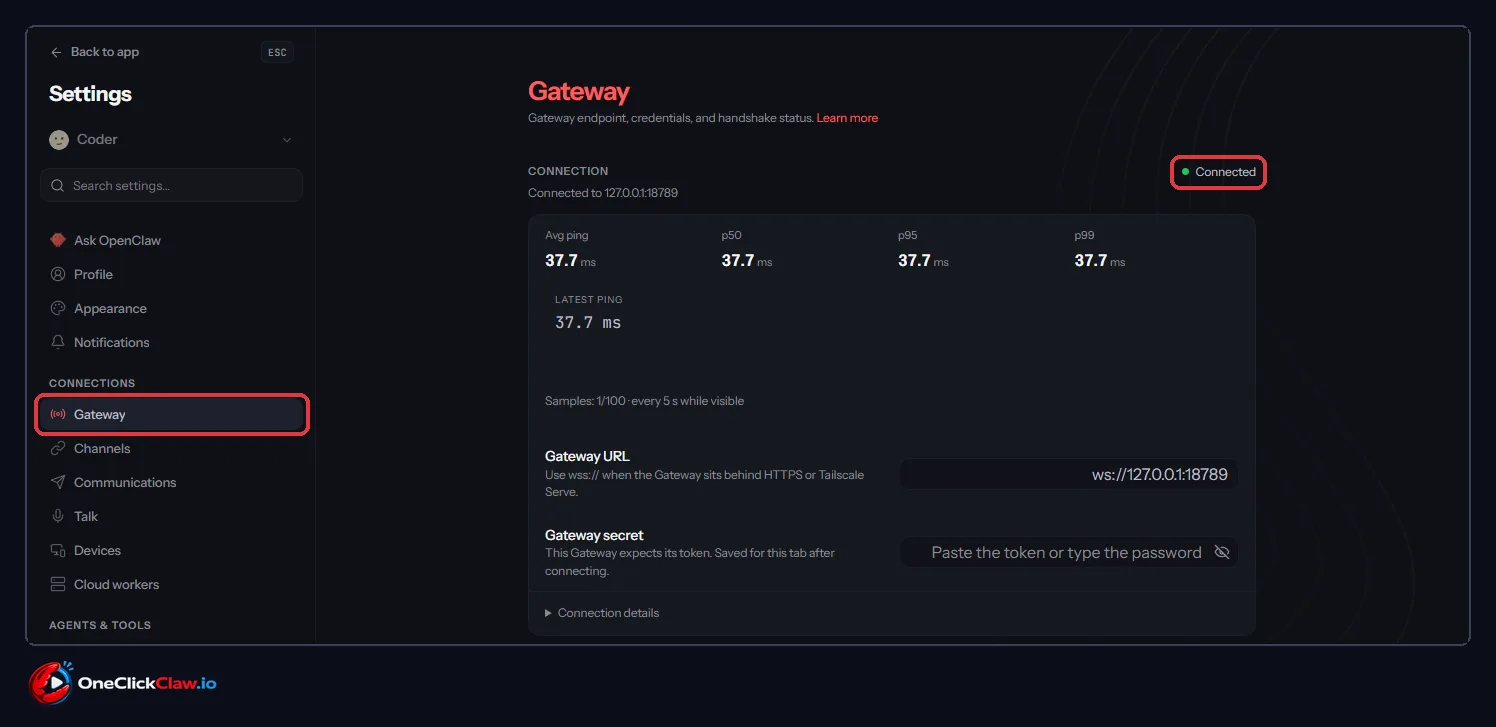
Step 2. In the left column of Settings, under "CONNECTIONS", click "Gateway". At the top right of the "CONNECTION" card a green dot says "Connected", with "Connected to 127.0.0.1:18789". The number 127.0.0.1 means the Gateway runs on this same computer. Below you see the ping numbers, which show how fast it answers, and the "Gateway URL" field.
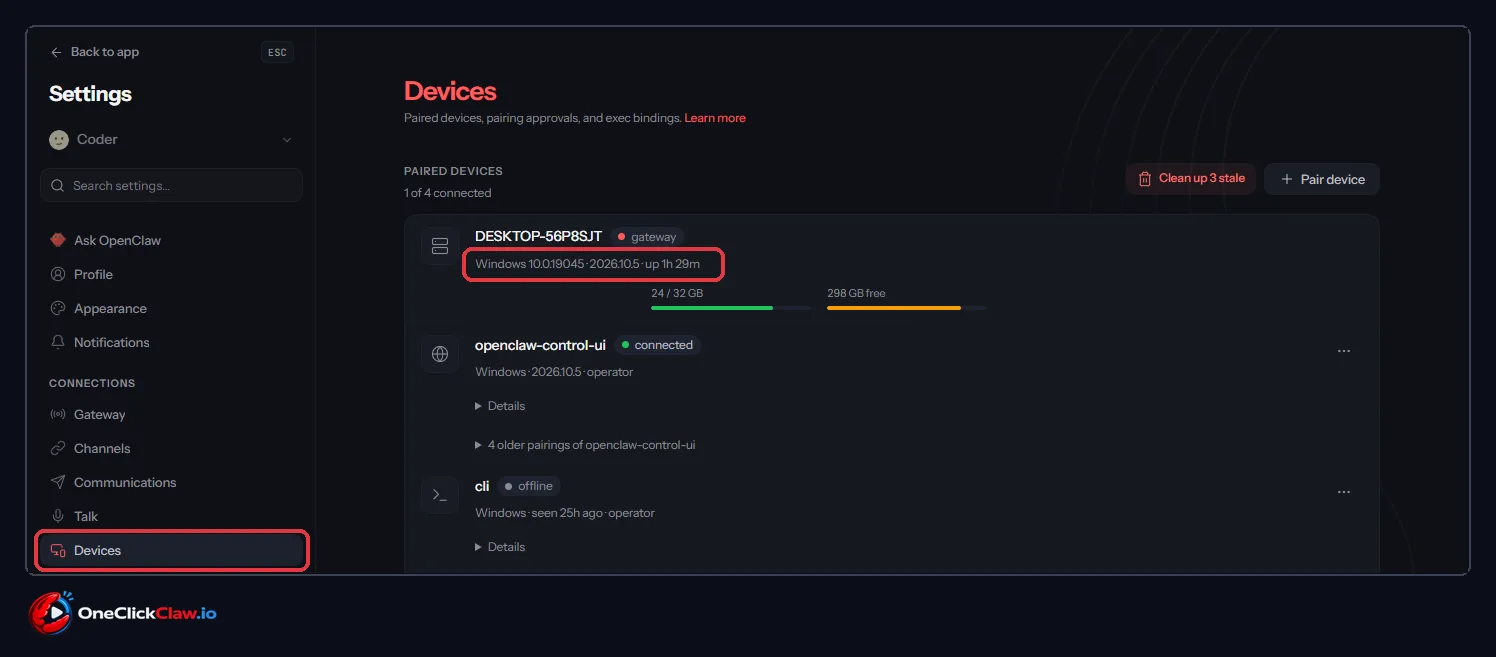
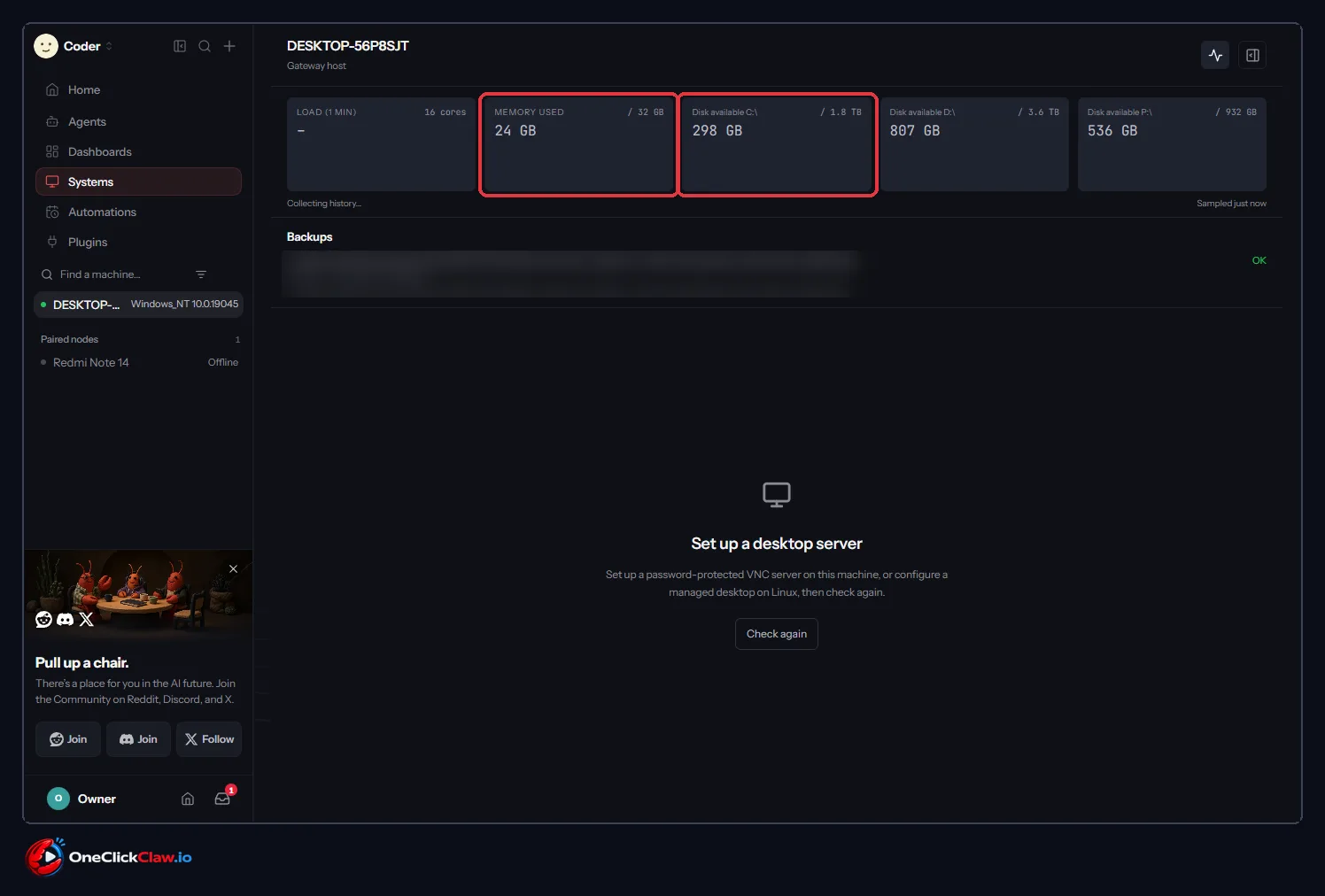
Step 3. Click "Devices". The first row is this computer, tagged "gateway". Its line ends with "up 1h 29m", which is how long the Gateway has run without a stop. Under it you see memory in use, "24 / 32 GB", and free disk, "298 GB free". The row "openclaw-control-ui", marked "connected", is your browser window.
Step 4. Go back to the main app and click "Systems" in the left menu. A row of cards appears: "LOAD (1 MIN)", which shows how busy the computer is, "MEMORY USED / 32 GB" and one "Disk available" card for each drive. A machine that runs day and night needs room in both.
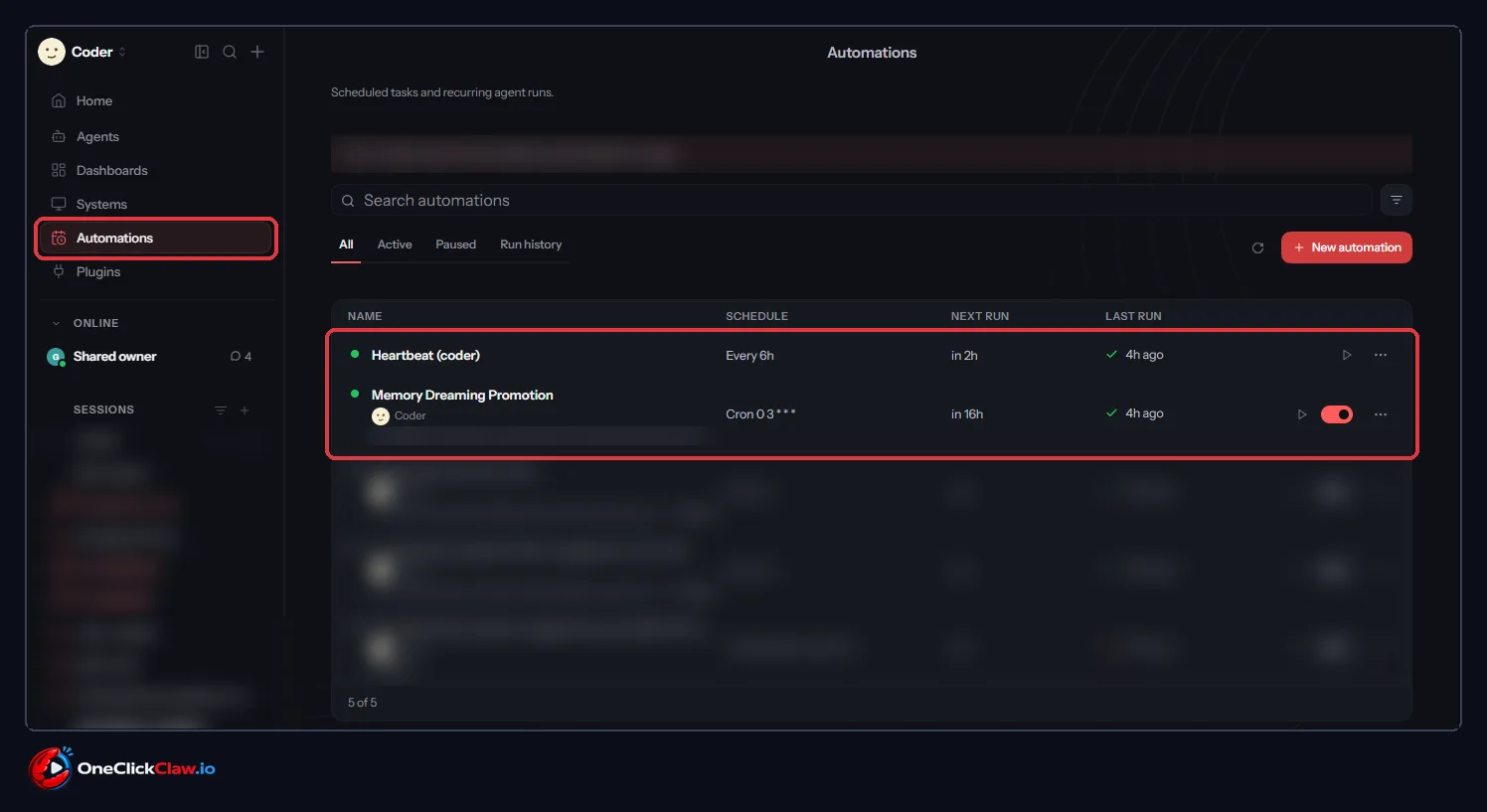
Step 5. Click "Automations" in the left menu. The table has the columns "NAME", "SCHEDULE", "NEXT RUN" and "LAST RUN". "Heartbeat (coder)" runs "Every 6h", next "in 2h", last "4h ago" with a green tick. "Memory Dreaming Promotion" runs every night. The other rows are blurred because they are private. This heartbeat was set to every 6 hours. The official default is every 30 minutes.
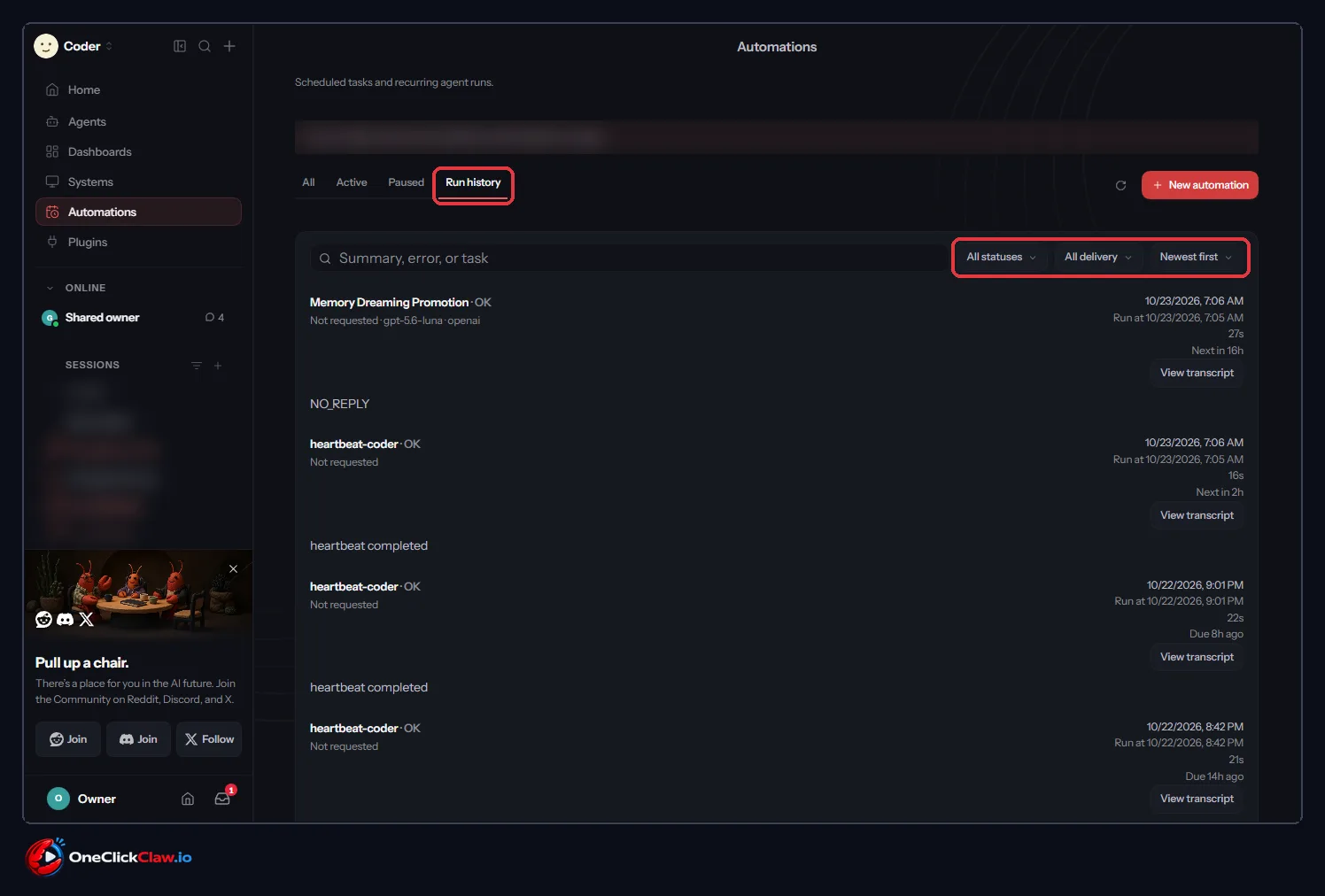
Step 6. Click the "Run history" tab. Each run shows its name, "OK", the time it ran, how long it took (16 or 27 seconds here) and a "View transcript" button, which opens what the agent did. Open this page in the morning to see whether your jobs ran during the night.
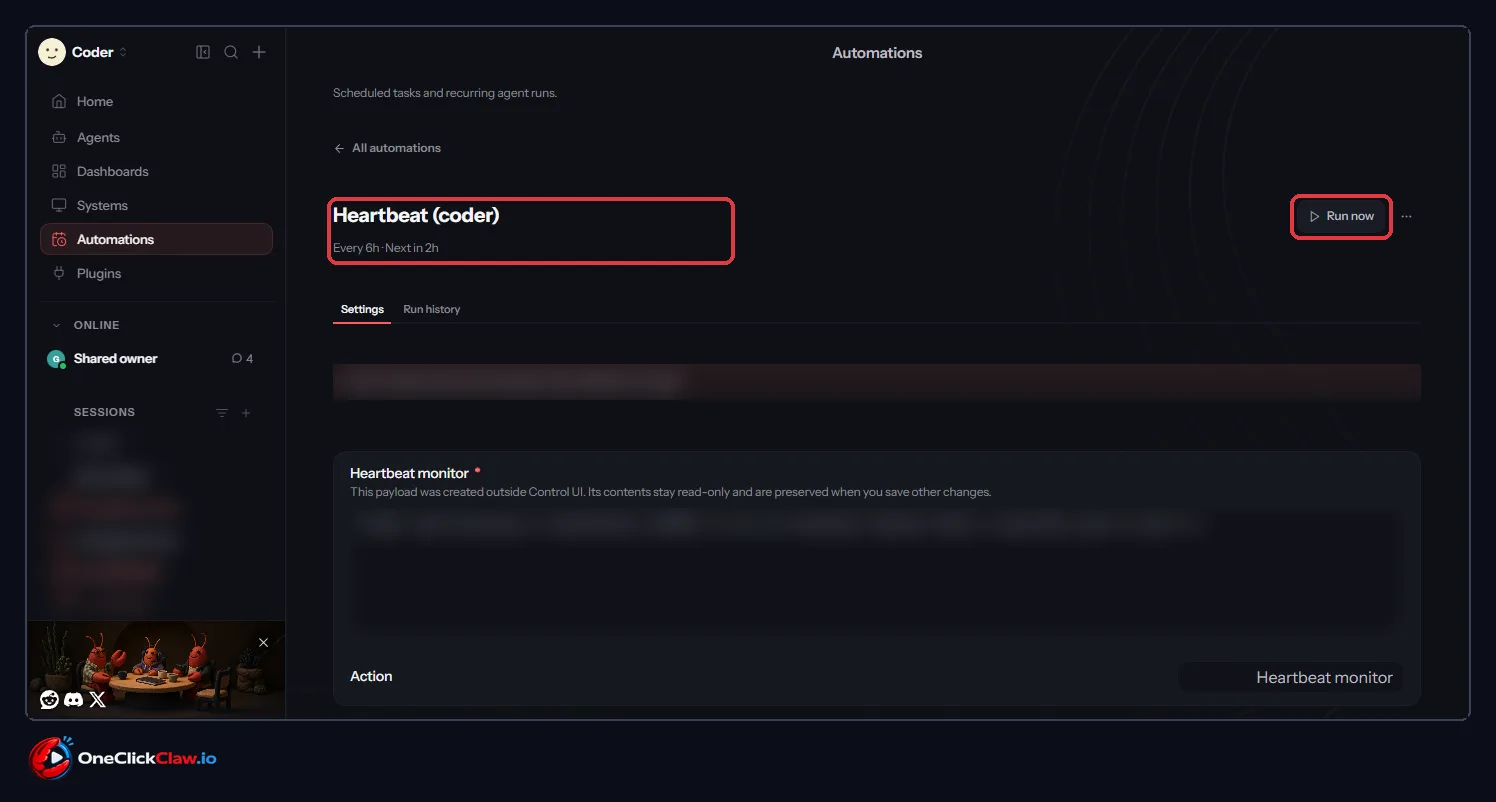
Step 7. Click a job, here "Heartbeat (coder)". At the top right is a "Run now" button. It runs the job once, straight away, so you can test it. The page has two tabs, "Settings" and "Run history".
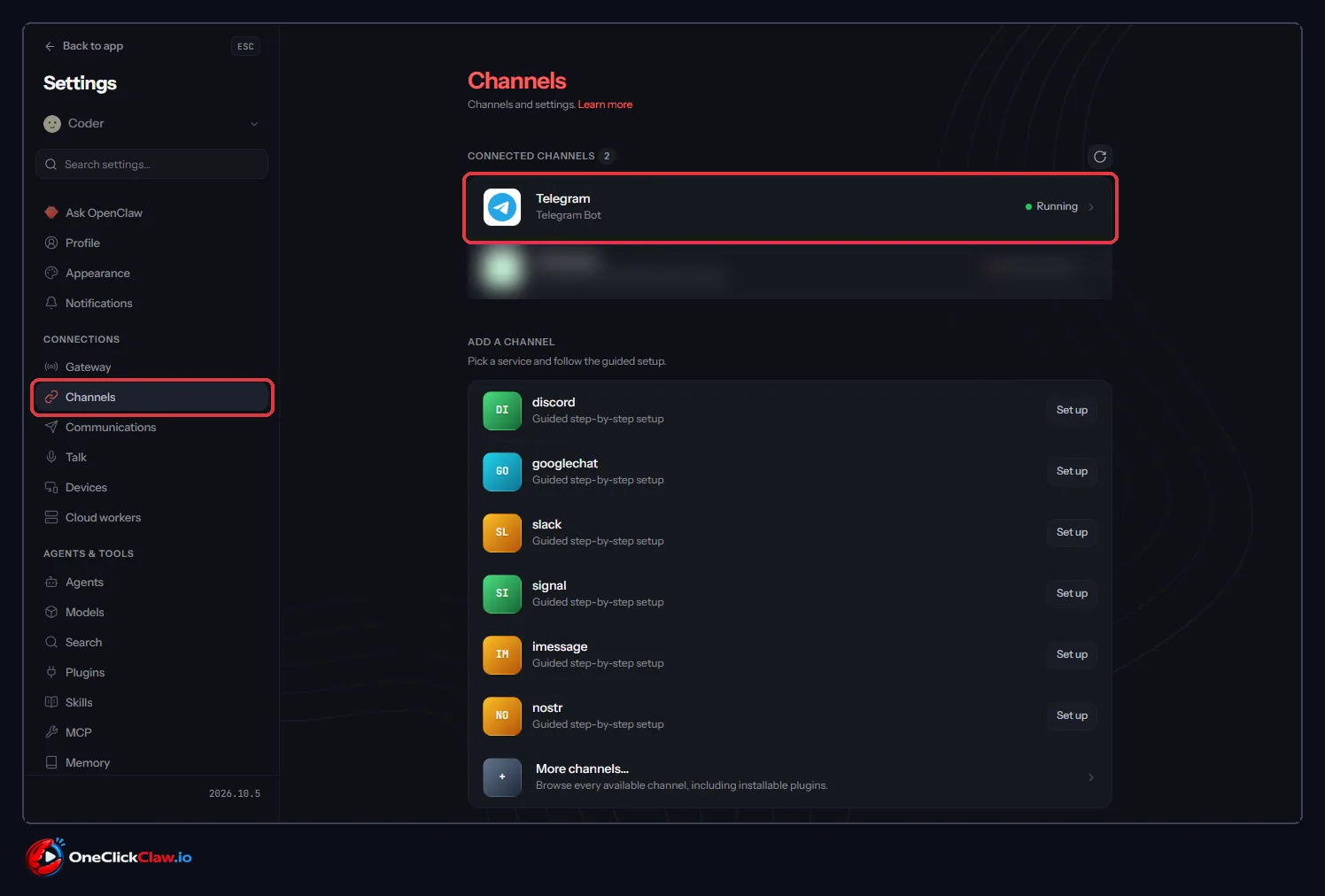
Step 8. Open Settings again and click "Channels". Under "CONNECTED CHANNELS" you see "Telegram Bot" with a green "Running". Below, "ADD A CHANNEL" offers a "Guided step-by-step setup" for discord, slack, signal and others. Telegram is how you reach an always-on agent from your phone. The documentation says: "Start with Telegram. It needs a bot token and no plugin install." A bot token is the password Telegram gives you when you create a bot.
Tips found inside the interface
- Watch the "up" time. If it keeps going back to a few minutes on "Devices", the computer slept or restarted.
- Test before you trust it. Press "Run now" and read "Run history". Or switch the computer off for ten minutes, then message your agent on Telegram.
- Make the heartbeat cheaper. The heartbeat is a regular check-in: the agent wakes, looks for anything that needs you and stays quiet otherwise. Each one is a full turn on your model plan, and the documentation warns that "shorter intervals burn more tokens" (a token is a small piece of text AI models charge by). It suggests active hours, a lighter model, or a small separate session, which cuts a run from about 100,000 tokens to about 2,000 to 5,000.
- Keep the dashboard private. Out of the box the Gateway answers only on the same computer and asks for a token. For access from elsewhere the documentation recommends Tailscale (a private network between your own devices) or an SSH tunnel (a locked line to your server).
- Check the time zone. Jobs use the time zone of the computer that runs the Gateway unless you set one.
- Take a backup before every update, with OpenClaw's own backup command.
Common mistakes new users make
- Closing the laptop lid and expecting replies. A sleeping computer answers nothing.
- Closing the terminal window OpenClaw runs in. Without the background service, the agent stops with the window and stays off after a reboot.
- Opening the Gateway to the whole internet. The security pages say "never expose the Gateway unauthenticated". Use Tailscale or an SSH tunnel. On Docker, check your ports too, because Docker can open them past the usual firewall.
- A heartbeat that runs too often on an expensive model, all night long.
- A server with too little memory. 2 GB or more is recommended.
- No phone channel. With only the browser chat, a scheduled job has nowhere to send its result.
Quick answers
Does my agent keep working when my laptop sleeps? It pauses. Saved jobs are kept, and missed runs catch up when the Gateway comes back.
How do I know my jobs ran during the night? Open "Automations", then "Run history". Each run shows "OK", the time and how long it took.
How do I talk to an always-on agent from my phone? Connect a chat channel. The documentation suggests starting with Telegram.
OneClickClaw runs OpenClaw on its own managed server for you, so your agent stays online while your computer is off. The Starter plan is EUR 14.99 a month, with a 7-day free trial.
Related guides
- OpenClaw dreaming: what it does and how to switch it off
- OpenClaw Security: How to Lock Down an Install
- Fix: OpenClaw stops when the Mac mini sleeps
- OpenClaw Setup Without the Command Line: Your Options
Sources: the official OpenClaw documentation at docs.openclaw.ai, read on the 23rd of October 2026.
Related guides
- OpenClaw dreaming: what it does and how to switch it offOpenClaw dreaming tidies your agent's memory every night at 3 in the morning. A beginner guide with a screenshot for every step: what it does, what it costs and where the switch is.
- How to Lock Down an OpenClaw InstallOpenClaw keeps the Gateway on the local machine and pairs unknown senders by default, while sandboxing waits for the operator. This guide covers the defaults, the documented checks and a five-point check for an install already in use.
- The Terminal Step Is Where Most People StopEvery official OpenClaw install route starts with a terminal command. This guide explains each documented command, what it assumes, how to confirm the install worked, and the managed route that removes the terminal step.
- ChatGPT Sign-In on Your Agent Waits or Times Out: Turn On Device Code Sign-InA hosted agent signs in to ChatGPT with a one-time code, and ChatGPT accepts those codes only after one switch in its security settings is on. This guide shows the switch, how to sign in again on the crab (OpenClaw) and on Hermes, and what each message means.