
ChatGPT Sign-In on Your Agent Waits or Times Out: Turn On Device Code Sign-In
A hosted agent signs in to ChatGPT with a one-time code, and ChatGPT accepts those codes only after one switch in its security settings is on. This guide shows the switch, how to sign in again on the crab (OpenClaw) and on Hermes, and what each message means.
You pressed the ChatGPT sign-in on your agent, a one-time code appeared, you typed it on the OpenAI page, and then the agent kept waiting. The window ended with "timed out after 15 minutes", or the OpenAI page refused the code. Sometimes the agent shows a short line on its own: "OpenAI Codex device code login is not enabled".
In most of these cases one switch in your ChatGPT account is off. ChatGPT accepts one-time sign-in codes only after you turn that switch on. It lives in your ChatGPT settings, it takes about ten seconds, and you do it once. This guide shows where the switch is, how to sign in again on the crab (OpenClaw) and on Hermes, and what each message means.
Why your agent signs in with a code
Your agent runs on its own server in a data centre. A plain "Sign in with ChatGPT" button expects the browser and the agent to sit on the same computer, because the answer from OpenAI comes back to that computer. A hosted agent lives somewhere else, so it asks for a one-time code: the agent shows the code, you approve it on the OpenAI page in your own browser, and OpenAI hands the agent its sign-in. That is the route built for a server in a data centre, and it is the one both the crab and Hermes use with a ChatGPT plan.
OpenAI treats these codes with care, because a code can be phished. That is why the switch exists. Turning it on tells OpenAI that you expect code sign-ins on your account and want them accepted.
Code sign-in works with a paid ChatGPT plan from Plus up. One switch covers both agents, because both use the same OpenAI sign-in.
Turn on device code sign-in in two steps
- Open your ChatGPT security settings. On chatgpt.com click your name or picture, open Settings, then Security and login. The direct address is chatgpt.com/settings/security.
- Turn on the switch. Scroll down to App security and turn on Enable device code sign-in for Codex, Excel, PowerPoint, and Word. The switch turns blue and saves by itself.
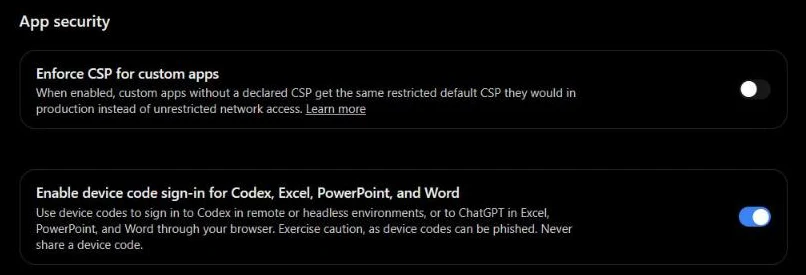
The name lists Codex, Excel, PowerPoint and Word because OpenAI uses the same code sign-in for all of them. Your agent signs in through the Codex route, so this is the right switch.
On a ChatGPT Business, Enterprise or Edu workspace the switch can be greyed out. A workspace admin turns device code sign-in on for the whole workspace, and after that it works for every member.
Sign in again on the crab (OpenClaw)
- On the OneClickClaw dashboard press Open agent. The crab opens on its Model Setup page.
- Find the row Codex login (device code) and press Set up & verify. Servers on OpenClaw older than 2026.9.9 call the same row ChatGPT Device Pairing, sometimes under More sign-in options, and the oldest call the button Pair.
- Press Open sign-in, log in on the OpenAI page with the account that has the switch on, type the code and approve.
- Go back to the crab's tab and leave it open. Once OpenAI confirms, the crab sends one short test message and marks the model as verified.
Each code works for 15 minutes. If a window from before the switch is still waiting, press Cancel and start a fresh sign-in, so the new code gets its full 15 minutes.
Sign in again on Hermes
- On the server page of the OneClickClaw dashboard open the AI Model tab.
- On the AI Provider card press Sign in with ChatGPT. The card shows a code in large type, a Copy button and a link to the OpenAI page.
- Open the link, log in with the account that has the switch on, type the code and approve. The card notices the approval by itself and sets a model your plan can run.
Then open the Hermes chat and say hello. A reply means the plan is connected, and every channel you add later uses the same sign-in.
Messages you may see, and what they mean
- "OpenAI device authorization timed out after 15 minutes." The code was never approved in time. Most often the switch was off, so OpenAI held the code back. Turn the switch on, then start a fresh sign-in.
- "OpenAI Codex device code login is not enabled for this server. Use ChatGPT OAuth instead." OpenAI refused to start a code sign-in at that moment. Check the switch, wait a few minutes and press the button again. If it comes back, open a ticket. Stay with the device code row: the OAuth and browser login buttons expect a browser on the same computer as the agent, and on a hosted server their last step has nowhere to land.
- "API rate limit reached" or a usage limit message right after sign-in. The sign-in worked and your ChatGPT plan has used its allowance for now. Wait for it to reset, or connect an API key.
- "Could not finish" with "already in progress". An earlier sign-in is still open in another tab. Finish or cancel it there. If you closed that tab, reboot the server from the Server page of the dashboard and try again.
Is the switch safe to leave on?
OpenAI's own note under the switch says that device codes can be phished and asks you never to share one. Keep that one rule: type a code only when you started the sign-in yourself, on your own agent, a moment earlier. A code that reaches you by email, chat or phone call from someone else is a phishing attempt, and you can ignore it. OneClickClaw support never asks you for a code.
Still waiting? Four quick checks
- Is the switch blue? Reload chatgpt.com/settings/security and look at App security again.
- Is it the same ChatGPT account? The OpenAI page signs in whichever account the browser has open. The switch has to be on in that same account.
- Is the plan paid? Code sign-in needs Plus or higher. With a free ChatGPT account, connect an API key: Add provider on the crab, or Manage keys in Hermes.
- Still stuck? Every server page has a Stuck? Get help link. It opens a ticket for that exact server, and support can see the agent's state from our side.
Frequently asked questions
- Why does ChatGPT sign-in on my agent wait and then time out?
- Most often device code sign-in is switched off in your ChatGPT account, so OpenAI holds the code back. Open chatgpt.com, Settings, Security and login, App security, and turn on Enable device code sign-in for Codex, Excel, PowerPoint, and Word. Then start a fresh sign-in on the agent.
- Where is the device code switch in ChatGPT?
- chatgpt.com/settings/security, section App security, switch Enable device code sign-in for Codex, Excel, PowerPoint, and Word. On a Business, Enterprise or Edu workspace the admin turns it on for the workspace.
- What does OpenAI Codex device code login is not enabled mean?
- OpenAI refused to start a code sign-in at that moment. Check the switch, wait a few minutes and try again; if it comes back, open a support ticket. On a hosted server stay with the device code row: Codex login (device code), called ChatGPT Device Pairing on older servers.
- Which ChatGPT plans can sign in on a hosted agent?
- Paid plans from Plus up. A free ChatGPT account connects with an API key: Add provider on the crab (OpenClaw), or Manage keys in Hermes.
Related guides
- Your Crab or Hermes Stays Silent After Setup: Connect an AI Model FirstA freshly built server runs the agent, and the agent waits for an AI model. Until a model answers one test request, every chat stays quiet. This guide shows where that one step lives for the crab (OpenClaw) and for Hermes, where an API key comes from, and what to check when the silence stays.
- Best AI Models for OpenClaw and Hermes Agent in 2026OpenClaw and Hermes Agent both need an AI model to think with. This guide lists twelve ways to connect one, by API key, by subscription sign-in or on your own machine with Ollama, with what each costs in a month.
- OpenClaw update failed: what to check and how to roll backWhen an OpenClaw update stops halfway, the program has usually put the old version back on its own before you even read the message. Your job is to read what it wrote down, fix the one thing it named and run the update again. This guide walks through that in order, using the official OpenClaw documentation and the project's public issue tracker, both read on the 6th of October 2026.
- Hermes Agent broke after an update: what to check firstThree checks in order when Hermes Agent stops working after an update: the version, the built-in doctor and the gateway, plus how to read the common warnings and get back to a working version.