
Hermes Agent Secure Login: Sign In Without Pasting Passwords in Chat
Hermes Agent can sign in to websites while the AI model never sees your password. How to save a login, use 1Password or Bitwarden, handle two-factor codes and approve card fills, step by step.
Hermes Agent can sign in to websites for you while the AI model behind it never sees your password. The feature, called Passwords & Logins, shipped in Hermes Agent version 0.22.0, "The Threshold Release", which Nous Research published on the 14th of October 2026, according to the project's release page on GitHub. On the same day, a post by HermesWatcher on X walked through it. By the 28th of October it had passed 33,000 views and 500 bookmarks, according to the counter on X.
Hermes Agent is Nous Research's open source personal AI agent: it runs on your own computer or on a server and can use tools, such as a web browser, to do jobs for you. This guide shows how to let it log in to your accounts with no password ever typed into the chat. It follows the official Passwords & Logins page in the Hermes documentation, read on the 28th of October 2026.

Secure login, in plain words
Think of Hermes as a trusted assistant who carries a sealed envelope to the door. The assistant hands it over, the door opens, and the envelope never gets opened on the way. Your password is the letter inside.
- The model never reads it. The model is the AI brain that writes the replies. According to the documentation, the password stays out of its view, out of the logs and out of the saved chat history.
- A vault keeps it. A vault is an encrypted password store, meaning the passwords are scrambled and only Hermes's own key turns them back into text.
- It fills only the right site. Each login is tied to the exact web address it was saved for. Hermes fills it there and nowhere else.
- Nothing to switch on. The documentation says there is nothing to set up. It works the first time you ask.
What it costs and what you need
Passwords & Logins is part of Hermes Agent itself, which is free and open source. 1Password and Bitwarden are optional and keep their own plans.
- Hermes Agent version 0.22.0 or newer, with its browser tool in use.
- One place to type privately: the Hermes Desktop app, or Hermes in a terminal. A terminal is the text window where you type commands.
Step by step: save your first login
Step 1. Ask in plain words, for example "log into GitHub for me". Hermes opens the site in its browser and finds the sign-in page.
Step 2. The first time, Hermes has no login for that site, so it asks you in a private box. In Hermes Desktop this is a card called "Save your github.com login?" with two fields: your email or username, and your password, shown as dots. In the terminal it is a small panel with a lock, "Save login for github.com".
Step 3. Type your details and click "Save & sign in". Hermes stores the login in its vault, fills the page and carries on. "Don't save" tells it to stop asking for this request.
Step 4. From now on the agent signs in by itself. To see what is saved, open "Settings", then "Passwords & Logins", then "Saved credentials". Each login shows its name, your email or username, the site and the date it was added. "Add" sits at the top right, and the bin icon beside a login removes it.
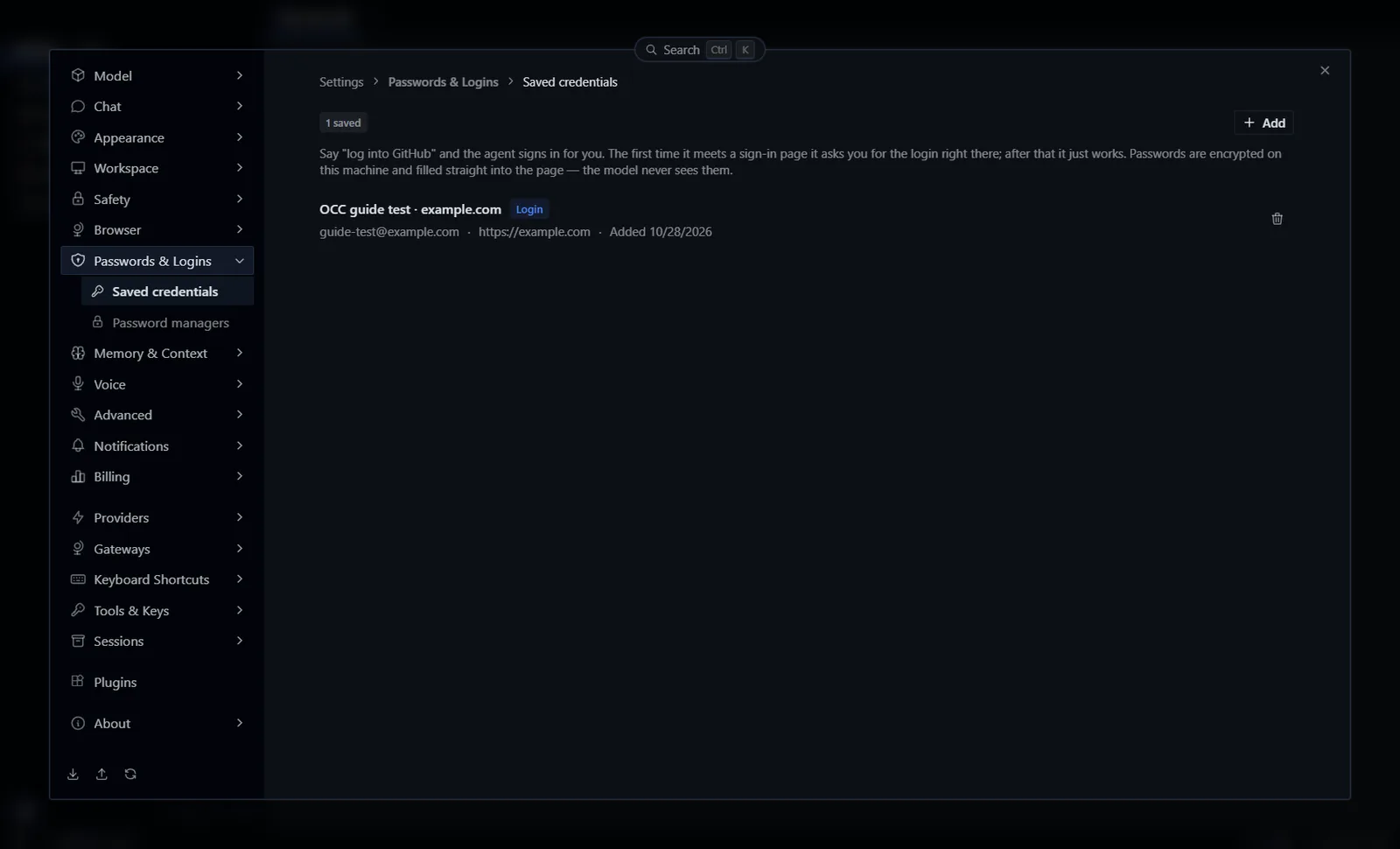
Important: what the model gets back after a fill is a short note: one field filled, on the right site. The documentation adds that the password is also marked for hiding, so a later read of the page cannot repeat it back.
Use the password manager you already have
A password manager is an app that remembers all your passwords for you. Hermes works with two of them, 1Password and Bitwarden, through their CLI. A CLI is a text command tool: the same app, driven by typed commands.
Step 5. Install the command tool for your manager. 1Password's own guide gives this for Windows:
winget install 1password-cliFor Bitwarden, its own help page gives this for any computer with Node.js, a common helper program:
npm install -g @bitwarden/cliStep 6. Sign the tool in once. For 1Password, open the 1Password app, go to "Settings", then "Developer", and tick "Integrate with 1Password CLI". For Bitwarden, type this and follow the questions:
bw loginStep 7. Check that Hermes found it. Open "Settings", then "Passwords & Logins", then "Password managers". 1Password and Bitwarden each show a status. A manager Hermes has found gets an "Unlock" button. One it has not found reads "Not detected", with a note on which command tool to install. In a terminal, this command shows the same list:
hermes vault sources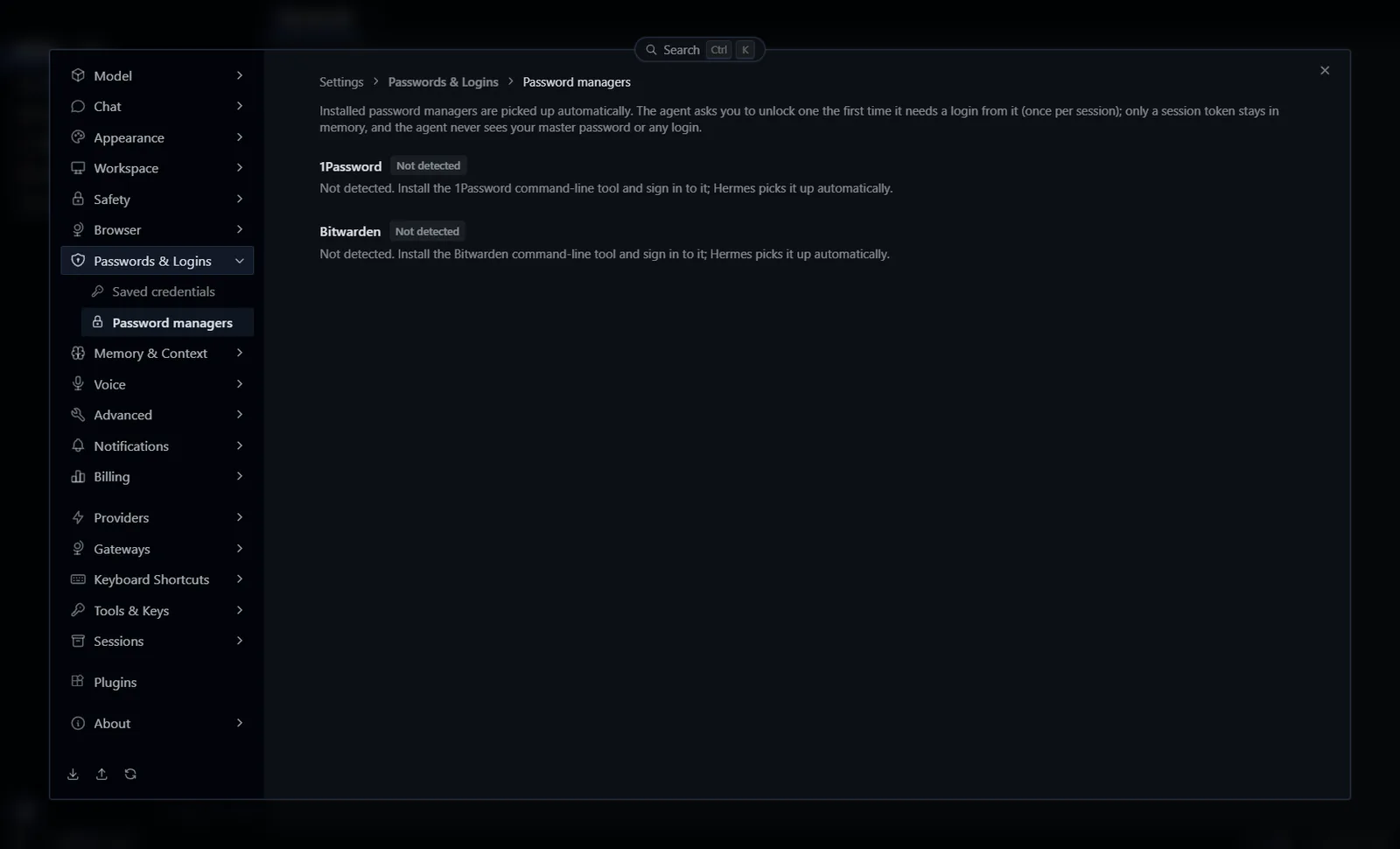
Step 8. The first time the agent needs one of those logins, it asks for your master password in a masked box. The master password is the one that opens the whole manager. You type it once per session, and the manager locks again after 30 minutes without use. Hermes passes it straight to the manager and keeps only a short-lived key in memory, the documentation says. The agent never sees the master password, the key or any login.
Two-factor codes
2FA, or two-factor authentication, is a second code a site asks for after the password, usually from your phone. Hermes handles it in three ways, according to the documentation.
- Fully automatic. When you switch on 2FA, a site shows a "setup key". Save that key with the login and Hermes makes the current code itself. 1Password and Bitwarden items that already hold such a key work too.
- A code sent to you. For a code that arrives by text message or email, a small box appears, "Verification code for github.com". You type it and Hermes puts it into the page.
- A tap on your phone. For a passkey, a security key or an "Approve" button in an app, the agent asks you to finish on your device and waits.
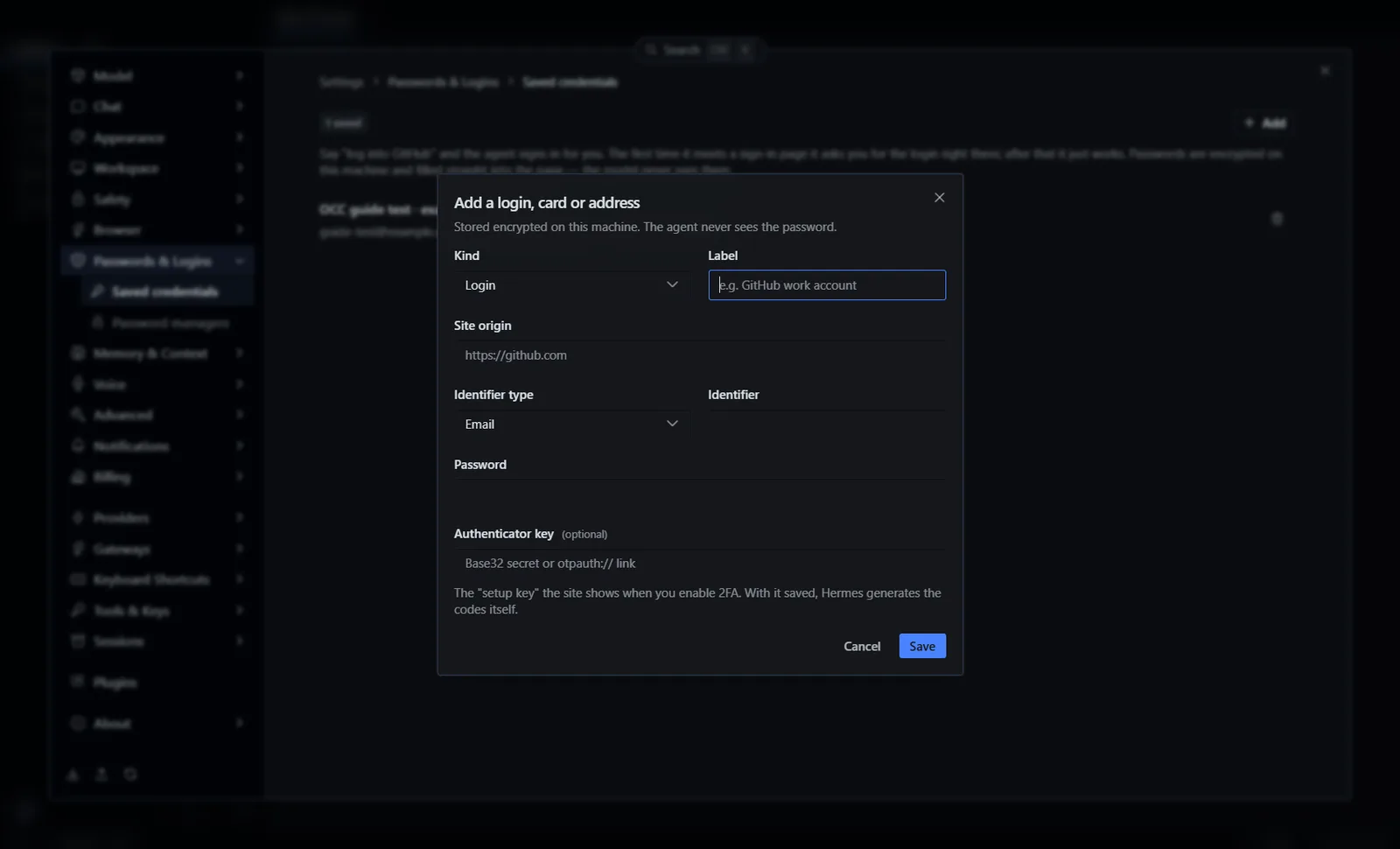
Step 9. To make codes automatic, open "Settings", then "Passwords & Logins", then "Add". A form called "Add a login, card or address" opens. Choose "Login" under "Kind", then fill in the site address, your email or username and your password. Paste the setup key into the optional "Authenticator key" field and click "Save". The saved login then shows a "2FA auto" badge.
Cards and addresses at checkout
Hermes can also fill a delivery address and a payment card, saved the same way and tied to one shop's address.
Step 10. Save them with the same "Add" form under "Settings", then "Passwords & Logins", choosing a card or an address under "Kind". When Hermes reaches that shop's checkout, it asks your approval before every card fill, with the same prompt it uses for risky commands. Address fills go ahead without a question.
Important: jobs that run on a timer, with nobody watching, can never fill a card. The documentation puts it plainly: a trick hidden in a web page "can ask, but it cannot spend".
When it does not sign in: what to check
- The site address must match exactly. A login saved for one address fills only there. If a site signs you in on a second address, add that address to the saved item.
- Save first, then use it from your phone. The private boxes appear in Hermes Desktop and the terminal. In a chat app such as Telegram, the project's issue list on GitHub shows they are still being added, as of the 26th of October 2026. Save the login once on the computer, in Hermes's own vault, and requests from Telegram then sign in by themselves.
- Codes by text message in a chat app. For the same reason, save the site's setup key so Hermes makes the code on its own.
- Timed jobs need everything ready. A job that runs on a schedule has nobody to answer a box. Saved Hermes logins keep working there. A password manager has to be opened from the computer first, or 1Password can use a service account, a separate key made for unattended work.
- Bitwarden has two tools with similar names. Passwords & Logins uses the password manager tool, "bw". Bitwarden Secrets Manager, "bws", is a different product for app keys.
- Cards live in Hermes's own vault. Save your card there. Some shops show the card box inside a separate payment window run by a payment company, and there you type the card yourself.
How this differs from pasting a password into chat
Anything typed into a chat becomes part of the conversation. It is stored in the history, sent to the AI model and can turn up again later. A password sent through the private box takes a different road: from you, to the vault, to the page.
The documentation is clear on the limit too. Once the password is in the page, that website has it, exactly as when you type it yourself. The address check guards against the wrong site, and the vault guards the rest.
Quick answers
Do I have to set anything up? No. Ask Hermes to log in and it asks you for the login the first time.
Where are my passwords kept? Encrypted, on the computer or server where Hermes runs. You can move the vault key into your computer's own keychain with one command, "hermes vault key migrate --to keychain".
Can I turn off a password manager Hermes found? Yes, with its switch on the "Password managers" page, under "Settings", then "Passwords & Logins".
Will it pay for things on its own? Every card fill waits for your yes, and unattended jobs are refused.
OneClickClaw runs Hermes Agent on a dedicated server of your own, so the vault and its key stay on that one machine, which stays online while your computer is off. The Starter plan is EUR 14.99 a month, with a 7-day free trial.
Related guides
- How to Install Hermes Agent and Start Your First Chat
- Connect Hermes Desktop to a Remote Gateway or Server
- Hermes Agent broke after an update: what to check first
- OpenClaw Security: How to Lock Down an Install
Sources: the official Hermes Agent documentation at hermes-agent.nousresearch.com, the Hermes Agent release notes and issue list on GitHub, the 1Password CLI and Bitwarden CLI help pages, all read on the 28th of October 2026, and the HermesWatcher post on X of the 14th of October 2026.
Related guides
- How to Install Hermes Agent and Start Your First ChatInstall Hermes Agent, connect a model, verify your first chat and add Telegram when you want to message it away from your computer.
- Connect Hermes Desktop to a Remote Server: The GuideHow to run Hermes Desktop as a thin client against a Hermes on an always-on server, using the remote mode documented in issue 38602: HERMES_DESKTOP_REMOTE_URL and HERMES_DESKTOP_REMOTE_TOKEN set before first launch, plus the three recorded traps.
- Hermes Agent broke after an update: what to check firstThree checks in order when Hermes Agent stops working after an update: the version, the built-in doctor and the gateway, plus how to read the common warnings and get back to a working version.
- Run OpenClaw 24/7: keep your agent online all the timeKeep your OpenClaw agent online day and night. The four ways to run it 24/7, eight screens that show it is awake, tips found inside the interface and the mistakes new users make.