
Install Your First Hermes Skill and Check It Before You Trust It
Hermes Agent can learn new jobs from skills, small instruction packs you add with a few clicks. Many are shared online, and anyone can publish one. This beginner guide shows how to find a skill, check who made it, install it, test it and switch it off, with a screenshot for every step.
Rather skip the setup? We run Hermes Agent for you on your own server. Free for 7 days.
Start my free Hermes trial
What a skill is, in plain words
Think of a recipe card. The cook already knows how to cook. The card tells them how to make one dish, step by step. A skill is a recipe card for Hermes: a written file that teaches it one job, such as drawing text art, reading a spreadsheet or checking the weather.
Some skills come from Nous Research, the company that makes Hermes Agent. Many more come from the community, which means anyone on the internet. The difference is who published them, and the Hermes screen shows that with a small badge.
Before you start
- A Hermes Agent with its dashboard open in your browser. On OneClickClaw, the Open button on your dashboard takes you there.
- Five minutes. Our test install took a few seconds.
OneClickClaw took every screenshot below on the 20th of November 2026, on a fresh Hermes Agent server running version 0.23.2. The skill in this guide is ascii-art, which draws large text banners out of ordinary keyboard characters.
Step by step: install your first skill
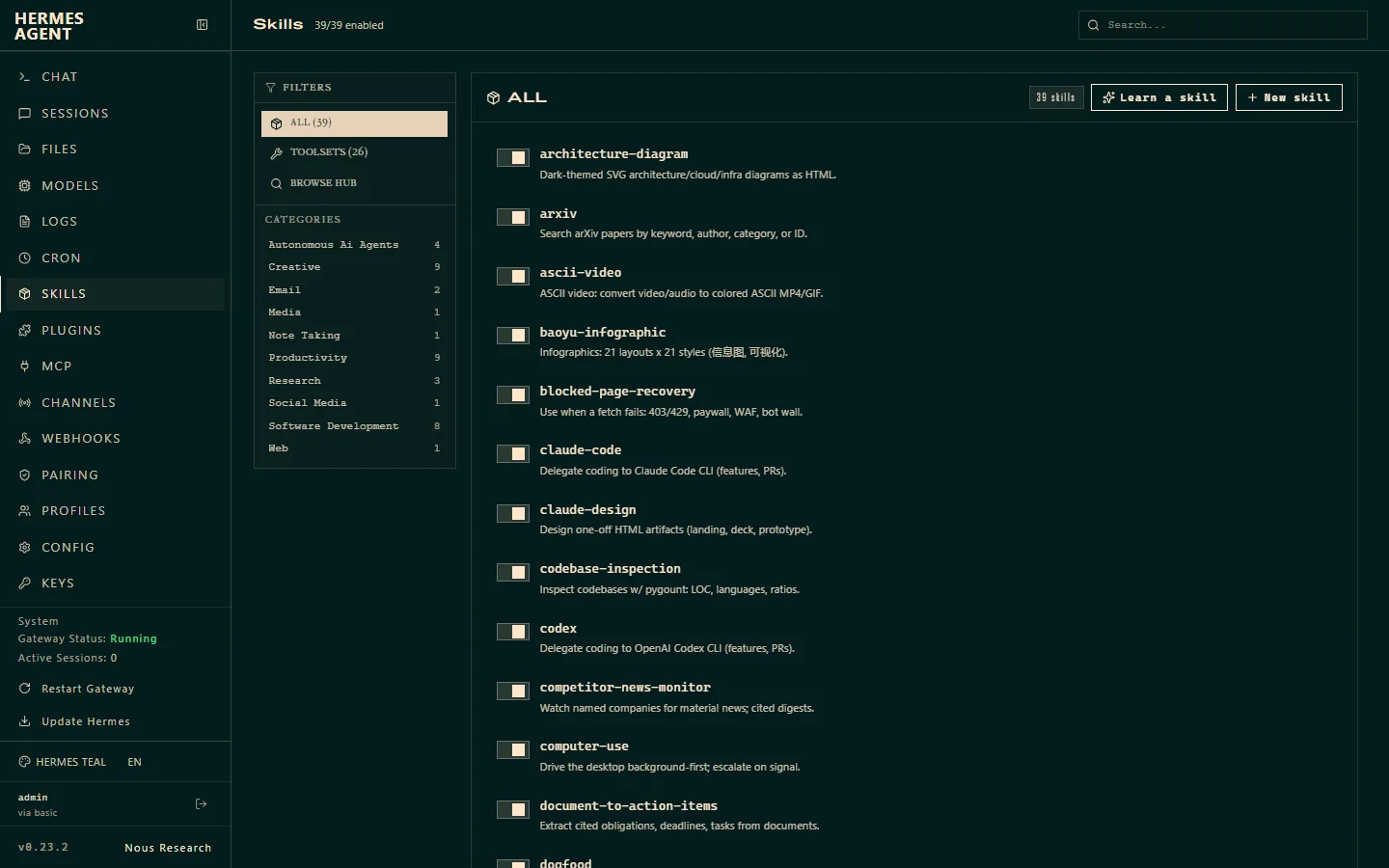
Step 1. Open the Skills page. Click Skills in the menu on the left. You see every skill your Hermes already has, each with a switch. Ours started with 39 skills, all switched on.
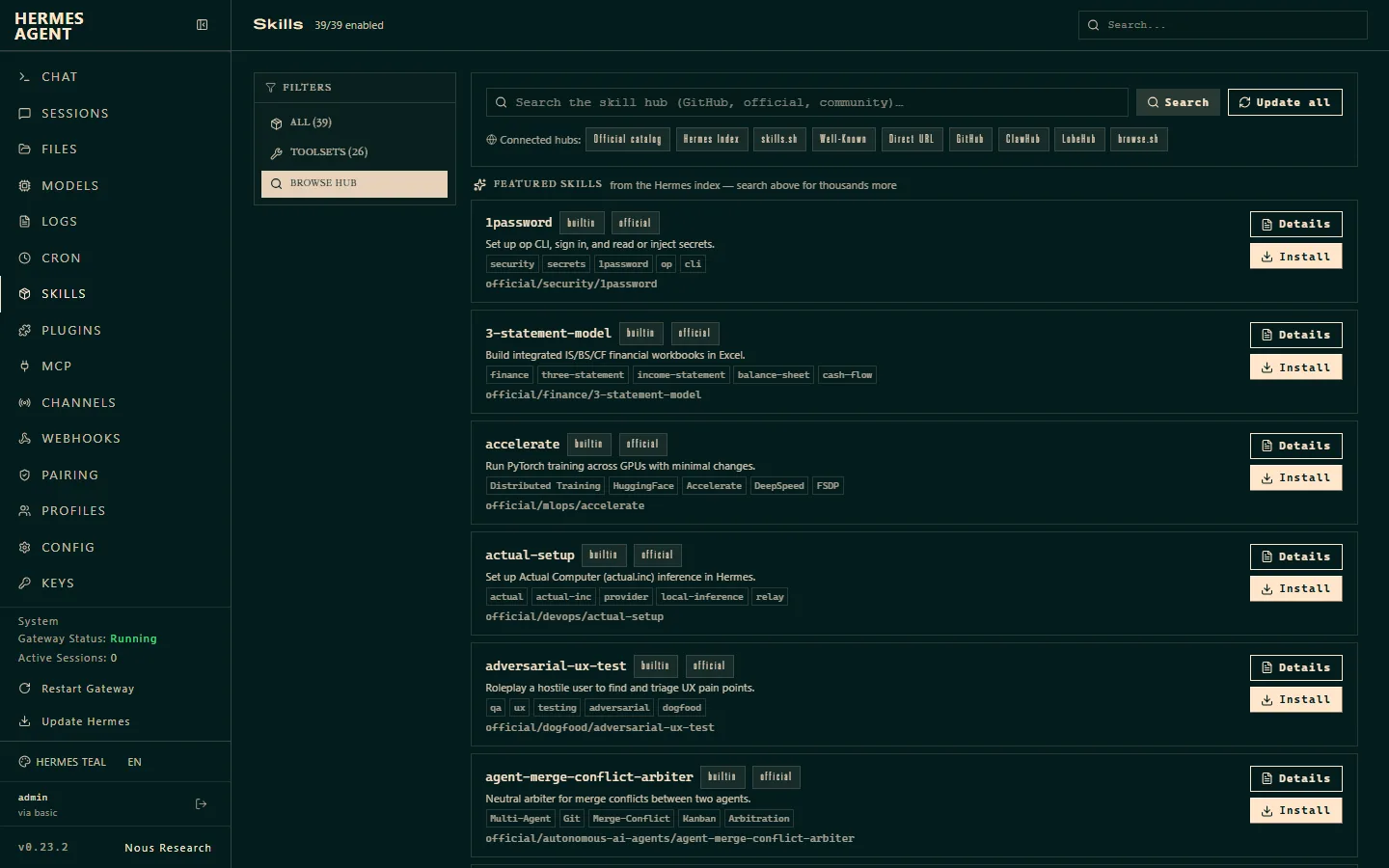
Step 2. Open the hub. Click Browse hub. The hub is the shop window for skills: it searches several online libraries at once, including the official catalog from Nous Research and community libraries such as ClawHub.
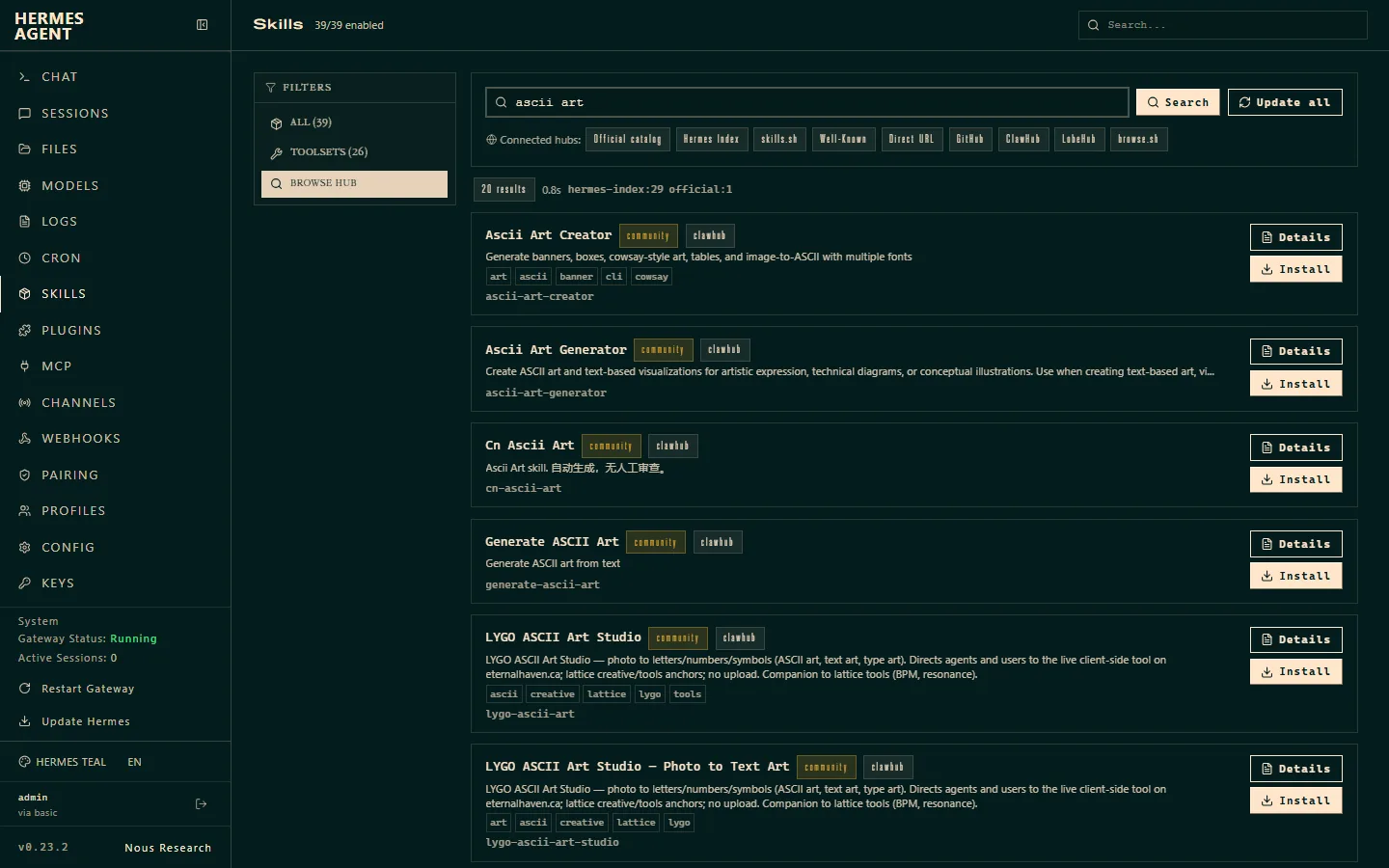
Step 3. Search for what you need. Type a few words in the search box and press Enter. We searched for ascii art and got 20 results. Most were community skills with similar names, which is normal: popular ideas get copied many times.
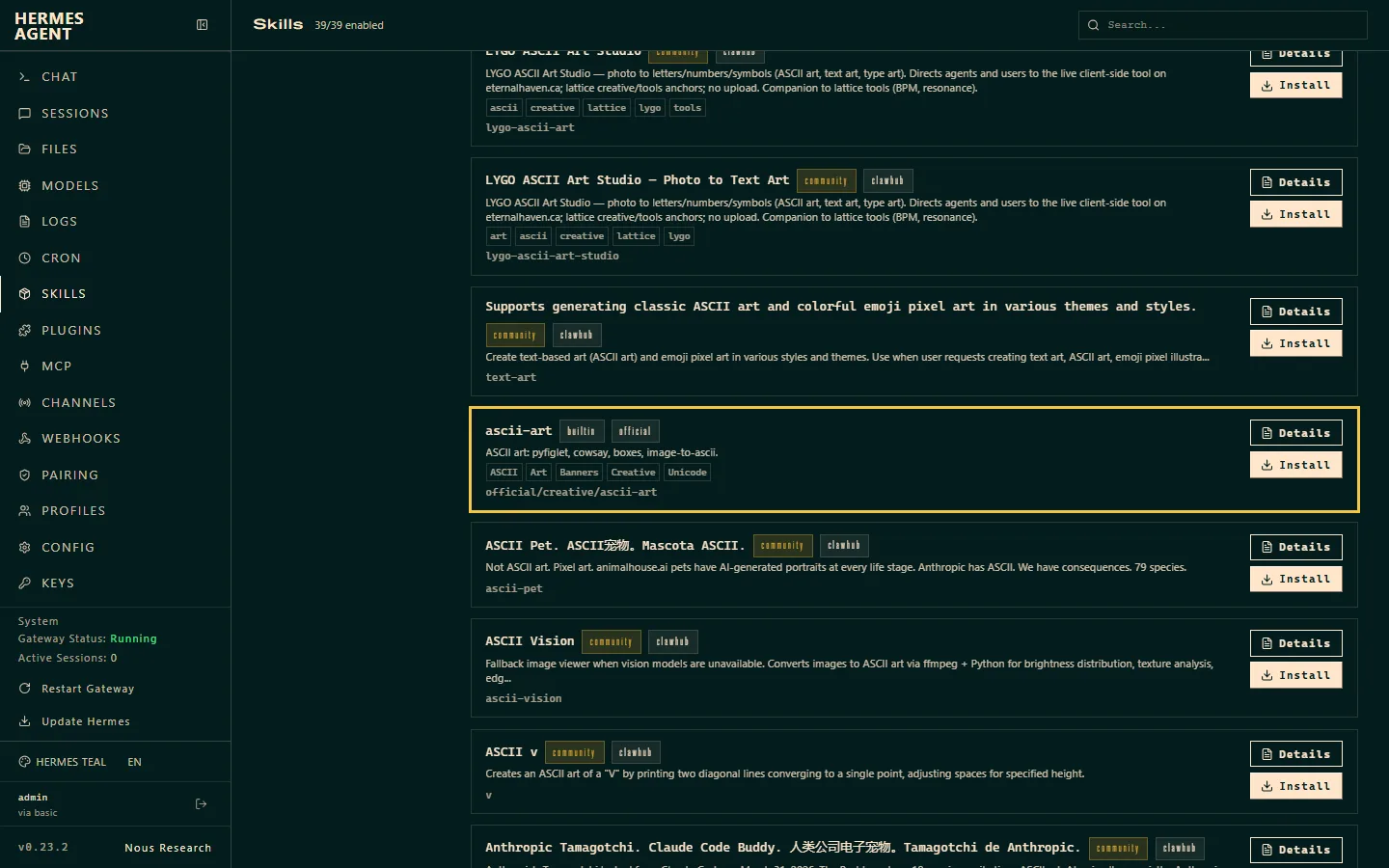
Step 4. Read the badges. Each result carries small labels next to its name. community means a member of the public published it. official and builtin mean it comes from Nous Research itself. In our list, one result out of 20 was official: the one called ascii-art, highlighted below.
Step 5. Open Details before you install. Click Details on the skill you picked. Three things are worth a look here. Read SKILL.md shows the full recipe card, so you can see what the skill will ask Hermes to do. Security scan checks the skill for risky commands. The link on the right shows where the skill lives online, in our case the official Hermes Agent page of Nous Research on GitHub.
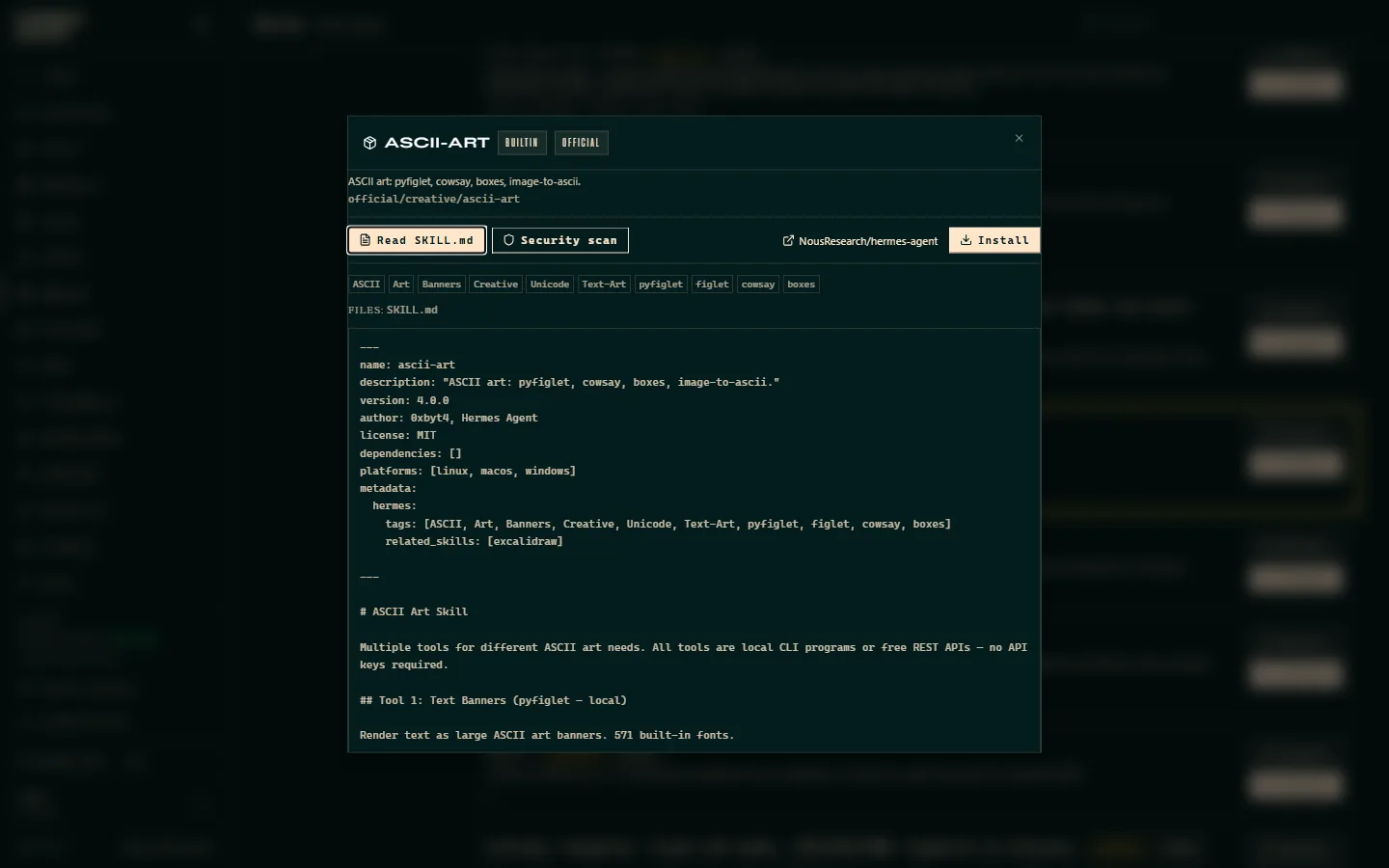
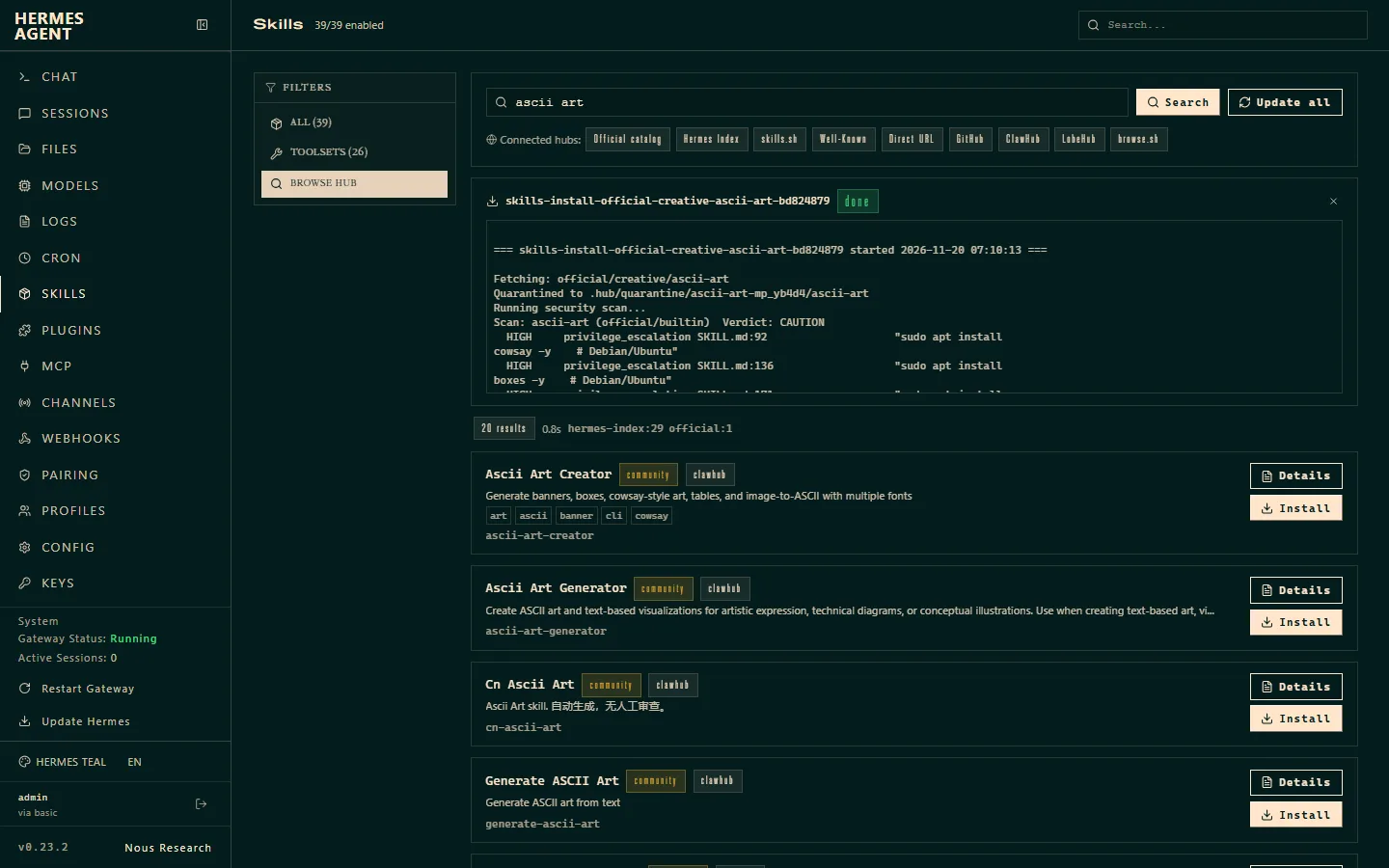
Step 6. Install it, and read the scan. Click Install. Hermes downloads the skill into a holding area first, scans it, and only then adds it. The window shows each step as it happens. Our scan gave the verdict CAUTION, because the recipe card contains commands that install extra programs with administrator rights. This skill installs small text art programs such as cowsay and boxes, and the scan lists the exact lines so you can decide. For a community skill, read those lines with extra care.
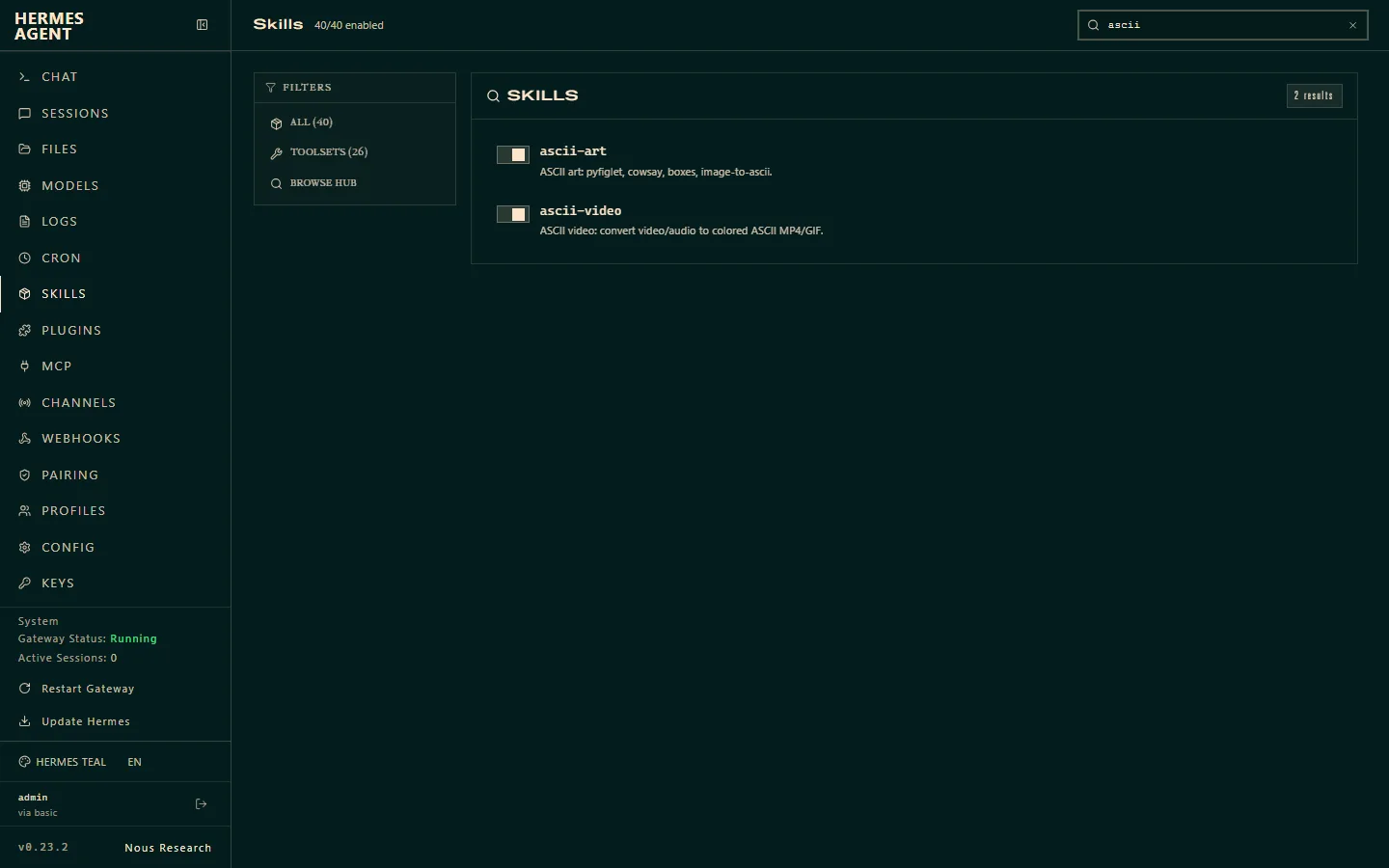
Step 7. Find it in your list. Go back to the Skills page. The count went from 39 to 40, and ascii-art now sits in the list with its switch on. Type its name in the search box at the top to find it quickly.
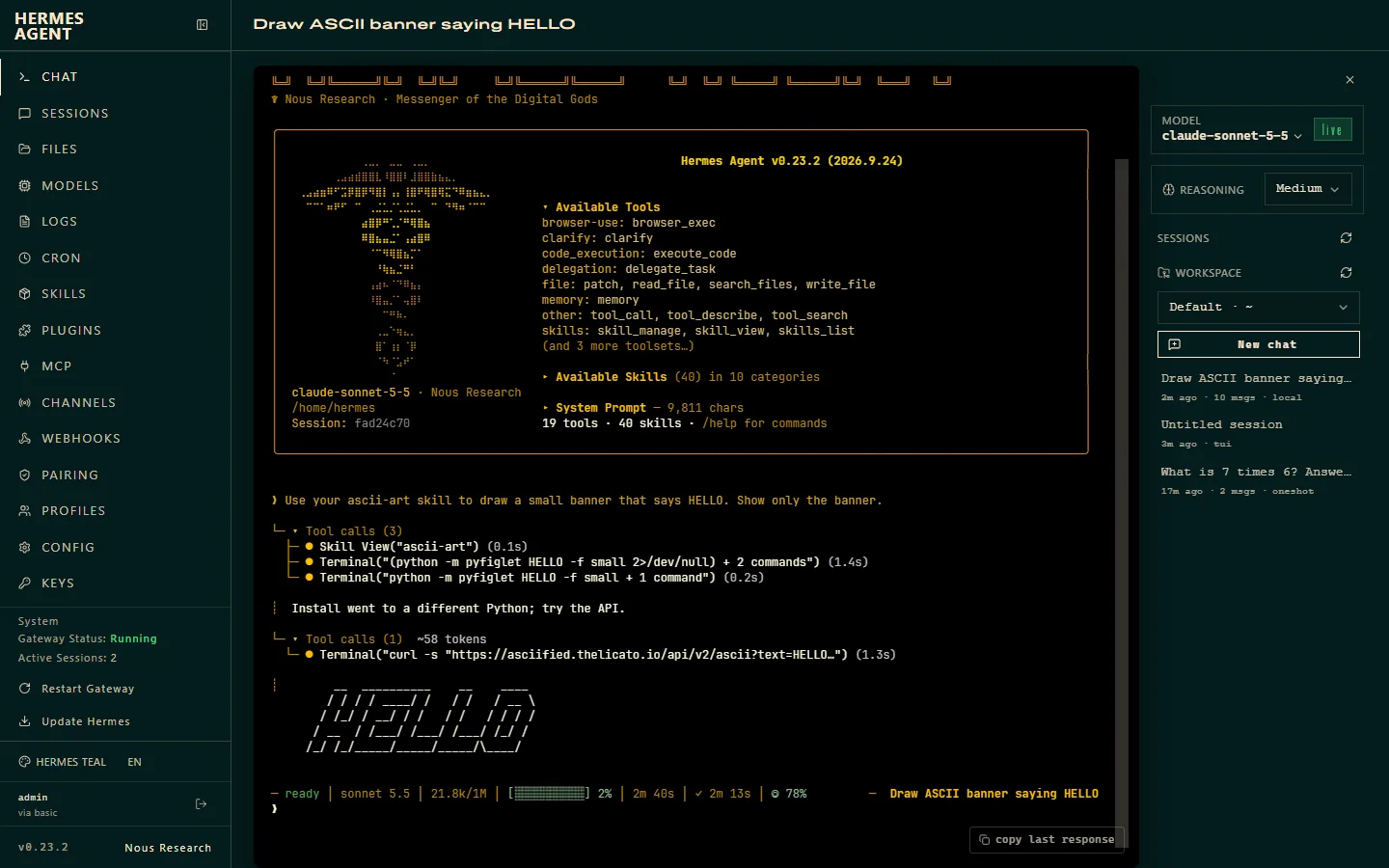
Step 8. Test it in the chat. Open Chat and ask for something the skill does. We typed Use your ascii-art skill to draw a small banner that says HELLO. Show only the banner. The first tool call, Skill View ascii-art, shows that Hermes opened the new recipe card. A few seconds later the banner appeared.
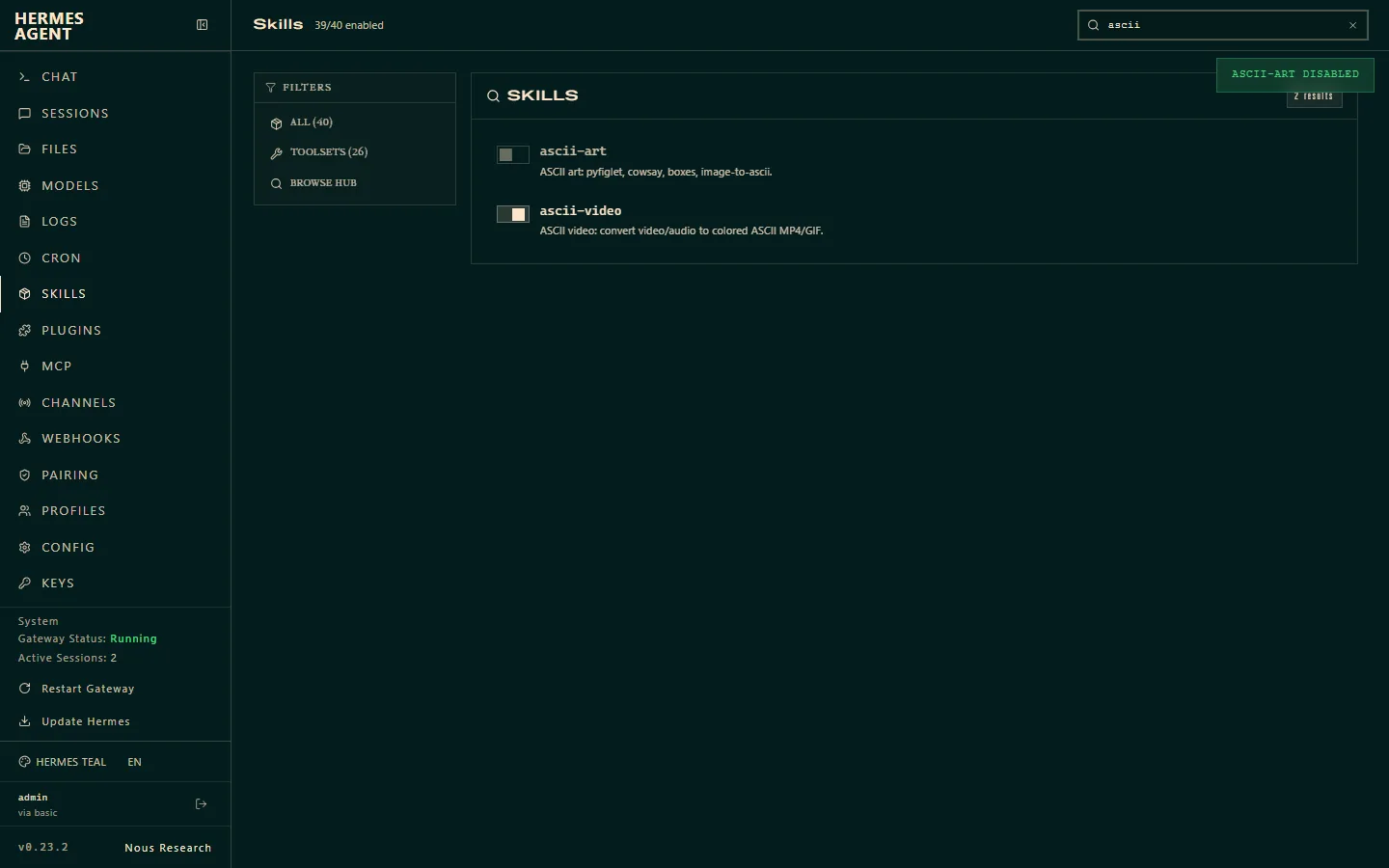
Step 9. Switch it off when you are done. Back on the Skills page, click the switch next to the skill. A green note confirms that it is disabled, and the count shows 39 of 40 enabled. The skill stays installed, so you can switch it back on with one click later.
What to try next
Skills turn a general helper into one that knows your jobs. Some of them work on a schedule, such as a morning news summary or a nightly check of your files. Those only run while Hermes is awake. A Hermes that lives on a server that runs day and night keeps doing them while your own computer is switched off.
Related guides
Frequently asked questions
- What is the difference between official and community skills?
- Official and builtin skills come from Nous Research, the maker of Hermes Agent. Community skills are published by members of the public.
- What does the security scan check?
- It looks for risky commands inside the skill, such as commands that install programs with administrator rights, and lists the exact lines.
- Does switching a skill off delete it?
- It stays installed, and one click on the same switch turns it back on.
Related guides
- Ask Hermes for a Setup Check-Up Before It Changes AnythingAfter a few weeks of use, old memories and overlapping skills can leave Hermes feeling messy. This guide shows how to get a short report of what to clean up, approve each fix yourself and make new memory writes wait for your yes.
- Put a Dollar Cap on Hermes so an Unattended Job Can't Run Up the BillLeave Hermes working overnight and wake up to a bill you did not plan for. A free plugin called budget-leash puts a dollar limit on it. A beginner guide with a screenshot for every step: what the limit does, what it costs and where you set it.
- Give Each Job Its Own Hermes Profile so Work and Home Stay SeparateWhen one Hermes agent handles your job, a side project and family plans, their notes start to blend. This beginner guide sets up a separate agent for each job in five short steps, with a screenshot for every step.
- 10 Things to Ask OpenClaw in Your First WeekYou have a brand new OpenClaw agent and an empty chat box. What do you type first? Here are ten requests that show what your agent can do in its first week, each one sent on a real OpenClaw server with a screenshot of the reply.