
Give Each Job Its Own Hermes Profile so Work and Home Stay Separate
One Hermes Agent for the day job, a side project, and family plans gets messy. Official profiles are separate agents on the same machine, each with its own memory, skills, and personality. This guide follows the official Profiles documentation.
One Hermes Agent for the day job, a side project, and family plans gets messy. Official profiles are separate agents on the same machine, each with its own memory, skills, and personality. This guide follows the official Profiles documentation.
You ask Hermes about a weekend plan, and it answers with last week's work notes mixed in. Or a client chat picks up a personal reminder it should never have seen. One agent that holds every job will blur them.
A profile, in official Hermes terms, is a separate home for one assistant: its own settings, API keys, memory, chats, skills, scheduled jobs, and gateway state. Official documentation, read on the 14th of November 2026, says profiles let you run separate agents for different purposes, such as a coding assistant, a personal bot, and a research agent, without mixing their state. This guide follows that official Profiles page and the official Profile Commands reference, both read on the same day.
The official warning is worth reading first: never point two agent processes at the same profile. Both write memory automatically, and each loads the other's writes at the start of a session. If two agents need to share memory, the same page says to use an external memory provider for that.

What you need
- A working Hermes Agent install, and a terminal (the text window where you type commands).
- A clear idea of one job that should get its own agent, for example "work", "personal", or a single client.
- A few minutes. Creating a blank profile is one command.
If Hermes already runs on a OneClickClaw hosted server, with plans at oneclickclaw.io/plans, you can still add a second profile on that same server and keep work and home in separate homes.
Step 1. Create a blank profile for one job
The official quick start is:
hermes profile create coder
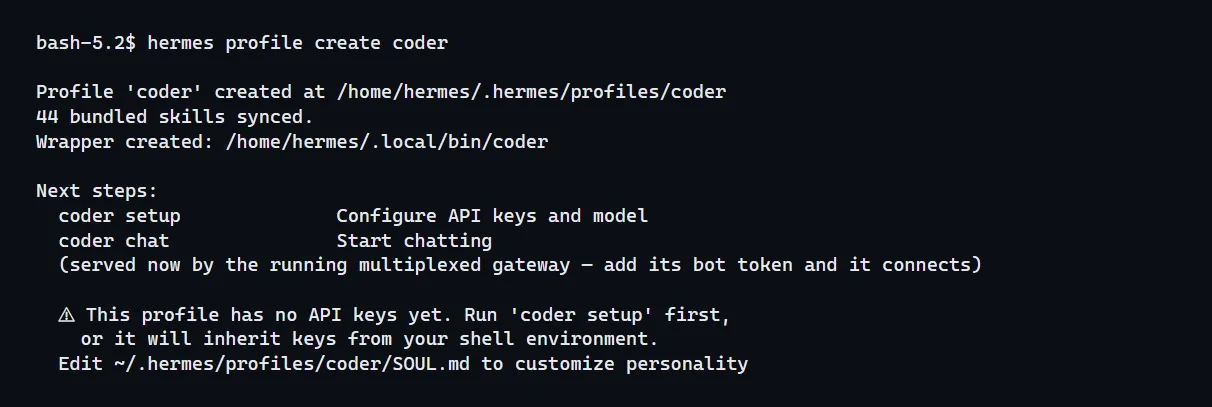
That creates the profile and a short command with the same name. You can then type coder chat to talk to it. The name can be whatever fits the job, as long as it is a valid folder name (letters, numbers, hyphens, and underscores), according to the official command reference.
A blank profile, says the official page, starts with the bundled skills, gets the current profile's API keys and model (bot tokens and allowlists are left out), and shares the default profile's logins. Sessions and scheduled jobs start empty. On our test server (Hermes Agent 0.23.1, 14 November 2026) the create command also printed a short warning that the new profile had no API keys yet and suggested coder setup. A profile still answered once the key sat in the shared key pool. If your new profile's chat says it has no credentials, run coder setup, the command Hermes itself prints. For a different personality later, you edit that profile's SOUL.md. For a completely empty skill list, the official command reference documents --no-skills. This guide uses the plain create command.
To add a short description at create time, the official reference also documents --description "…". You can skip it and add one later with hermes profile describe.
Some third-party posts describe creating a profile with a + button on a profile rail in the Desktop app. The official Profile Commands reference, read on the 14th of November 2026, mentions the profile rail and its + only once, as the place where the import button sits. No official page read that day says the + button creates a profile. Use the command above, or the official dashboard path in Step 3, unless you have confirmed the current Desktop labels on your own app.
Step 2. Give it a personality, then open a clean chat
The official Profiles page says each profile has its own config.yaml, .env, and SOUL.md. SOUL.md is the personality and instructions file. The official example for a profile named coder is:
echo "You are a focused coding assistant." > ~/.hermes/profiles/coder/SOUL.md
Write a short personality that matches the job, in your own words. The official "Which File Does What?" page says SOUL.md is who the agent is, and that changes take effect cleanly on a new session. Existing sessions may still be using the old text.
Then start a chat in that profile:
coder chat
or:
hermes -p coder chat
The official page says the CLI shows you where you are: the prompt becomes coder ❯, the startup banner shows Profile: coder, and hermes profile shows the current name, path, model, and gateway status.
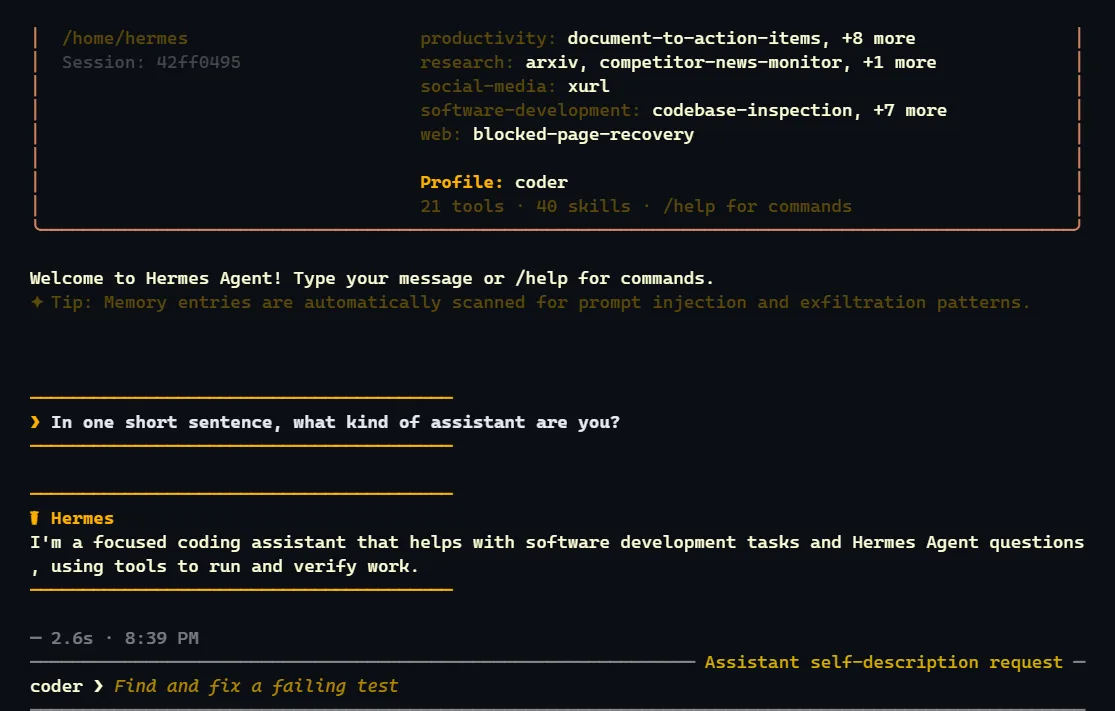
A new blank profile should open with no old chats in it. If you want a copy of the current agent's settings and skills, the official page documents hermes profile create work --clone. That copies settings, keys, SOUL.md, skills, the curated memory files, and installed plugins. Sessions and scheduled jobs start empty. Only use --clone if you really want those memories to travel. For a clean personal or work split, a blank profile is the safer start.
Step 3. Switch between profiles, and know which one is active
To see every profile, with the active one marked (in Hermes Agent 0.23.1 the mark is a small diamond, ◆):
hermes profile list

To make one profile the default for later plain hermes commands (the official name for this is the sticky default):
hermes profile use coder
hermes chat

Switch back with:
hermes profile use default
To run one command in a profile without changing the default:
hermes -p coder chat
The official dashboard path is this: the web dashboard can manage any profile's config, API keys, skills, connected tools, and model through the profile switcher in its sidebar. coder dashboard opens that dashboard with the coder profile already selected. The Chat tab follows the switcher. "Set as active" on the dashboard's Profiles page is the same sticky default as hermes profile use. To edit a profile from the dashboard, the official page says to use the switcher.
If you use Telegram or another chat app, the official page says each profile runs its own gateway, with its own bot token in its own .env file. Do not reuse the same bot token on two profiles. The official "token locks" note says the second gateway will be blocked.
Step 4. Export a profile if you need to move it
To pack one profile as a file, the official commands are:
hermes profile export coder
hermes profile import ./coder.tar.gz --name coder
The export command prints the name of the file it wrote. On our test server (Hermes Agent 0.23.1, 14 November 2026) it was ~/.hermes/profile-exports/coder- followed by the date and time and .tar.gz, so use that printed name in the import line. In chat, the same two steps are /export and /import. In the official desktop app they are available as ⌘K, then Export or Import profile.

The official page says an export includes skills, memory, persona, scheduled jobs, plugins, and settings, and that a Desktop export can also include theme and layout. API keys are stripped. That means an export is a handy way to move a personality and its memory, and your API keys stay out of the file. For a full backup including history and scheduled jobs, the official Profiles page points to hermes profile export or hermes backup. The official OpenClaw backup article is a separate product: Back Up OpenClaw and Check You Can Restore It.
Quick answers
Does a profile sandbox the agent?
No. The official page says a profile is a separate state directory. It gives the agent no sandbox. On the default local setup, the agent still has the same filesystem access as your user account.
Can I rename the default profile?
The official ID of the default profile stays default. You can set a display name with hermes profile rename default …, which the official page says appears in the list, the dashboard, and the desktop app, including the Bot Mode roster.
How do I delete a profile I no longer want?
hermes profile delete coder
The official page says this asks you to type the profile name to confirm, and that you cannot delete the default profile.
Do two profiles share memory?
Not unless you clone memory in, or you set an external memory provider. The official design is one memory per profile, so work and home stay separate.
Sources
- Official Hermes Agent Profiles documentation, https://hermes-agent.nousresearch.com/docs/user-guide/profiles, read on the 14th of November 2026
- Official Profile Commands reference, https://hermes-agent.nousresearch.com/docs/reference/profile-commands, read the same day
- Official "Which File Does What?" page, https://hermes-agent.nousresearch.com/docs/user-guide/which-file-does-what, read the same day, for the
SOUL.mdstep
Related guides
- How to Install Hermes Agent and Start Your First ChatInstall Hermes Agent, connect a model, verify your first chat and add Telegram when you want to message it away from your computer.
- Connect Hermes Desktop to a Remote Server: The GuideHow to run Hermes Desktop as a thin client against a Hermes on an always-on server, using the remote mode documented in issue 38602: HERMES_DESKTOP_REMOTE_URL and HERMES_DESKTOP_REMOTE_TOKEN set before first launch, plus the three recorded traps.
- Let Hermes Run Your Home Assistant Home, and Choose What It WatchesHermes Agent has an official Home Assistant plugin. This guide shows how to install it, connect a long-lived access token, start with a read-only check, and choose which events the agent sees.
- Get a Real Phone Call from Your OpenClaw or Hermes AgentYour agent can ring your Android phone when a job needs a yes, and you can call it back by voice. This guide follows the official agentring setup for OpenClaw and Hermes, including the free plan limits and the self-hosted option.