
Ask Hermes for a Setup Check-Up Before It Changes Anything
After a few weeks, old memories and overlapping skills can make Hermes feel messy. This guide gives you a community check-up prompt that asks Hermes to only report, maps it to the official memory and skills files, and shows the official approval gates. Those gates are the real stop for memory and skill writes made through Hermes's own tools.
After a few weeks, old memories and overlapping skills can make Hermes feel messy. This guide gives you a community check-up prompt that asks Hermes to only report, maps it to the official memory and skills files, and shows the official approval gates. Those gates are the real stop for memory and skill writes made through Hermes's own tools.
Hermes felt sharp in week one. By week six, it repeats stale facts, two skills try to do the same job, or a standing rule fights another one. A blind cleanup can delete something useful. You want a short list of problems, and a chance to approve each change.
The check-up prompt in this guide comes from a community post by BkashJosi on X, dated the 13th of November 2026, and is quoted in full below. It is a community tip, outside the official Hermes commands. The files it names, and the approval gates you can turn on afterwards, come from official Hermes documentation read on the 14th of November 2026: the Persistent Memory page, the "Which File Does What?" page, the Working with Skills guide, and the Security page.

What you need
- A working Hermes Agent, and a chat you can paste into (the Desktop app, the dashboard, or a terminal chat).
- A few minutes to read the list it returns, line by line.
- The will to say no. The prompt asks Hermes to ask before every edit. That request is only an instruction to the model, so Step 4 shows the official gates that actually hold writes.
If Hermes already runs on a OneClickClaw hosted server, with plans at oneclickclaw.io/plans, you can paste the same prompt into that chat. The files still live in that server's Hermes home, in the profile you are talking to.
Step 1. Know which files the check-up is talking about
Official documentation splits Hermes across a few markdown files, each with a different job. The official "Which File Does What?" page describes the first three:
SOUL.mdis who the agent is: personality, tone, communication style, and what to avoid stylistically. You edit this one. It lives at~/.hermes/SOUL.md(or$HERMES_HOME/SOUL.mdwith a custom home).USER.mdis who you are: your preferences and expectations. The agent maintains it through the memory tool. It lives in~/.hermes/memories/.MEMORY.mdis what the agent has learned: environment facts, conventions, and notes. The agent maintains this too, in the samememoriesfolder.- Skills are how-to documents, loaded when needed. The official Working with Skills guide says you can list them in chat with
/skills, or in a terminal withhermes skills list. config.yamlholds settings. The official Persistent Memory page shows the memory options, including write approval, in~/.hermes/config.yaml.
The official Persistent Memory page adds that MEMORY.md and USER.md are injected into the agent's instructions as a frozen snapshot at the start of a session, and that they have size limits (2,200 characters for MEMORY.md, 1,375 for USER.md).
The community prompt below names MEMORY.md, USER.md, the skills list, and the config. It does not name SOUL.md. If you also want standing rules checked, you can add one sentence asking it to read SOUL.md as well. Do not change the rest of the prompt.
Step 2. Paste the check-up prompt, and tell it not to edit
Paste this into Hermes. It is the community prompt from the X post, word for word:
Do a setup check-up. Read my MEMORY.md and USER.md, my skills list and my config. Tell me:
1. memory entries that are stale or repeated
2. skills that overlap
3. rules that contradict each other
4. the one change that would help most
Don't change anything. Ask before every edit.
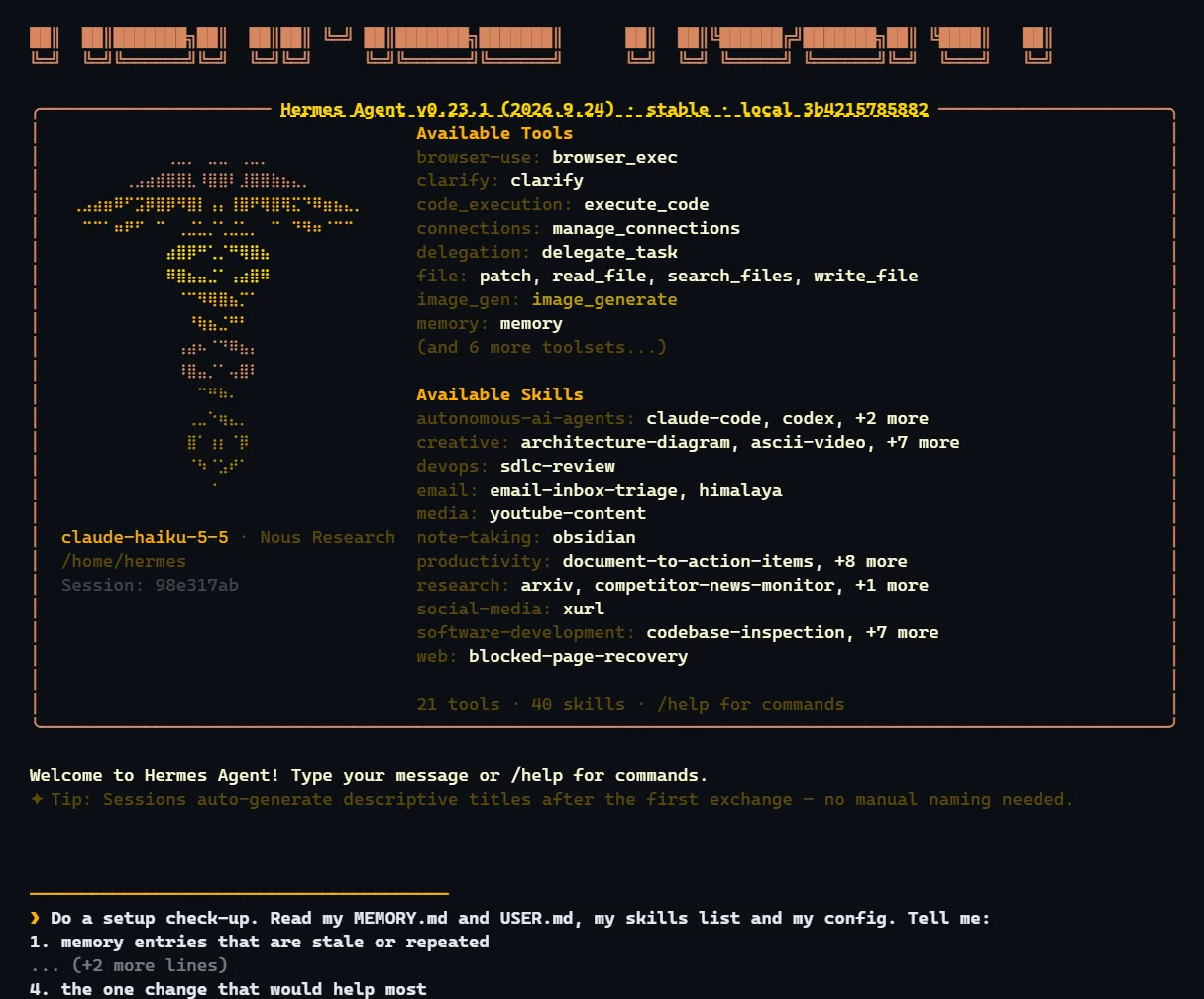
If you also want SOUL.md included, add this line after the first sentence: "Also read my SOUL.md."
The last two lines matter. Official tools can add, patch, or remove memory entries, and can create or edit skills. The prompt's job is to get a report. Its last two lines are only an instruction to the model, and Hermes does not enforce them. The official gates in Step 4 are the real stop.
Step 3. Read the four-part list, and approve nothing in a batch
The post says you get a short list to approve line by line. Read it that way.
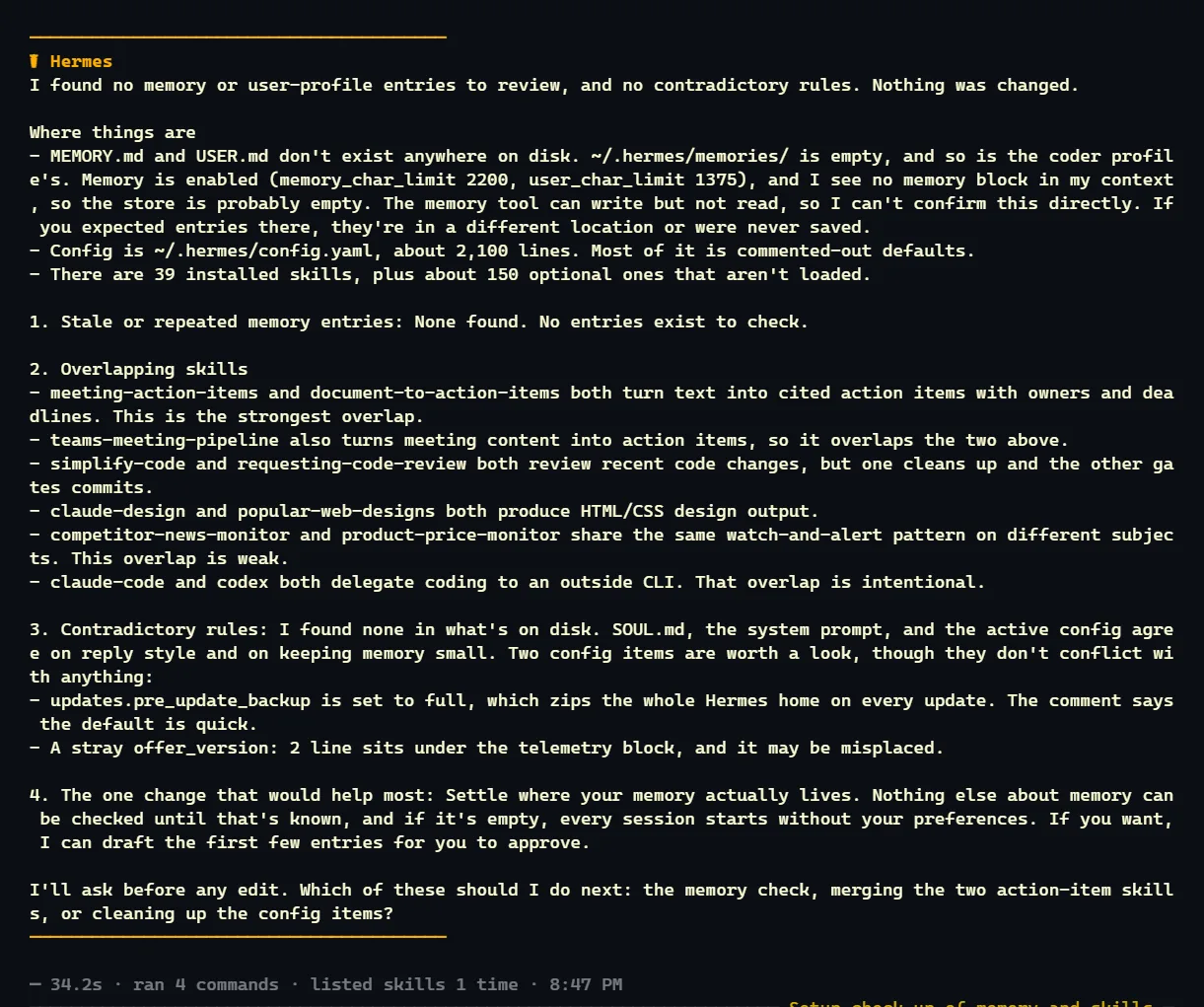
- Stale or repeated memory. The official Persistent Memory page says compact, information-dense entries work best. A fact that is no longer true, or the same preference written twice, is a good candidate to drop or merge. Check the wording against what you actually want remembered.
- Skills that overlap. Official documentation says a skill should be focused, and that leftover skills become a liability if they are not maintained. Two skills that teach the same job can pull the agent in two directions. You can confirm what is installed with
/skillsorhermes skills list. - Rules that contradict each other. These may sit in
SOUL.md, in memory, in project files, or in settings. If two instructions cannot both be true, keep the one you mean and drop the other. - The one change that would help most. Take this as a suggestion. You decide whether it happens. If you disagree, say so and stop.
Approve or reject each suggested edit on its own. Do not tell the agent to "just apply all of them."
If you asked it to change a memory entry, remember the official frozen-snapshot rule: a save is written to disk at once, but the copy in the agent's instructions updates at the start of the next session. Start a new session after you accept a change you care about.
Step 4. Optional: turn on official approval gates so new clutter is slower to return
After a check-up, you can make future silent writes wait for you. These gates are official, and they are separate from the community prompt. They are the real stop for writes made through Hermes's memory and skill tools.
To require your yes before memory-tool writes land in MEMORY.md or USER.md, the official Persistent Memory page documents memory.write_approval: true in ~/.hermes/config.yaml:
memory:
  write_approval: true
The default is false, meaning the agent may write freely, including from a background review after a turn. With the gate on, the official page says the interactive terminal asks you in line, and other surfaces (chat apps, scripts, and that background review) stage the write for review with:
/memory pending
/memory approve
/memory reject
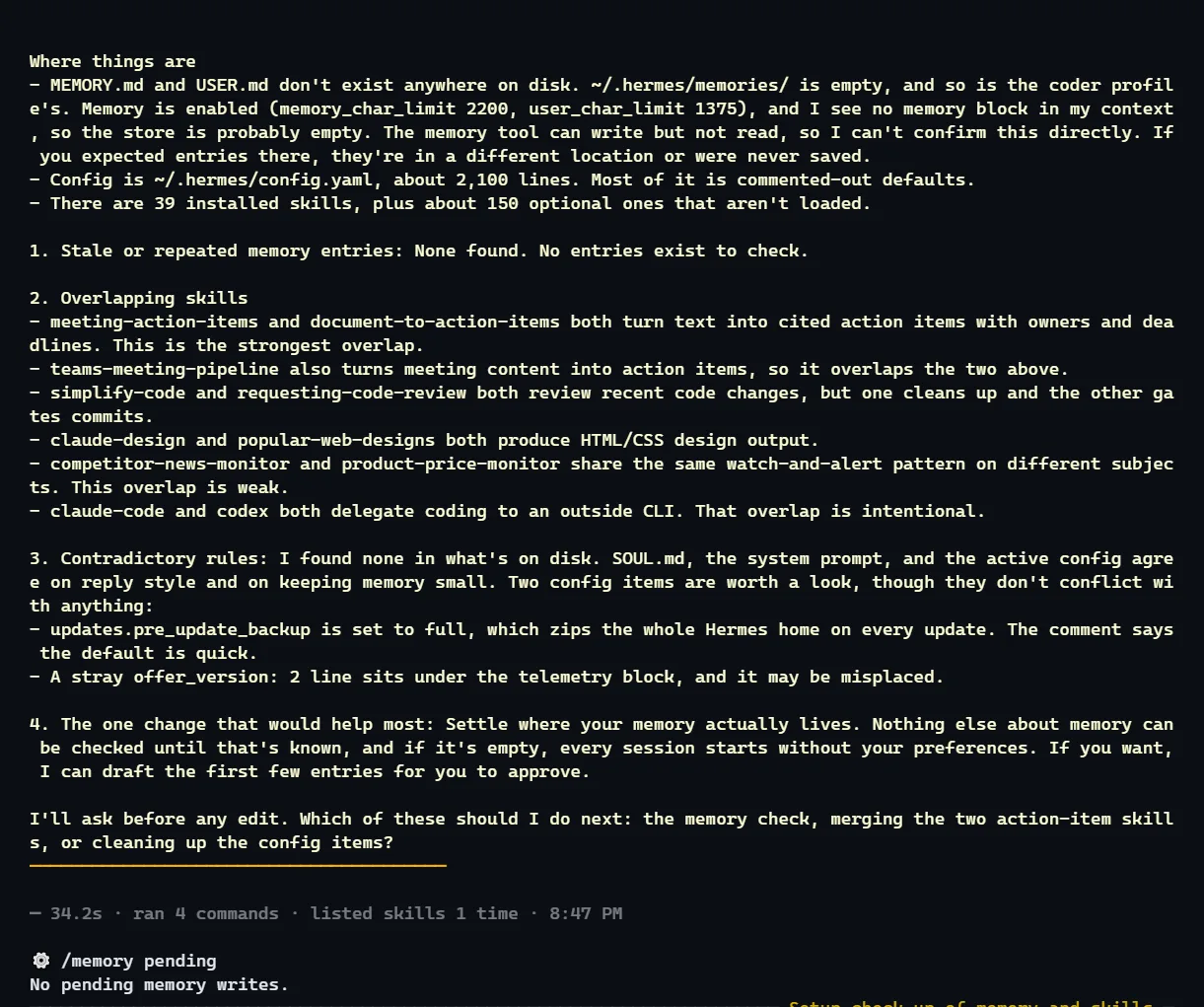
You can also turn the gate on from chat with /memory approval on. The official page is clear about a limit: the gate is not a file-system lock. In a foreground turn, the generic file tools (write_file, patch) and the terminal can still edit MEMORY.md and USER.md directly.
The same official Persistent Memory page documents a matching gate for skills, skills.write_approval, reviewed with /skills pending, /skills diff, /skills approve, and /skills reject, or toggled with /skills approval on. That gate covers writes made through the skill_manage tool. A direct edit of a skill file is outside it.
A third official setting, on the Security page, is approvals.mode in config.yaml. It controls dangerous shell commands. Memory writes are outside it. The official modes are:
smart(the default): an extra model assesses risk; low-risk commands are allowed for that command only, genuinely dangerous ones are denied, and uncertain cases ask you.manual: always ask you before a dangerous command.off: disable those checks, which the official page says is equivalent to running with--yolo. Use that only in a trusted environment.
This guide does not recommend turning approvals off.
Step 5. Repeat after a burst of new skills
A check-up is most useful after you have added a bundle of skills, changed a standing rule, or noticed the agent repeating itself. It works best as a short, regular habit.
If work and home keep landing in the same memory, consider giving each job its own profile first: Give Each Job Its Own Hermes Profile so Work and Home Stay Separate. Official documentation says memory is scoped per profile on purpose.
Quick answers
Is this an official Hermes command?
No. The prompt is a community tip. The files and the approval gates are official.
Will the prompt change anything on its own?
It asks Hermes not to, with the lines "Don't change anything. Ask before every edit." Those lines are only an instruction to the model. Read each reply before you say yes, and turn on the official approval gates in Step 4 if you want memory and skill tool writes held for review.
Why did it "forget" a fact I just approved?
The official memory page says the instructions are a snapshot taken at session start. Start a new session to see the updated memory in the next chat.
Does the skills list show every skill a plugin might add?
The official skills guide says plugin skills are opt-in. They are not listed in the system prompt and do not appear in skills_list, the agent's compact skills list. If you rely on a plugin skill, load it explicitly and mention that plugin by name in the check-up.
Sources
- Community check-up prompt: https://x.com/BkashJosi/status/2121189841325158586, posted on the 13th of November 2026, read on the 14th of November 2026
- Official Persistent Memory documentation, https://hermes-agent.nousresearch.com/docs/user-guide/features/memory, read on the 14th of November 2026
- Official "Which File Does What?" page, https://hermes-agent.nousresearch.com/docs/user-guide/which-file-does-what, read the same day
- Official Working with Skills guide, https://hermes-agent.nousresearch.com/docs/guides/work-with-skills, read the same day
- Official Security documentation, approval modes, https://hermes-agent.nousresearch.com/docs/user-guide/security, read the same day
Related guides
- Give Each Job Its Own Hermes Profile so Work and Home Stay SeparateOne Hermes Agent for the day job, a side project, and family plans gets messy. Official profiles are separate agents on the same machine, each with its own memory, skills, and personality. This guide follows the official Profiles documentation.
- How to Install Hermes Agent and Start Your First ChatInstall Hermes Agent, connect a model, verify your first chat and add Telegram when you want to message it away from your computer.
- Let Hermes Run Your Home Assistant Home, and Choose What It WatchesHermes Agent has an official Home Assistant plugin. This guide shows how to install it, connect a long-lived access token, start with a read-only check, and choose which events the agent sees.
- Get a Real Phone Call from Your OpenClaw or Hermes AgentYour agent can ring your Android phone when a job needs a yes, and you can call it back by voice. This guide follows the official agentring setup for OpenClaw and Hermes, including the free plan limits and the self-hosted option.