
The Terminal Step Is Where Most People Stop
Every official OpenClaw install route starts with a terminal command. This guide explains each documented command, what it assumes, how to confirm the install worked, and the managed route that removes the terminal step.
Every installation route in the official OpenClaw README, read on 11 September 2026, begins with a command typed into a terminal, on macOS, Linux and Windows alike. OpenClaw is an open-source personal AI assistant whose GitHub repository carried 389,423 stars on the same date. On 1 September 2026, a Reddit user posting as caldazar24 wrote in the r/AgentsOfAI community that the setup puts off people with no technical background, because at some point it asks them to run something in a terminal.
This guide sets out each documented command, what it assumes the reader already knows, how to confirm the install worked, and the managed route that leaves the command line out of the setup.
The four documented commands
According to the install section of the README, the installer supports macOS, Linux and Windows and provisions a supported Node.js runtime when one is needed. On macOS, Linux and WSL2:
curl -fsSL https://openclaw.ai/install.sh | bashOn Windows, in PowerShell:
iwr -useb https://openclaw.ai/install.ps1 | iexFor a machine that already manages Node.js, the README gives the published npm package, with Node 24.16 or later, or 26.1 or later, and Node 26 recommended:
npm install -g openclaw@latest --allow-scripts=openclawThe README states that this form is for npm 12 or npm 11.16 and later, and that on npm 11.15 and earlier the --allow-scripts=openclaw part is left off. On a fresh install the two installer scripts start onboarding automatically. After an npm install, onboarding and the background service are started with:
openclaw onboard --install-daemon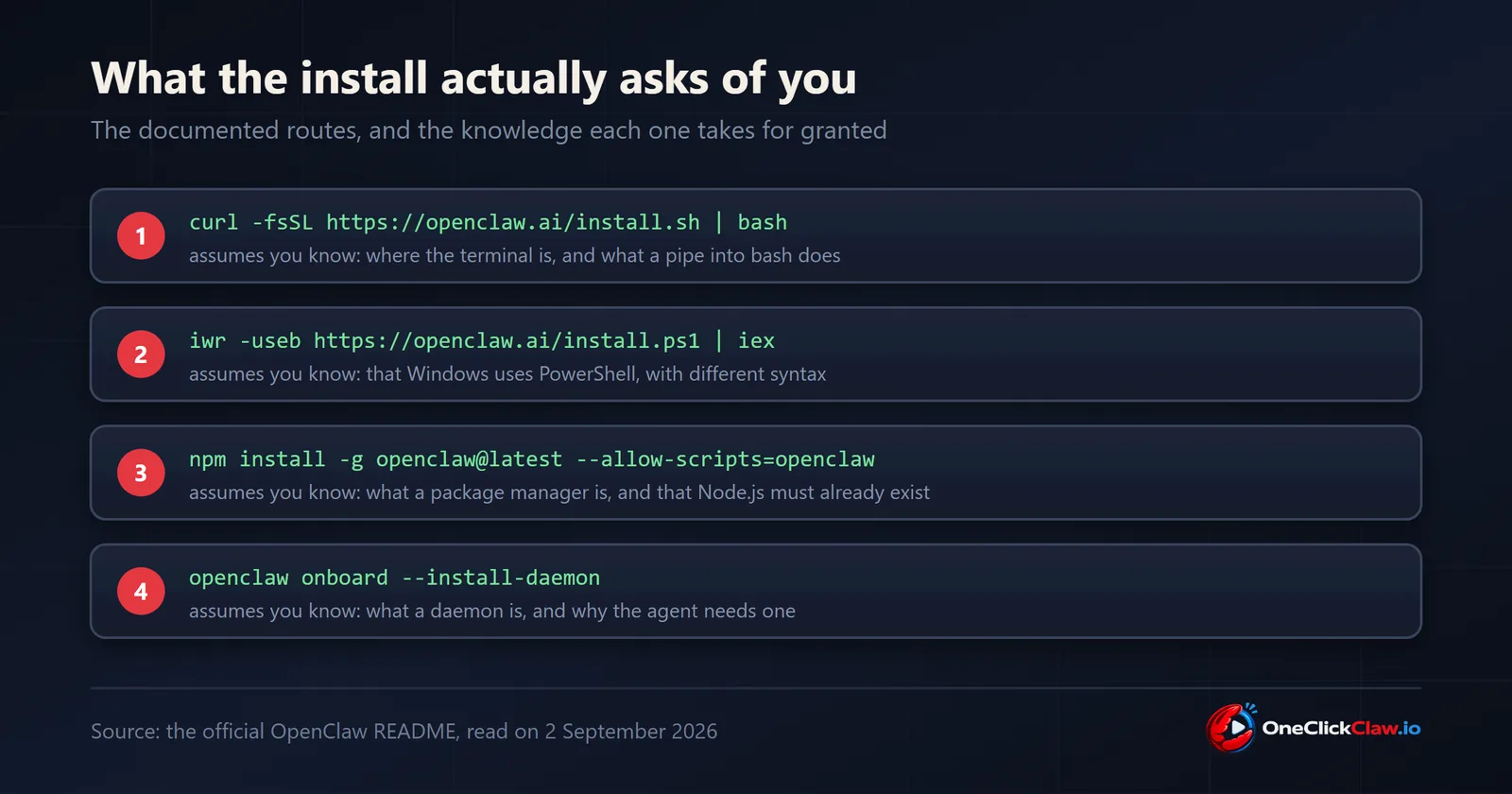
What each command assumes you already know
The README is written for readers who already work in a terminal, so five things go unstated.
- Where the terminal is. It is called Terminal on macOS and PowerShell on Windows, and Linux ships several terminal programs. The command to run depends on the operating system, so that comes first.
- What a pipe into bash does. The first command downloads the installer script and runs it in one step. A reader who prefers to read a script before running it can save it to a file, read it, and run it as a separate step.
- What a package manager is. The npm route assumes Node.js and npm are already installed at the versions the README names. The installer scripts handle the Node.js runtime themselves.
- What a daemon is. A daemon is a program that keeps running in the background after the window that started it closes. The
--install-daemonflag registers the Gateway, the part of OpenClaw that handles sessions, tools and chat connections, as one of those. - What happens when the computer sleeps. This one decides whether the agent answers at all, and it is covered below.
How to confirm the install worked
The README lists two commands for after onboarding:
openclaw gateway status
openclaw dashboard
According to the README, onboarding verifies model access, creates the workspace and configures the Gateway. The first command reports the state of the Gateway. The second opens the Control UI, where the README says to send a message to confirm the assistant is working. The getting started guide covers channel setup, which connects the agent to chat applications such as WhatsApp or Telegram.
Where the agent runs once it works
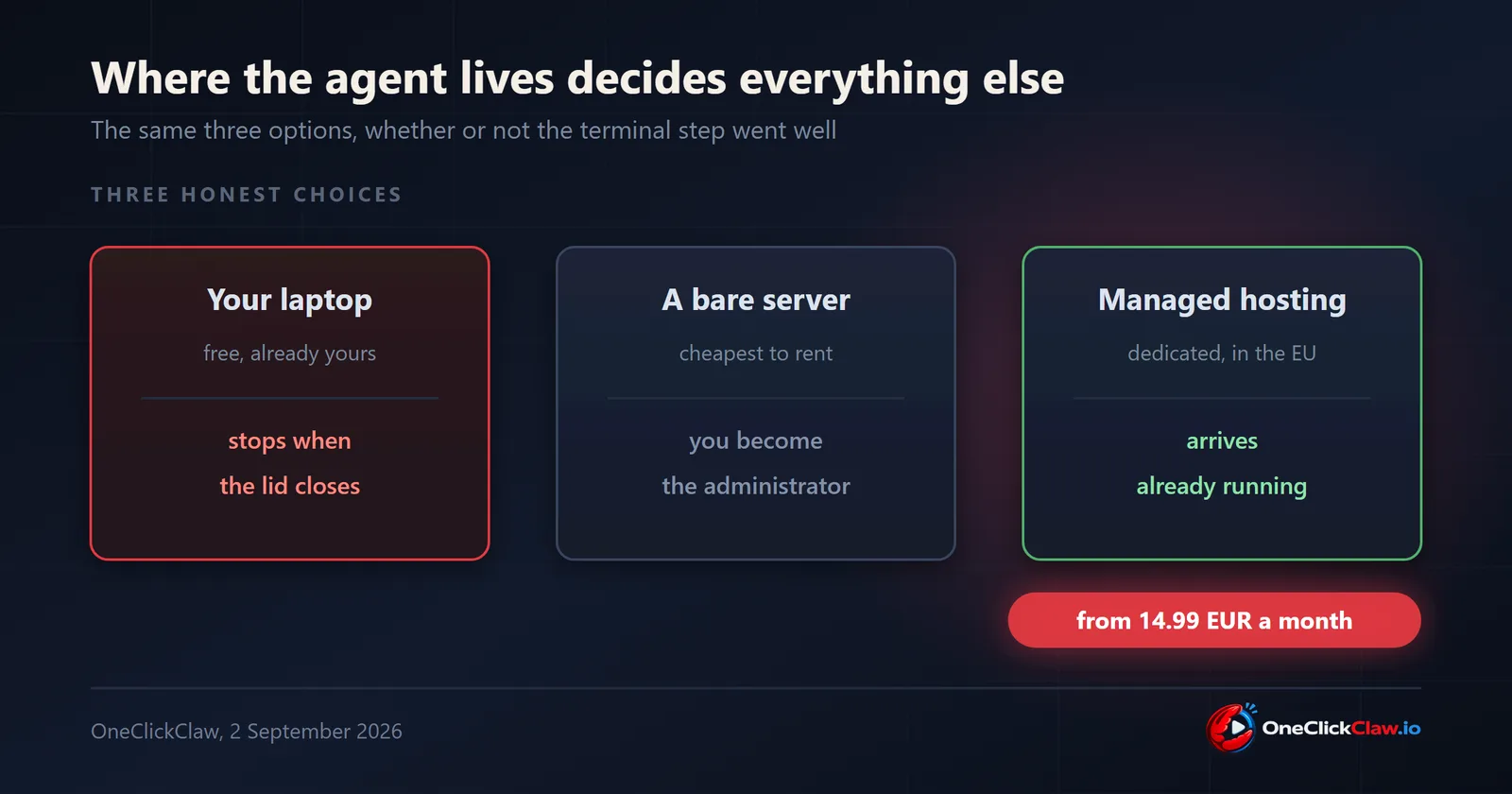
The Gateway runs on the machine where OpenClaw was installed. On a laptop, the agent therefore answers only while that laptop is awake and online. An agent that replies to a message at 9pm, finishes a task during a meeting or runs a scheduled job overnight needs a machine that stays on.
Three setups meet that requirement: a small always-on computer that its owner keeps updated, a rented server that its owner administers, or a managed server that arrives configured. The last one is the setup without a command line. The OneClickClaw plans page, checked on 11 September 2026, lists the Starter plan at 14.99 euros a month on a dedicated managed OpenClaw server in the European Union, hosted in Denmark, with setup included and a 7-day free trial that starts with an email address.
For readers who already run a gateway: pick the release channel
The OpenClaw release channels documentation, read on 11 September 2026, lists four update channels. stable follows the npm tag latest and is the one the project recommends for most users. extended-stable is a trailing channel that shows update hints and never applies them automatically. beta takes the newest of the beta and latest tags. dev follows the main branch of the code, and the documentation says to keep it off production gateways.
On the npm registry on 11 September 2026, latest and beta both pointed to 2026.9.4, published at 02:44 UTC that day, and extended-stable pointed to 2026.6.35, published on 10 September 2026. Switching is one command, and the documentation states that the choice is saved to update.channel in the configuration after a successful core update:
openclaw update --channel stable
openclaw update status
The second command shows the active channel, the install kind, the current version and whether an update is available, according to the same page.
What to do next
For a reader comfortable in a terminal, the README and the getting started guide cover the install from start to finish. For everyone else, the first decision is which machine the agent will run on, because that choice settles which of the commands above has to be typed, if any.
Frequently asked questions
- Do I need to use a terminal to run OpenClaw?
- Every installation route in the official OpenClaw README, read on 11 September 2026, starts with a terminal command on macOS, Linux and Windows. A managed host runs that install on its own server, and the OneClickClaw plans page lists setup as included, so the owner starts with an email address.
- What does the --install-daemon flag do?
- A daemon is a program that keeps running in the background after the window that started it closes. The flag registers the OpenClaw Gateway as one, so the agent keeps running between sessions and after the terminal window closes.
- Which OpenClaw version should I install?
- The OpenClaw release channels documentation recommends the stable channel, which follows the npm tag latest, for most users. On 11 September 2026 latest pointed to 2026.9.4 and extended-stable, the slower channel, pointed to 2026.6.35. The command openclaw update status shows which channel and version an install is on.
- Can I run the agent on my own laptop?
- Yes. The README states that the installer supports macOS, Linux and Windows. The agent then answers only while the laptop is awake and online, so tasks that run overnight or during a meeting need a machine that stays on.
- Is piping a script into bash safe?
- The command runs a downloaded script immediately, so it relies on trust in the source, here the openclaw.ai domain named in the official README. A reader who prefers to inspect the script can save it to a file, read it and run it as a separate step. The npm route installs the published package directly.
- What does "legacy workspace setup state requires migration" mean in OpenClaw?
- OpenClaw now keeps setup state in its own database, and an older install can still hold it in a workspace file such as openclaw-workspace-state.json. The official doctor state migrations documentation, read on 26 October 2026, names openclaw doctor --fix as the command that imports that file and asks to run it before restarting. Doctor keeps a copy of each imported file with a .migrated suffix, and the documentation asks to leave the old files in place.
Related guides
- How to Lock Down an OpenClaw InstallOpenClaw keeps the Gateway on the local machine and pairs unknown senders by default, while sandboxing waits for the operator. This guide covers the defaults, the documented checks and a five-point check for an install already in use.
- OpenClaw Token Bill: Find the Leak and Cut CostsOpenClaw resends its instructions on every turn, so small habits add up. How to measure token use, move routine jobs to cheaper models or plain scripts, handle email, voice and photos locally, and set a hard spending stop, step by step.
- Talk to Hermes and OpenClaw by Voice, Free, with FU FlowTalk to Hermes Agent and OpenClaw by voice with FU Flow, a free open source dictation app for your PC. Eleven steps, each with a screenshot.
- Hermes Agent Secure Login: Sign In Without Pasting Passwords in ChatHermes Agent can sign in to websites while the AI model never sees your password. How to save a login, use 1Password or Bitwarden, handle two-factor codes and approve card fills, step by step.