
Your First OpenClaw Automation: a Job That Runs Every Morning at 8
OpenClaw can do a job on its own at a set time, such as a weather summary every morning at 8. This guide sets one up on the Automations page in five steps, checked on a real server.
Rather skip the setup? We run OpenClaw for you on your own server. Free for 7 days, no card.
Start your free trial
What an automation does, in plain words
An automation is a job you give OpenClaw once, together with a time. Picture an alarm clock with a note taped to it. When the alarm rings, the note says what to do, and OpenClaw does it without you asking again.
- At the time you chose, OpenClaw wakes up and does the work on its own.
- It can send the result to a chat app you connected, pass it to another service, or keep it in its own history.
- An automation can repeat every few minutes, run once, or follow a timetable such as "every day at 8".
- The automation runs on your server, so it keeps its timetable while your own computer is off.
Older OpenClaw versions called these "cron jobs". In OpenClaw 2026.11.10 the page is called Automations. The OpenClaw documentation says the scheduler saves each job, wakes the agent at the right time and delivers the output to a chat channel, to a webhook (a web address that another service listens on) or to no outside place at all. The steps below were checked on OpenClaw 2026.11.10 on the 27th of November 2026.
What it costs
Every run uses your AI model, and your AI provider charges for that use. The form itself gives a tip: routine jobs such as summaries run well on a lighter model, which is cheaper and faster than your default. You can pick that model for one automation alone, in the model box of the same form.
Before you start
- Your OpenClaw screen open in the browser, from your OneClickClaw dashboard.
- One sentence that says what you want and when, for example "every morning at 8, the weather in Athens".
- If you want the result on your phone: Telegram connected to OpenClaw. Our OpenClaw Telegram setup page walks you through it.
Step by step: your first daily automation
Step 1. In the thin bar on the far left, click the square "Pages" icon, then "Automations". The page lists every automation with its schedule, its next run and its last run. You may already see an entry that OpenClaw adds by itself.
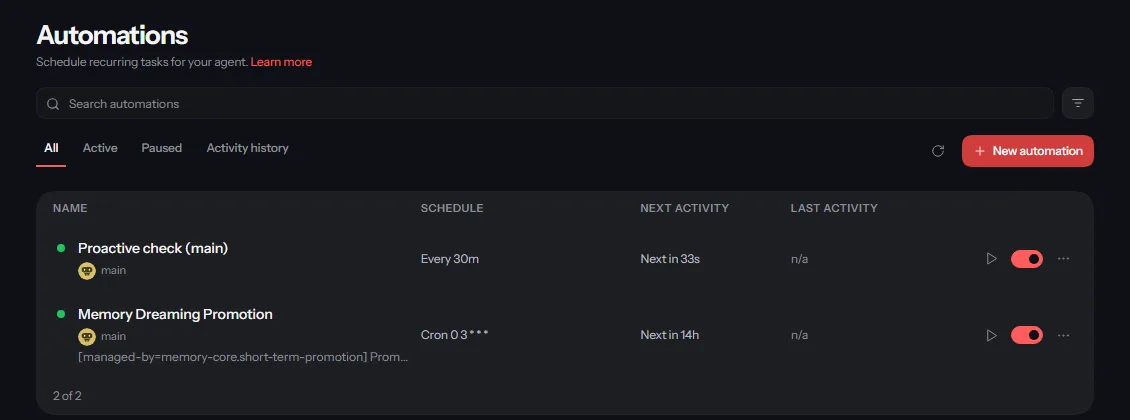
Step 2. Click the red "New automation" button at the top right. In the "Prompt" box, write what OpenClaw should do, in plain words. We wrote: "Send me a three-line weather summary for Athens: the temperature, the chance of rain and what to wear." Further down, give it a "Name", for example Athens morning weather.
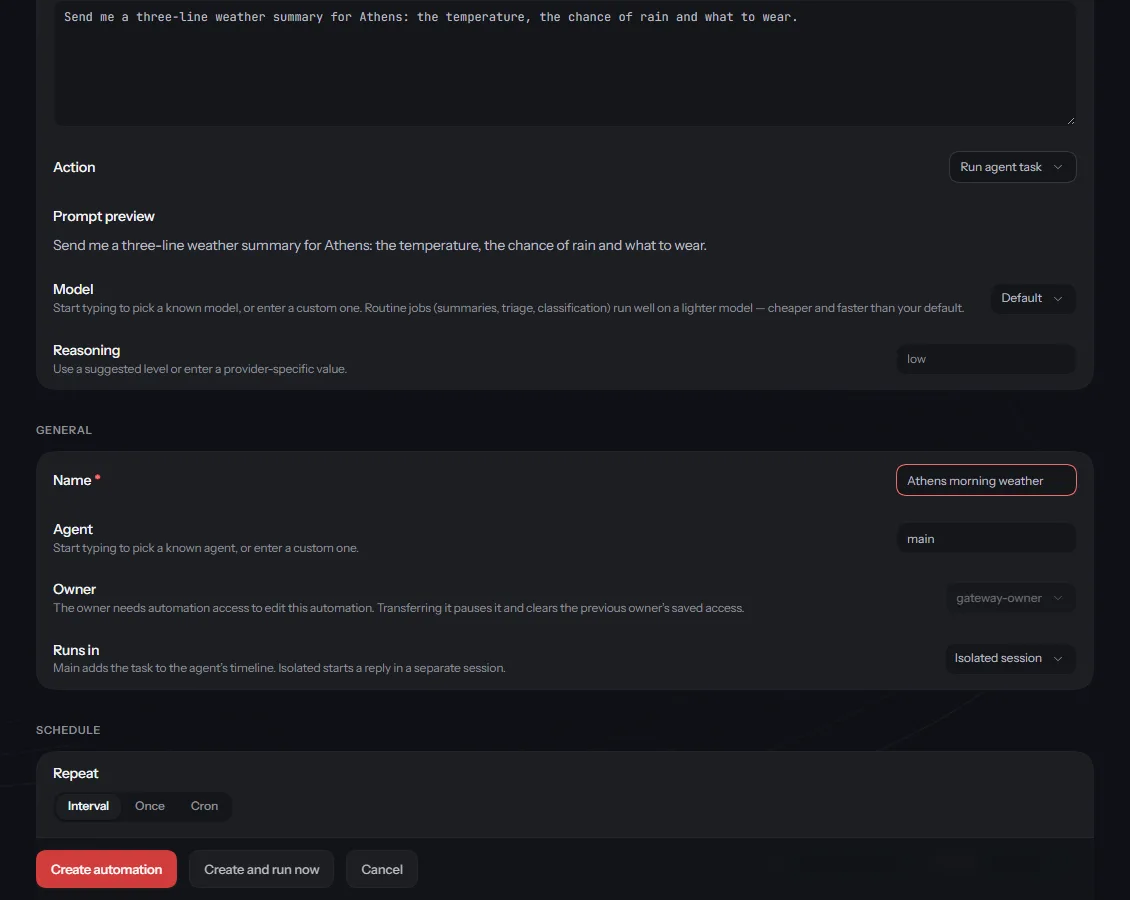
Step 3. Under "Schedule", click "Cron" next to "Repeat". Cron is the old computer word for a timetable.
In "Expression" type 0 8 * * *, which is shorthand for "minute 0 of hour 8, every day". In "Time zone" type your city's zone, for example Europe/Athens.
The time zone matters. When the box is blank, OpenClaw uses the server's clock, which on our servers is UTC (world time). An 8:00 job would then reach Athens at 10:00 in winter. The line underneath confirms your choice: "Cron schedule 0 8 * * * (Europe/Athens)".
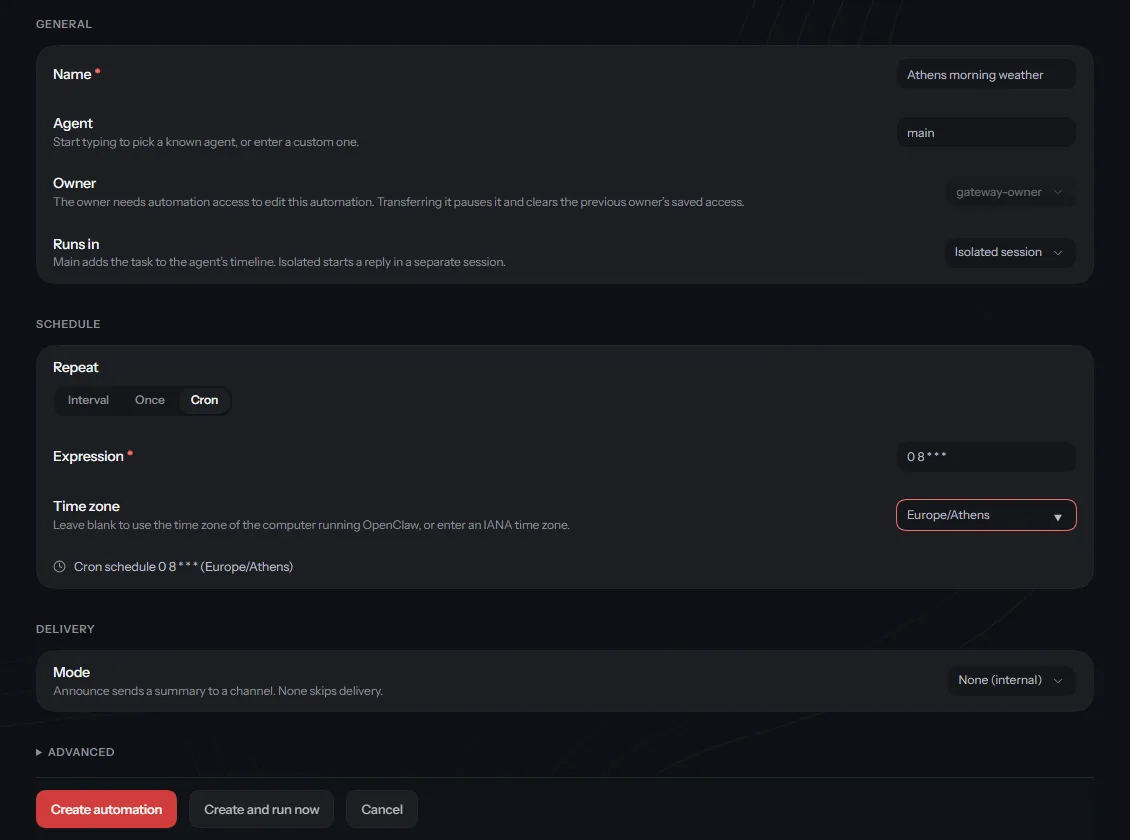
Step 4. Under "Delivery", open "Mode". It offers three choices:
- "Announce summary" sends the result to a chat channel you connected, such as Telegram, according to the OpenClaw documentation.
- "Webhook POST" hands the result to another service through its web address.
- "None (internal)" keeps the result inside the Automations history.
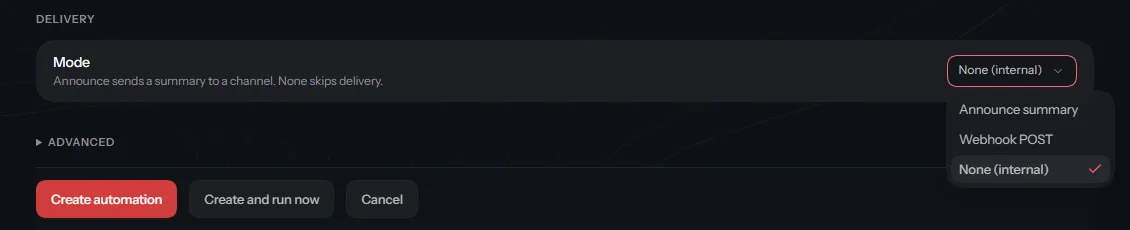
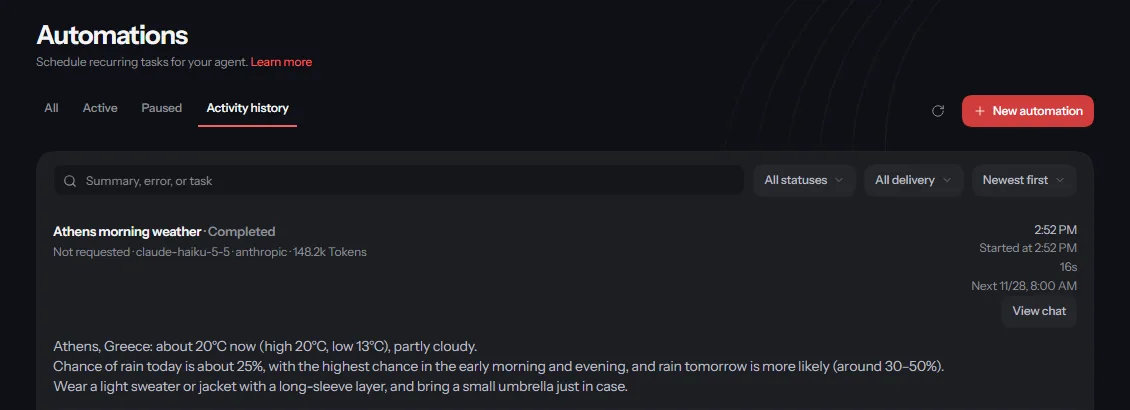
Step 5. Click "Create and run now". OpenClaw saves the automation and runs it once straight away, so you can see the result today. Open the "Activity history" tab: on our server the run showed "Completed" after 16 seconds, with the three lines underneath and the next run set for 8:00 the following morning.
Pause, run or delete an automation
Back on the "All" tab, each automation has three controls on the right of its row. The red switch turns it on or off: off means "Paused", and the automation stays saved. The small play button runs it once now. The three dots open "Clone", to copy it, and "Delete", to remove it for good.
You can also do all of this by talking. The OpenClaw documentation says the owner of the agent, which is you, can ask it in chat to list, run, change or remove automations.
Related guides
Frequently asked questions
- What happens if I leave the time zone blank?
- OpenClaw uses the server's clock, which on OneClickClaw servers is UTC (world time). An 8:00 job would then arrive at 10:00 in Athens in winter.
- Can I stop an automation without deleting it?
- Yes. Turn off the red switch on its row. It shows as Paused and stays saved.
- Can I test an automation before its first scheduled run?
- Yes. Create and run now runs it once straight away, and the small play button on its row runs it again at any time.
Related guides
- 10 Things to Ask OpenClaw in Your First WeekYou have a brand new OpenClaw agent and an empty chat box. What do you type first? Here are ten requests that show what your agent can do in its first week, each one sent on a real OpenClaw server with a screenshot of the reply.
- Run OpenClaw 24/7: keep your agent online all the timeKeep your OpenClaw agent online day and night. The four ways to run it 24/7, eight screens that show it is awake, tips found inside the interface and the mistakes new users make.
- OpenClaw Token Bill: Find the Leak and Cut CostsOpenClaw resends its instructions on every turn, so small habits add up. How to measure token use, move routine jobs to cheaper models or plain scripts, handle email, voice and photos locally, and set a hard spending stop, step by step.
- Install Your First Hermes Skill and Check It Before You Trust ItHermes Agent can learn new jobs from skills, small instruction packs you add with a few clicks. Many are shared online, and anyone can publish one. This beginner guide shows how to find a skill, check who made it, install it, test it and switch it off, with a screenshot for every step.