
Your First Hermes Scheduled Job: Set Your Clock, Then Just Ask
Hermes Agent can run a job on its own at a set time. Set your time zone once, ask in plain words in the chat, and Hermes builds the job for you, checked step by step on a real server.
Rather skip the setup? We run Hermes Agent for you on your own server. Free for 7 days.
Start my free Hermes trial
What a scheduled job does, in plain words
Think of a note stuck to an alarm clock. When the alarm rings, someone reads the note and does what it says. A scheduled job is that note for Hermes Agent: a written instruction plus a time.
- At the time you chose, Hermes starts a fresh conversation of its own and does the work.
- It sends the finished answer to the place you picked, for example the chat where you asked for it.
- A job can run once ("in 30 minutes") or repeat ("every morning at 8").
- The job runs on your server, so it keeps its timetable while your own computer is off.
Hermes calls these jobs "cron jobs", after the old computer word for a timetable. The Hermes Agent documentation by Nous Research describes every option. The steps below were checked on Hermes Agent version 0.23.4 on the 27th of November 2026.
What it costs
Each run is one full conversation with your AI model, and your AI provider charges for that use. If a job is simple, the job's settings let you pick a lighter, cheaper model for that job alone.
Before you start
- Your Hermes dashboard open in the browser, from your OneClickClaw dashboard.
- One sentence that says what you want and when, for example "every morning at 8, the weather in Athens".
- If you want the answers on your phone: Telegram connected to Hermes. Our Hermes Telegram setup page walks you through it. The Hermes documentation says a job made inside a chat app reports back to that same chat, so you would ask for the job from your Telegram chat with Hermes.
Step by step: set your clock, then ask
Step 1. Tell Hermes which time zone you live in. Click "Config" in the menu on the left and type timezone into the search box at the top right. Open the "Timezone" list and pick your city's zone, for example Europe/Athens.
This matters. When the box is blank, Hermes uses the server's clock, which on our servers is UTC (world time). An 8:00 job would then reach Athens at 10:00 in winter.
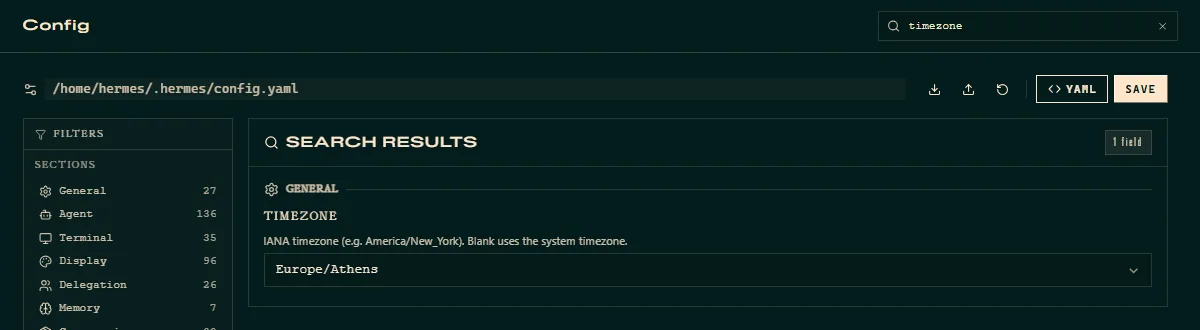
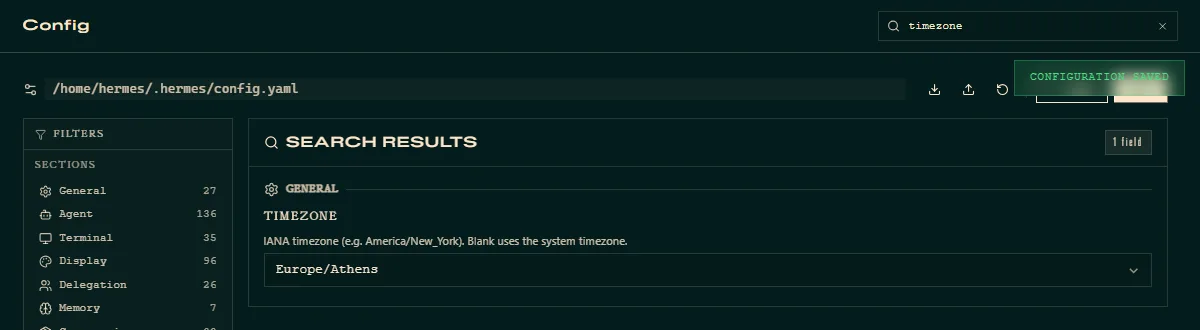
Step 2. Click "Save" at the top right. A green note saying "Configuration saved" appears for a moment.
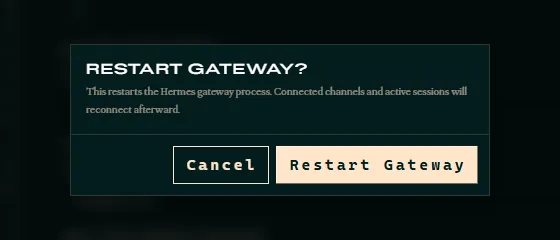
Step 3. Click "Restart Gateway" near the bottom of the left menu, then "Restart Gateway" again in the box that asks. The gateway is the part of Hermes that keeps it running and connected. It reads the new time zone when it starts.
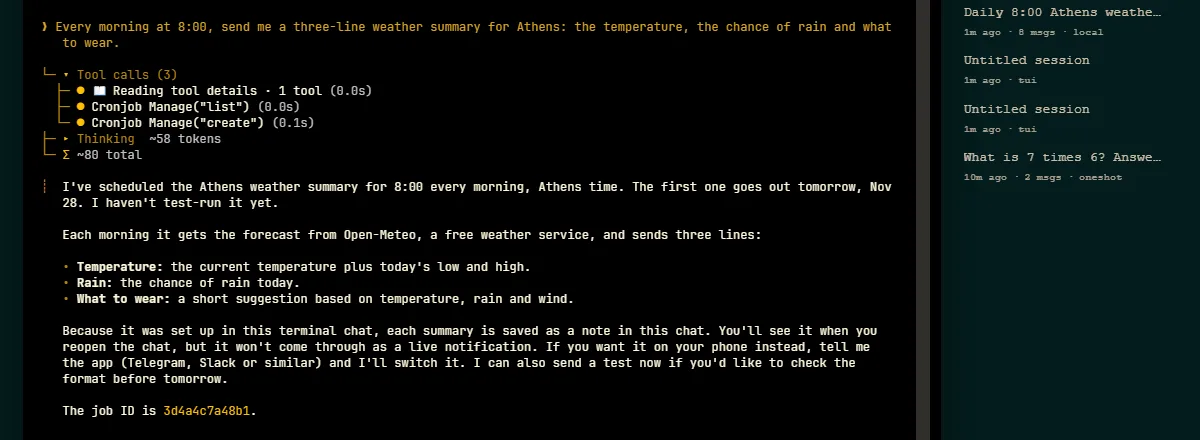
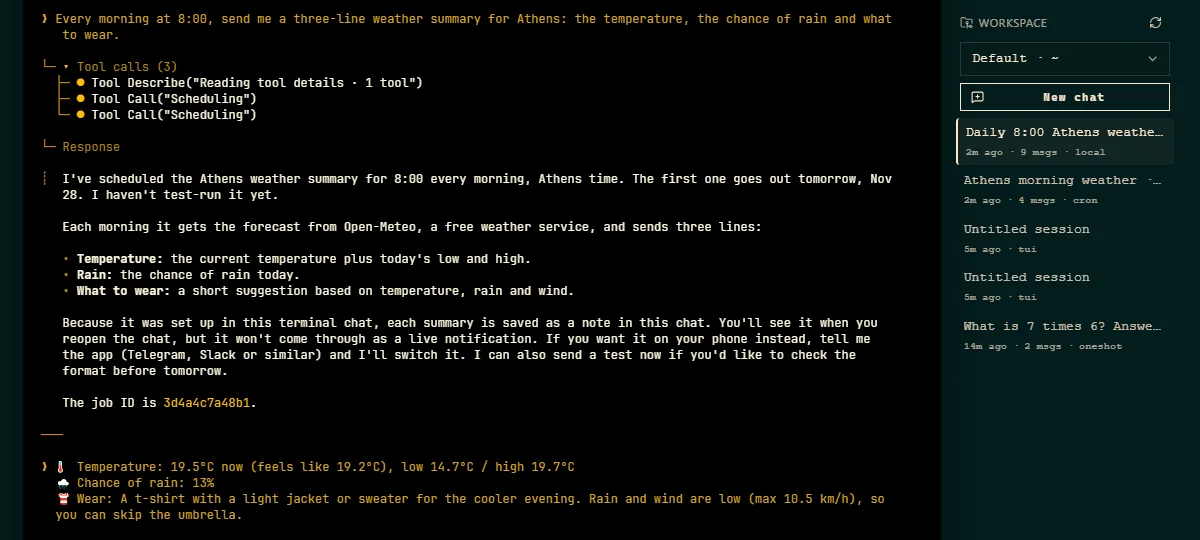
Step 4. Click "Chat", start a "New chat" and write what you want in plain words. We typed: "Every morning at 8:00, send me a three-line weather summary for Athens: the temperature, the chance of rain and what to wear." Hermes created the job by itself and replied with the time of the first run and a job number.
Step 5. Click "Cron" in the left menu. Your job is on the list with its name, "Daily at 08:00" and the date of its next run. On our server, the next run read 8:00 AM the following morning. The four small buttons on the right of the job are pause, run now (the lightning bolt), edit (the pencil) and delete (the red bin).
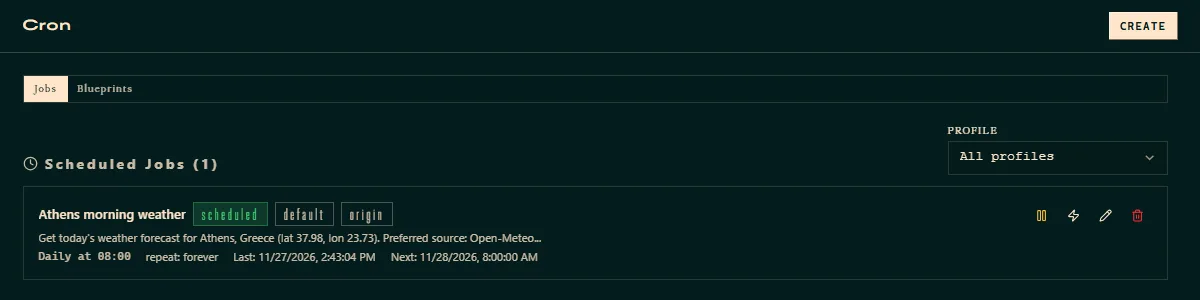
Step 6. You can test it today. Click the lightning bolt; its label reads "Trigger now" when you point at it. On our server, the summary arrived in the same chat: the temperature, a 13 percent chance of rain and a tip to bring a light jacket.
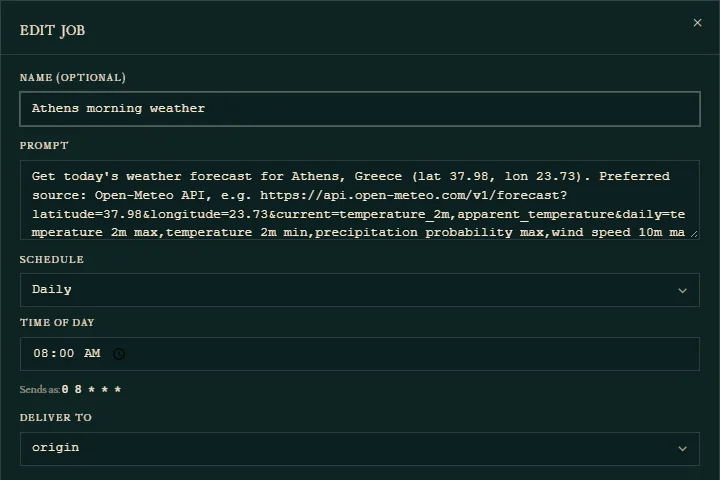
Step 7. To change anything, click the pencil. The "Edit job" window shows the name, the full instruction Hermes wrote for itself, the schedule ("Daily", 08:00 AM) and "Deliver to". Change the time or the wording and click "Save changes".
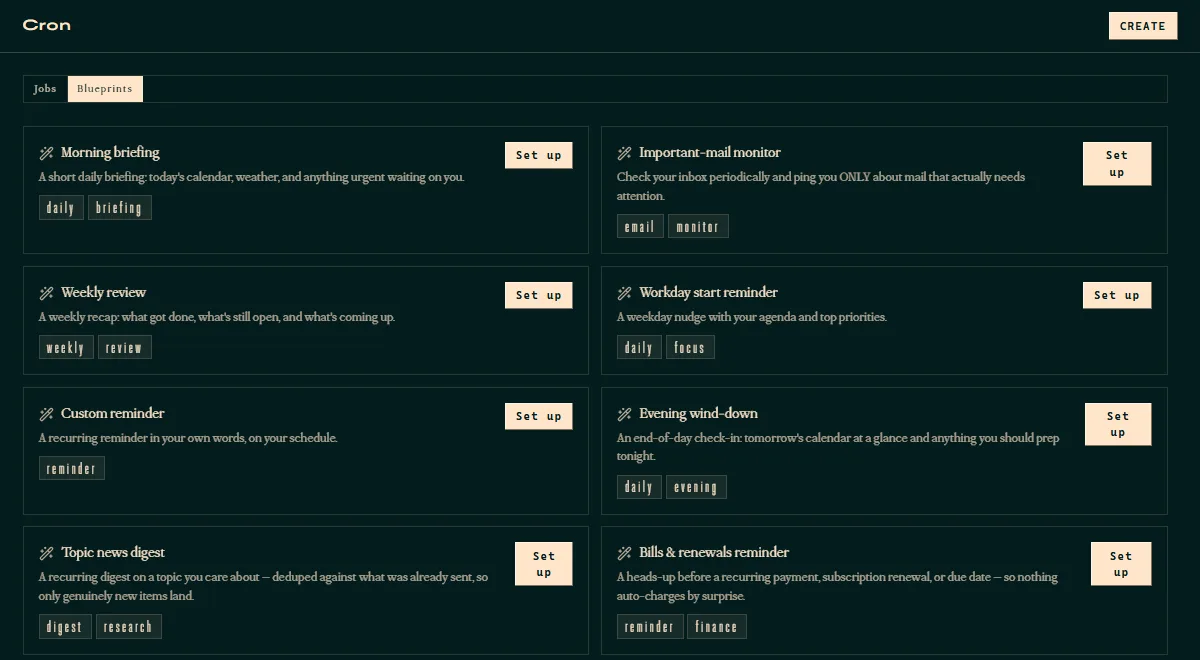
Step 8. Look for ready-made ideas. On the Cron page, click the "Blueprints" tab. Hermes lists ready jobs, each with a "Set up" button: a morning briefing, a weekly review, a bills and renewals reminder, a price watch, a habit check-in and more.
Where the answers arrive
"Deliver to: origin" means the answer goes back to the chat where you made the job. In our test, Hermes explained that a job made in the dashboard chat keeps its answers in that chat, so you see them when you open it. For answers that make your phone buzz, make the job from your Telegram chat with Hermes, as described in "Before you start".
Pause or stop a job
The pause button keeps the job and stops it from running until you resume it. The red bin deletes it for good. You can also say it in the chat, for example "pause my Athens weather job", and Hermes does it for you.
Related guides
Frequently asked questions
- Do I need to write the job myself?
- No. Write what you want in the chat, in plain words, and Hermes creates the job and replies with the time of its first run.
- Where do the answers arrive?
- Deliver to origin sends them back to the chat where you made the job.
- How do I stop a job?
- The pause button stops it until you resume it. The red bin deletes it for good.
Related guides
- Put a Dollar Cap on Hermes so an Unattended Job Can't Run Up the BillLeave Hermes working overnight and wake up to a bill you did not plan for. A free plugin called budget-leash puts a dollar limit on it. A beginner guide with a screenshot for every step: what the limit does, what it costs and where you set it.
- Give Each Job Its Own Hermes Profile so Work and Home Stay SeparateWhen one Hermes agent handles your job, a side project and family plans, their notes start to blend. This beginner guide sets up a separate agent for each job in five short steps, with a screenshot for every step.
- How to Install Hermes Agent and Start Your First ChatInstall Hermes Agent, connect a model, verify your first chat and add Telegram when you want to message it away from your computer.
- Your First OpenClaw Automation: a Job That Runs Every Morning at 8OpenClaw can do a job on its own at a set time, such as a weather summary every morning at 8. This guide sets one up on the Automations page in five steps, checked on a real server.