
Let Hermes Run Your Home Assistant Home, and Choose What It Watches
Hermes Agent has an official Home Assistant plugin. This guide shows how to install it, connect a long-lived access token, start with a read-only check, and choose which events the agent sees.
Hermes Agent has an official Home Assistant plugin. This guide shows how to install it, connect a long-lived access token, start with a read-only check, and choose which events the agent sees.
You already have lights, heat, blinds, or a front door sensor in Home Assistant. You still have to open a separate app to ask "is anything on?" or "turn the living room lights on, I am ten minutes out." You want to say that in the same chat you already use for Hermes, without giving the agent a free hand over the whole house.
Hermes Agent is Nous Research's open source personal AI agent. Its official Home Assistant plugin, maintained by Nous Research, connects Hermes to the Home Assistant setup you already run. This guide follows the official Home Assistant page in the Hermes documentation, read on the 14th of November 2026.
The plugin does two jobs, according to that page. It can watch real-time changes in your home and send them to the agent. And it gives the agent four tools to list devices, read their state, list available actions, and carry out an action.
One claim you may have seen in passing is not in the official documentation: a single switch that "keeps the locks off-limits." This guide does not invent that setting. It shows the official event filters, the official blocked service list, and how to write a standing instruction the agent reads. No technical block sits behind that instruction.

What you need
- A Home Assistant setup you can sign into, and a way to reach it from the machine that runs Hermes.
- Hermes Agent, with a profile you are happy to use for the house. The official page says plugins are installed per profile, so you install this one in each profile that should control the house.
- A terminal, or another way to run the official install and gateway commands on that machine.
If Hermes already runs on a OneClickClaw hosted server, with plans at oneclickclaw.io/plans, install the plugin in that server's profile and point it at your Home Assistant. The Home Assistant address must be reachable from that server.
Step 1. Install the official plugin
The official documentation's install command is:
hermes plugins install homeassistant
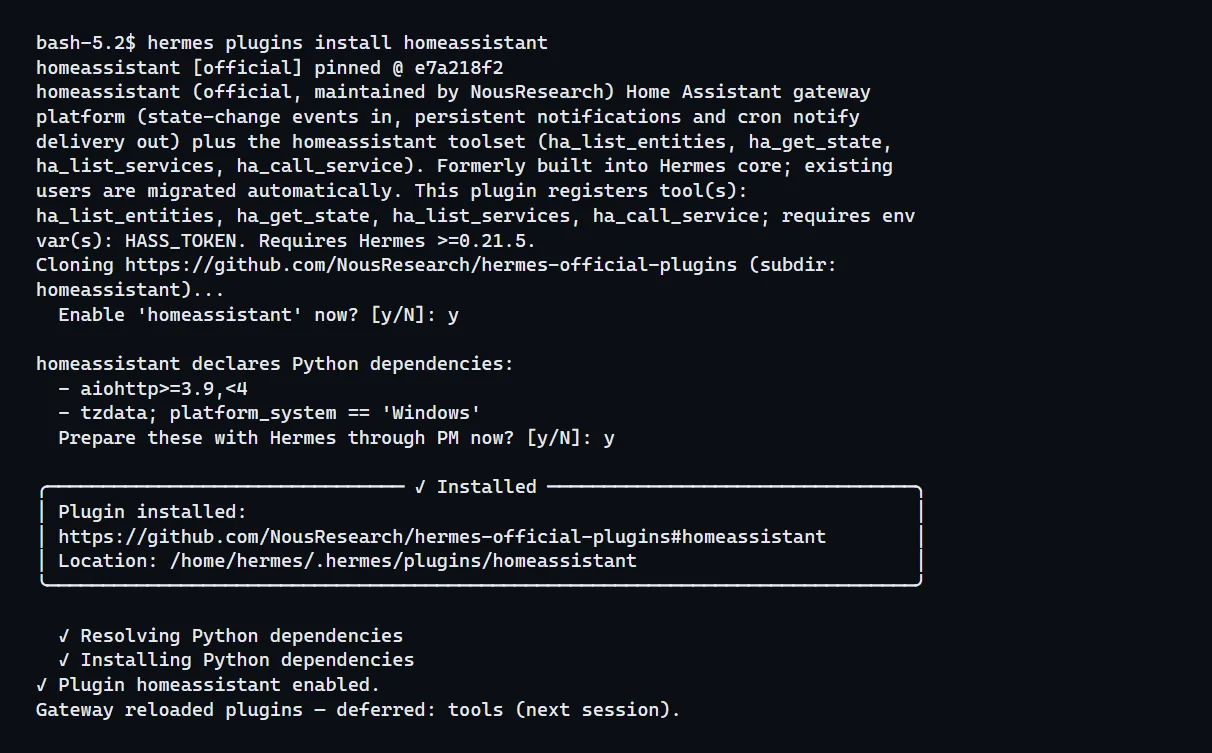
To install it in another profile:
hermes -p <profile> plugins install homeassistant
Replace <profile> with the profile name. The official page says the plugin brings its own Python helper, so there is no extra pip package to install by hand. On our test server (Hermes Agent 0.23.1 and the current stable Home Assistant, 14 November 2026) the install command asked two questions: "Enable 'homeassistant' now?" and whether Hermes should prepare the plugin's Python dependencies now. We answered y to both, Hermes installed them itself, and printed "Plugin homeassistant enabled." When we answered N to the second question, the plugin stayed installed but switched off.
If this profile already used Home Assistant in an older Hermes install, the same page says hermes update (or the first start of the profile) can install the plugin for you and keep your existing token and settings. If you later remove it with hermes plugins remove homeassistant, it stays removed.
Check that it is present:
hermes plugins list
The official troubleshooting section says to use that list if the platform or the tools are missing, then install the plugin and restart the gateway.
Step 2. Create a long-lived access token and store it privately
The official setup has three parts. First, create a token in Home Assistant:
- Open your Home Assistant instance.
- Go to your Profile (click your name in the sidebar).
- Open the Security tab and scroll to Long-lived access tokens. (In our test the section sat on the Security tab of the profile.)
- Click Create Token, give it a name like "Hermes Agent", and copy the token.
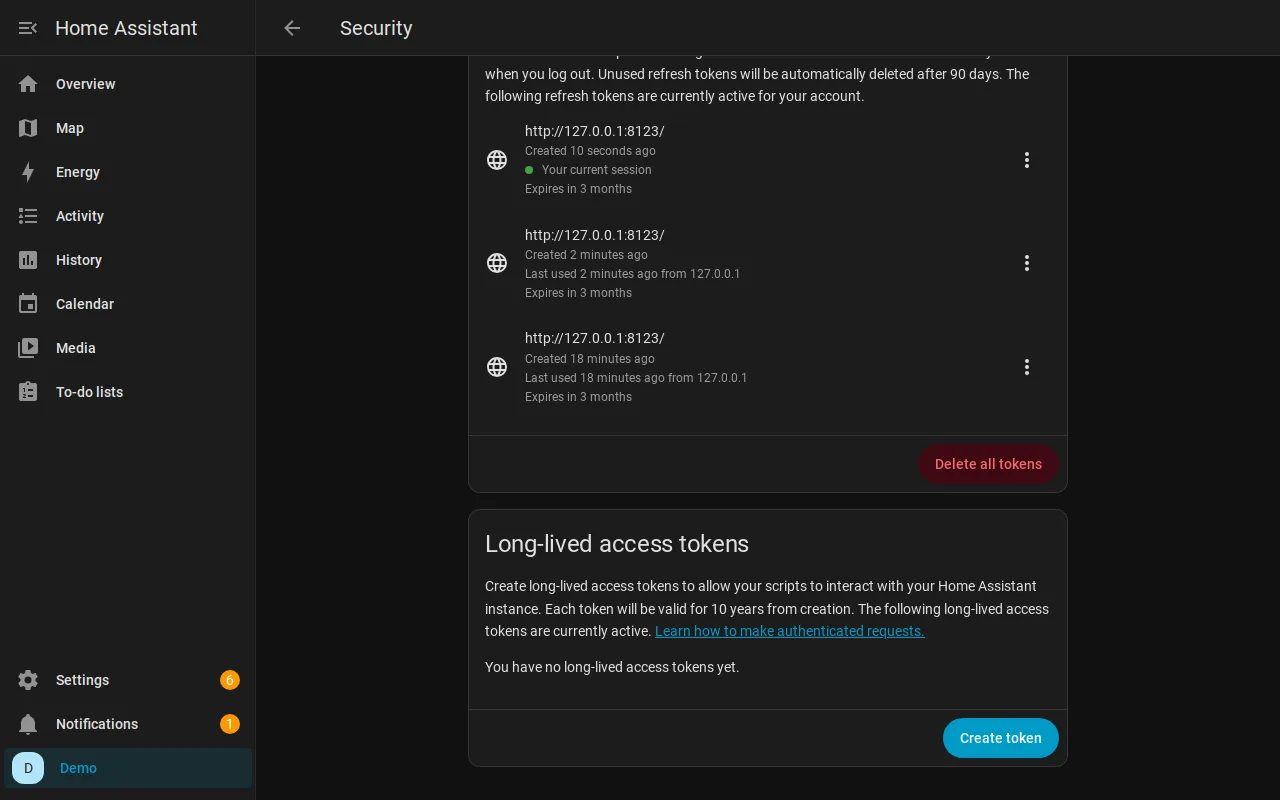
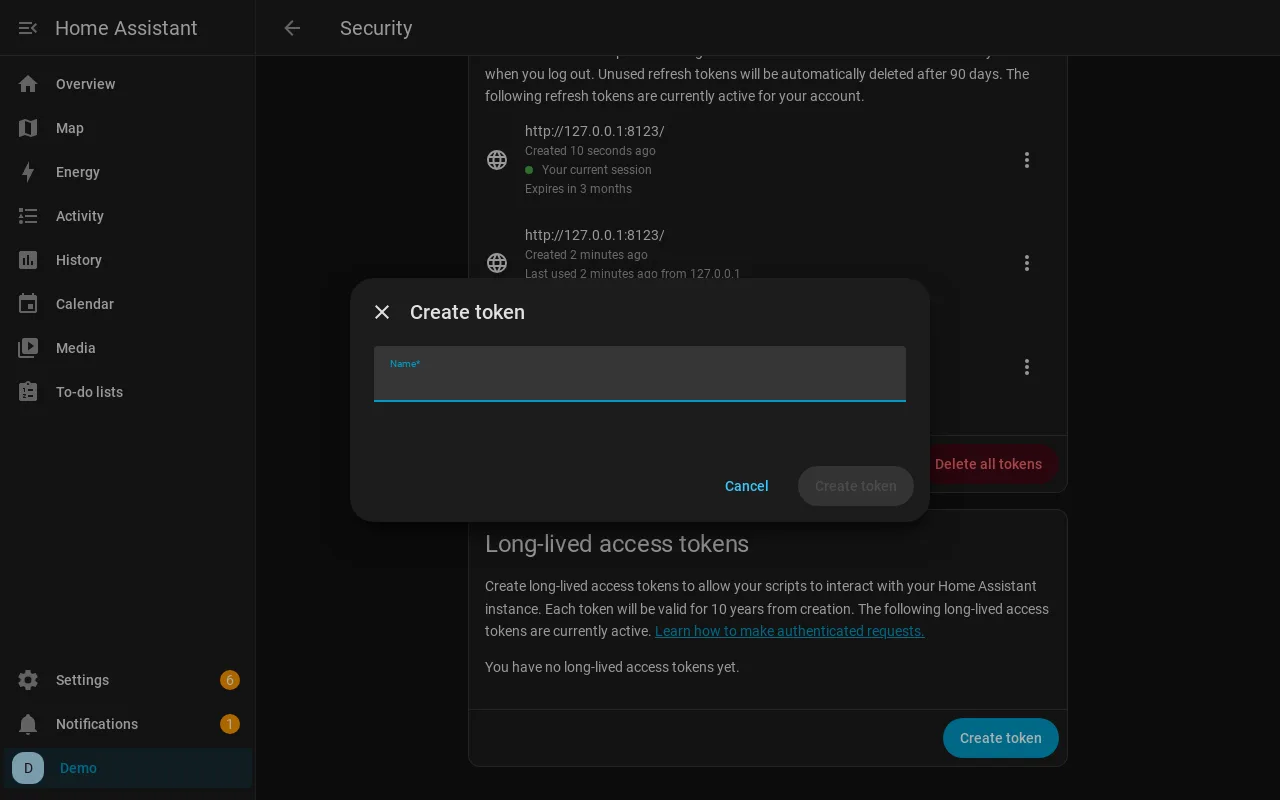
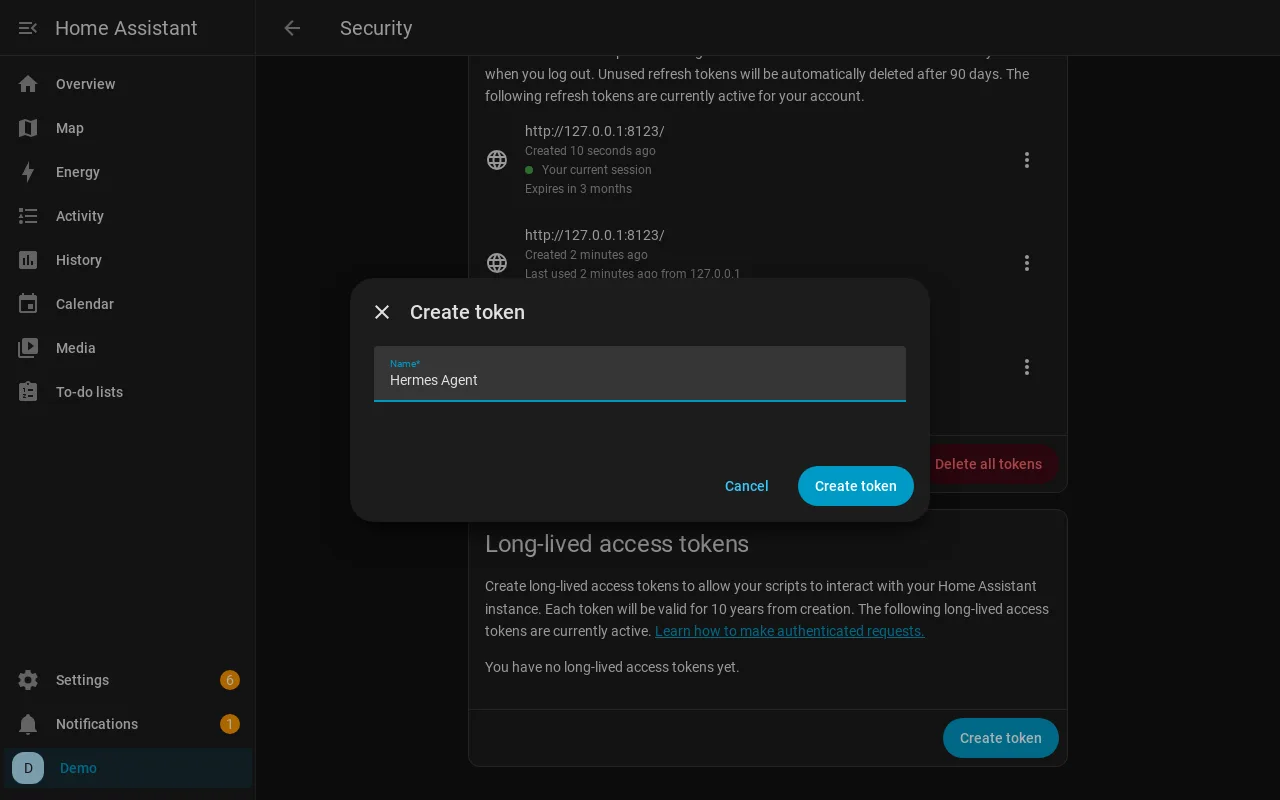
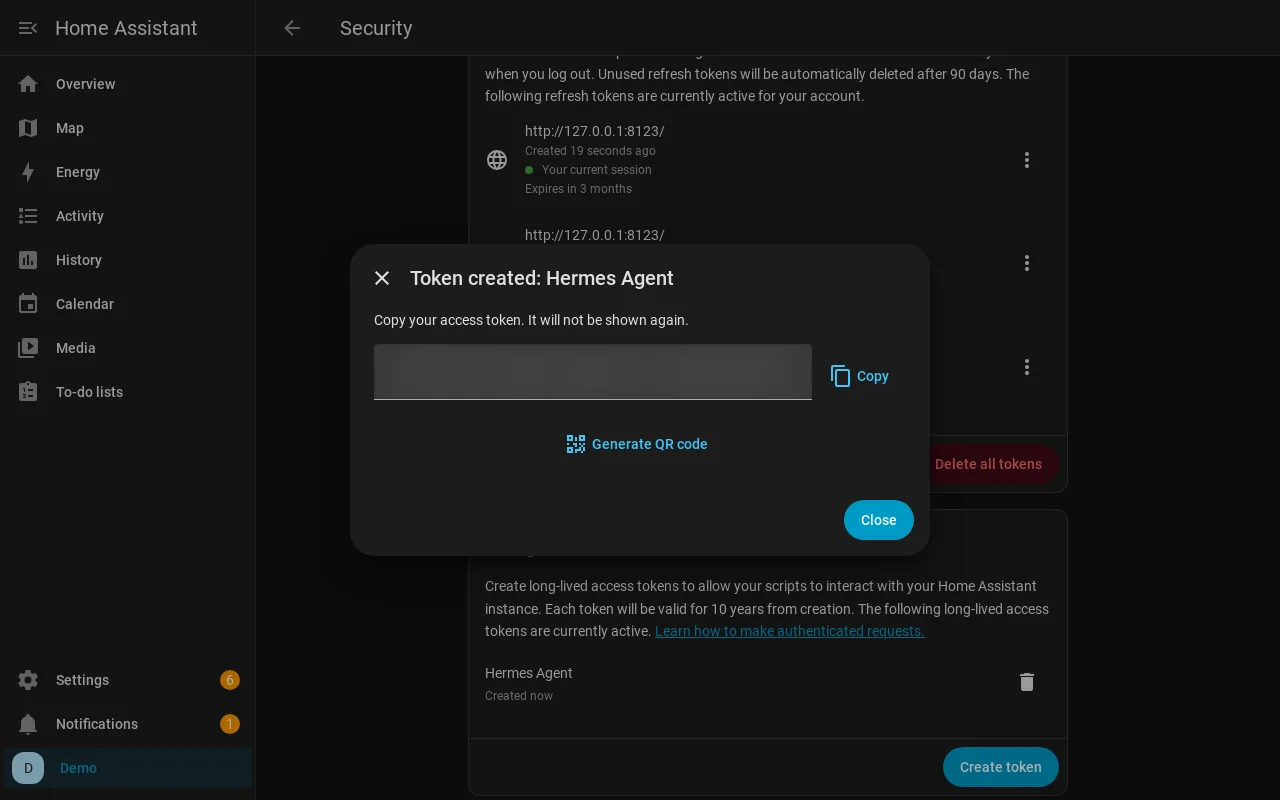
Treat the token like a password. Do not paste it into the Hermes chat.
The official troubleshooting section adds that the token must be a long-lived access token from your Home Assistant user profile (it also names the path Profile, then Security, then Long-lived access tokens). Short-lived session tokens from the ordinary UI will not work.
Second, add the token to the active profile's environment file, which the official page writes as ~/.hermes/.env:
# Required: your Long-Lived Access Token
HASS_TOKEN=your-long-lived-access-token

# Optional: HA URL (default: http://homeassistant.local:8123)
HASS_URL=http://192.168.1.100:8123

# Optional: default notify target for a bare deliver: homeassistant
HASS_HOME_CHANNEL=mobile_app_my_phone
Use your own Home Assistant address if the default http://homeassistant.local:8123 is wrong, and include the scheme and the port. The official page says that once HASS_TOKEN is set, both the live event connection and the device tools turn on from that single token.
If this is not the default profile, put the file in that profile's own home. The official troubleshooting section says the adapter reads credentials from ~/.hermes/.env or from config.yaml, and that a stray quote around the URL or token will break it. Restart the gateway after you edit the file.
Step 3. Start the gateway and try a read-only check
The official third step is:
hermes gateway
The documentation says Home Assistant then appears as a connected platform, alongside chat apps such as Telegram or Discord. If Hermes already runs as a background service, as on a hosted server, restart it instead. On our test server (Hermes Agent 0.23.1 and the current stable Home Assistant, 14 November 2026) we used hermes gateway restart, and the gateway log then showed "homeassistant connected".

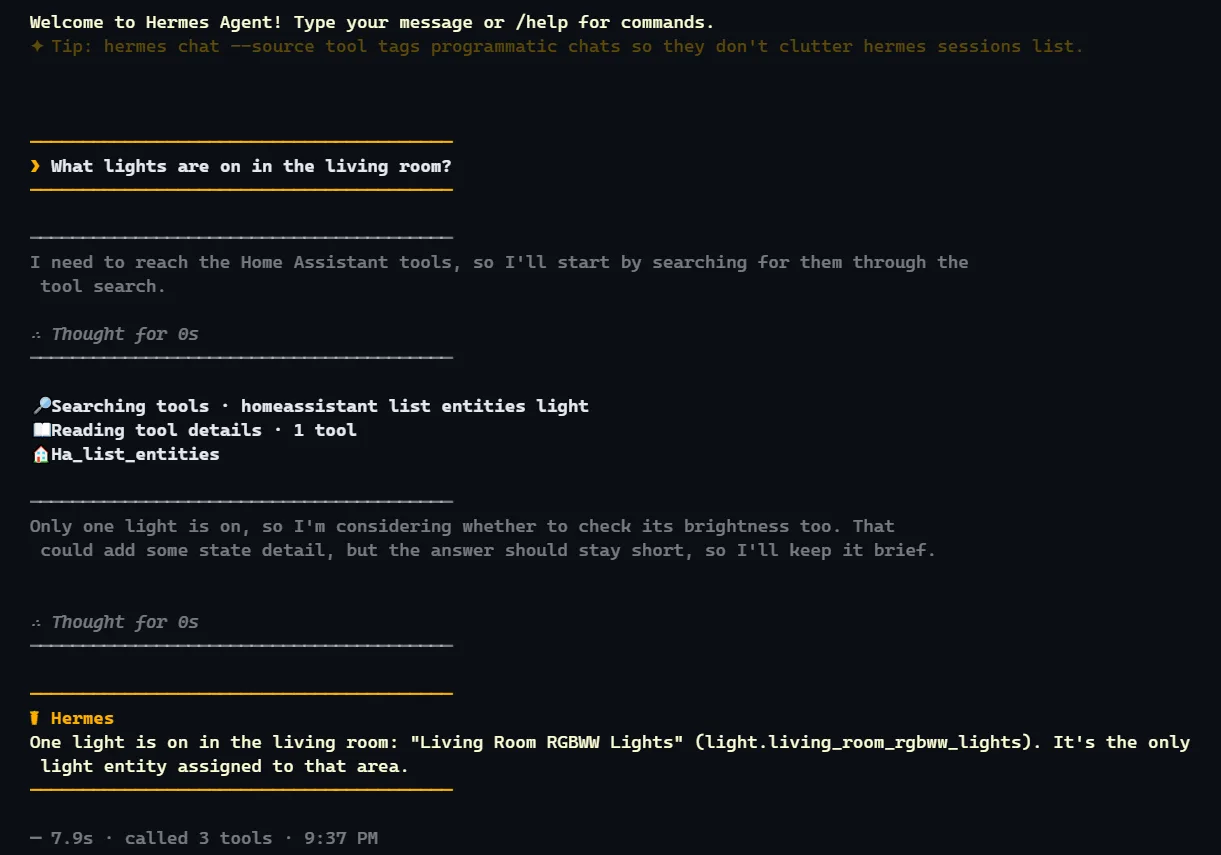
Start with a question that only reads, for example: "What lights are on in the living room?" The official tools include ha_list_entities, which can filter by domain (such as light) and by area (such as living room), and ha_get_state, which reads one device in detail. Do not ask it to change anything yet.
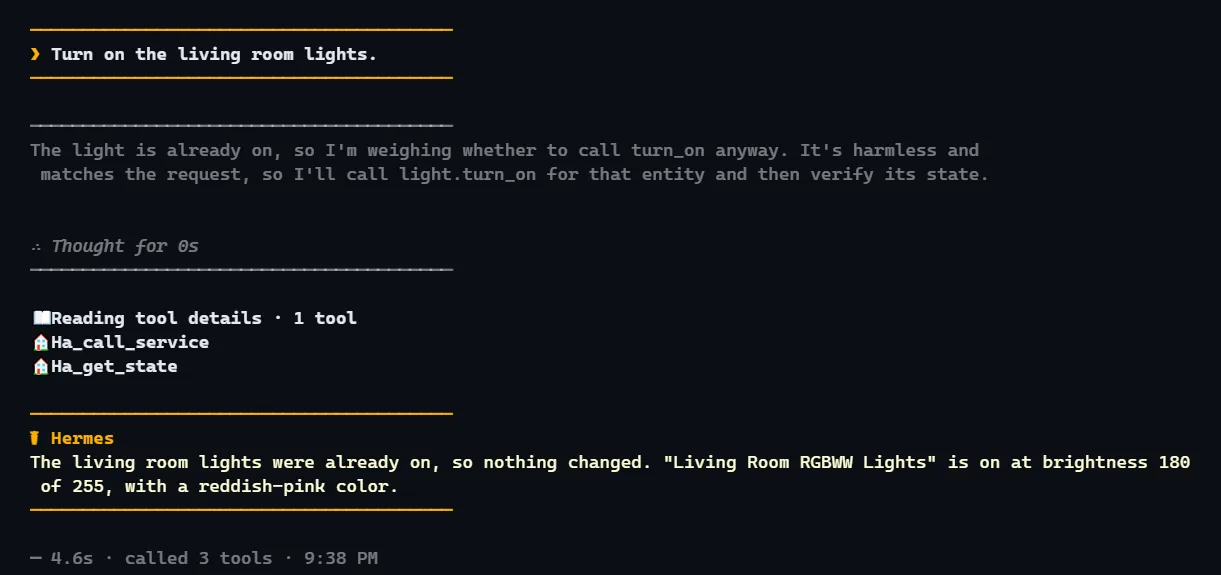
When you are ready for one safe action, pick a lamp or a scene you do not mind testing, and ask in plain words, for example: "Turn on the living room lights." The official page shows how that becomes a ha_call_service call on the light domain. Keep the first action small.
Step 4. Choose which events the agent sees
Watching the house is separate from asking a question. The official "Gateway Platform" section says the plugin connects to Home Assistant's live event stream, and that by default no events are forwarded. You must set at least one of watch_domains, watch_entities, or watch_all. Without filters, a warning is logged at startup and all state changes are silently dropped.
Configure this in ~/.hermes/config.yaml under the Home Assistant platform's extra section. The official example looks like this (use your own URL, and only the domains and entities you actually want):
platforms:
  homeassistant:
    enabled: true
    extra:
      url: http://192.168.1.100:8123
      watch_domains:
        - climate
        - binary_sensor
        - alarm_control_panel
        - light
      watch_entities:
        - sensor.front_door_battery
      ignore_entities:
        - sensor.uptime
        - sensor.cpu_usage
        - sensor.memory_usage
      cooldown_seconds: 30
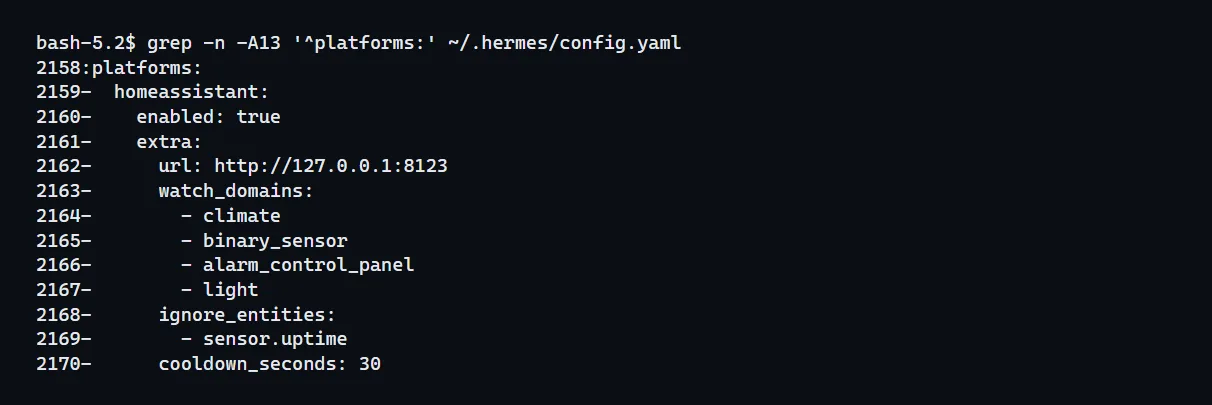
The official table says watch_all: true receives all state changes, and is not recommended for most setups. ignore_entities always drops the listed devices. cooldown_seconds defaults to 30, and is the minimum time between events for the same device. The official tip is to start with a focused set of domains, such as climate, binary_sensor, and alarm_control_panel, and to use ignore_entities for noisy sensors.
The official documentation also shows how a watched front door can be reported as a message, and how a scheduled job can deliver a notification to your phone with deliver: homeassistant when HASS_HOME_CHANNEL is set.
Agent replies appear in Home Assistant as persistent notifications titled "Hermes Agent."
Step 5. Write a standing instruction for what it should leave alone
The official Security section blocks a list of Home Assistant service domains so the agent cannot run arbitrary code on the Home Assistant host: shell_command, command_line, python_script, pyscript, hassio, and rest_command. An attempt to call those returns an error. That list covers dangerous host actions. Door locks are outside it.
The official page does not document a setting that blocks the lock domain. If you do not want the agent to lock or unlock doors, this guide suggests writing that down in SOUL.md. The official "Which File Does What?" page gives its location as ~/.hermes/SOUL.md (or $HERMES_HOME/SOUL.md with a custom home). That page describes SOUL.md as the agent's primary identity: personality, tone, communication style, and what to avoid stylistically. It says to use SOUL.md for durable voice and personality guidance. Using it for a "do not touch locks" rule is this guide's own suggestion. The same page says SOUL.md is loaded at session start. A clear line such as "Do not operate locks, garage doors, or door openers. You may read their state and tell me." is a standing instruction the agent reads. No technical block sits behind it. The page says to restart the session to pick up changes to SOUL.md.
The official "Security Check" example shows the agent listing door and window sensors, reading the alarm, and listing lock states, then reporting what it found. That is a read-only check, and it is a good first habit: ask "Is the house secure?" before you ask it to change anything important.
Quick answers
Is this an official plugin?
Yes. The official documentation says the homeassistant plugin comes from the Hermes plugin catalog and is maintained by Nous Research in the NousResearch/hermes-official-plugins repository. It is not part of Hermes core.
Why do I see no door or light events?
The official page says that, by default, no events are forwarded until you set at least one watch filter.
Can I use this in more than one Hermes profile?
Yes, but you install it in each profile that should use it, with hermes -p <profile> plugins install homeassistant.
What if the token fails with 401 Unauthorized?
The official troubleshooting section says to use a long-lived access token, to include the scheme and port in the base URL, and to confirm the address is reachable from the machine that runs Hermes.
Sources
- Official Hermes Agent Home Assistant documentation, https://hermes-agent.nousresearch.com/docs/user-guide/messaging/homeassistant, read on the 14th of November 2026
- Official "Which File Does What?" page, https://hermes-agent.nousresearch.com/docs/user-guide/which-file-does-what, read the same day, for the
SOUL.mdstanding-instruction step
Related guides
- How to Install Hermes Agent and Start Your First ChatInstall Hermes Agent, connect a model, verify your first chat and add Telegram when you want to message it away from your computer.
- Get a Real Phone Call from Your OpenClaw or Hermes AgentYour agent can ring your Android phone when a job needs a yes, and you can call it back by voice. This guide follows the official agentring setup for OpenClaw and Hermes, including the free plan limits and the self-hosted option.
- Update Hermes Agent to 0.23.1 so the plugin catalog works againSince the 9th of November 2026 Hermes Agent could hand you an old version of a plugin, or miss a new one. Version 0.23.1 fixes it. Nine steps with real screens from our own test server, where the update took about two minutes.
- Sign In to OpenClaw and Hermes Agent With Your Grok Subscription, No API KeyIf you already pay for SuperGrok, you do not need a separate xAI API key to run OpenClaw or Hermes Agent on Grok. Both agents have a built-in sign-in that uses your subscription. How to connect it on a server, what you get and what to do when xAI says no.