
Subscribe to our newsletter
One short email when we publish. No spam, unsubscribe anytime.

OpenClaw dreaming: what it does and how to switch it off
OpenClaw has a feature called dreaming. It is switched on from the start, and every night at 3 in the morning it tidies your agent's memory while you sleep. According to the official OpenClaw documentation, dreaming moves the most useful notes from recent chats into your agent's long term memory and keeps a written record of what it did. This guide explains what happens during that nightly run, what it costs, and how to find the switch, step by step, with a picture of every screen. The screenshots come from a real OpenClaw install opened on the 22nd of October 2026.
What dreaming does, in plain words
Think of your agent's memory as two places. One is a notepad for recent things. The other is a notebook for things worth keeping. Dreaming is the nightly moment when the agent reads the notepad and copies the important parts into the notebook.
The official documentation describes three stages, always in the same order.
- Light. Like sorting the day's post on the kitchen table. The agent gathers recent notes, throws away duplicates and puts aside the ones that might matter. Nothing is saved for good at this stage.
- REM. Like thinking back over your week. The agent looks for themes and ideas that keep coming up. This stage also saves nothing for good.
- Deep. Like writing in your diary only the things you want to remember next year. The agent scores each candidate, and only notes that pass three tests get saved: a high enough score, enough times they were recalled, and enough different questions that brought them up.
Only the Deep stage writes to long term memory. That memory lives in a file called MEMORY.md.
The documentation also lists safety guards:
- Before any change to long term memory, the previous version is kept as a backup.
- A rewrite that would remove more than a quarter of the existing memories is refused.
- Notes from untrusted or system sources are removed before the AI model sees them.
- Personal and sensitive details are hidden before anything is read.
Dreaming only reads your real conversations with the agent. Scheduled jobs, automatic health checks and helper agents stay out of it.
Every night the agent also writes a short Dream Diary, kept in a file called DREAMS.md. It is there for you to read and enjoy. Nothing in the diary is ever copied into memory.
What it costs
The official documentation publishes no price for dreaming. Here is how it works instead. The diary entries and the Deep stage are written by an AI model, and by default that is the same model your agent already uses. So each night dreaming makes a few short background requests on your own model plan. The cost follows that plan, the same way any other request from your agent does. The documentation also says these runs wait their turn in a low priority background queue.
Before you start
You need two things:
- Your OpenClaw Control UI open in your web browser. This is the screen where you chat with your agent and change its settings.
- To be signed in as the owner of that OpenClaw.
Step by step: find dreaming
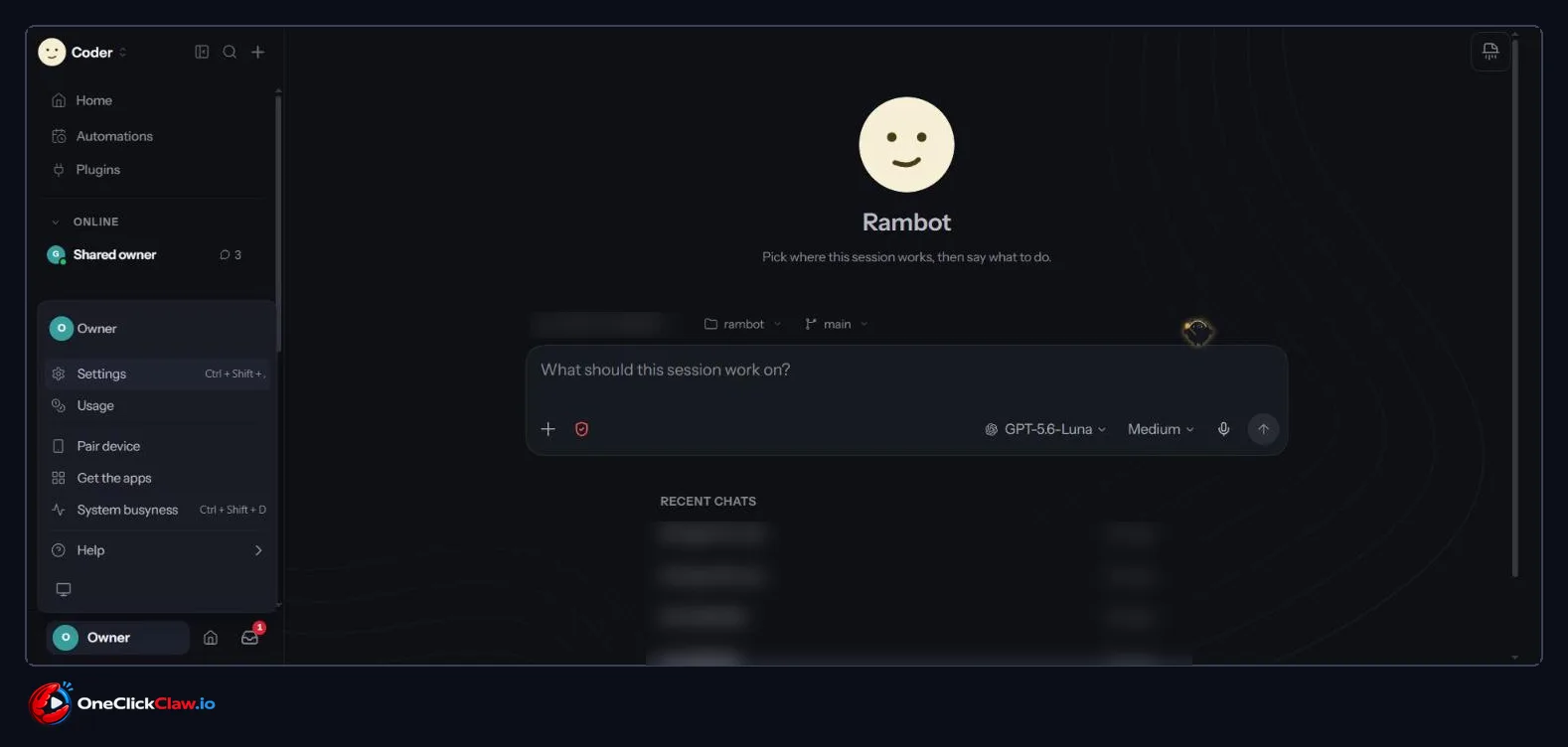
Step 1. At the bottom left of the screen, click your name. On this install the name is "Owner". A menu opens. Click "Settings", the first entry. You can also press Ctrl + Shift + comma on your keyboard.
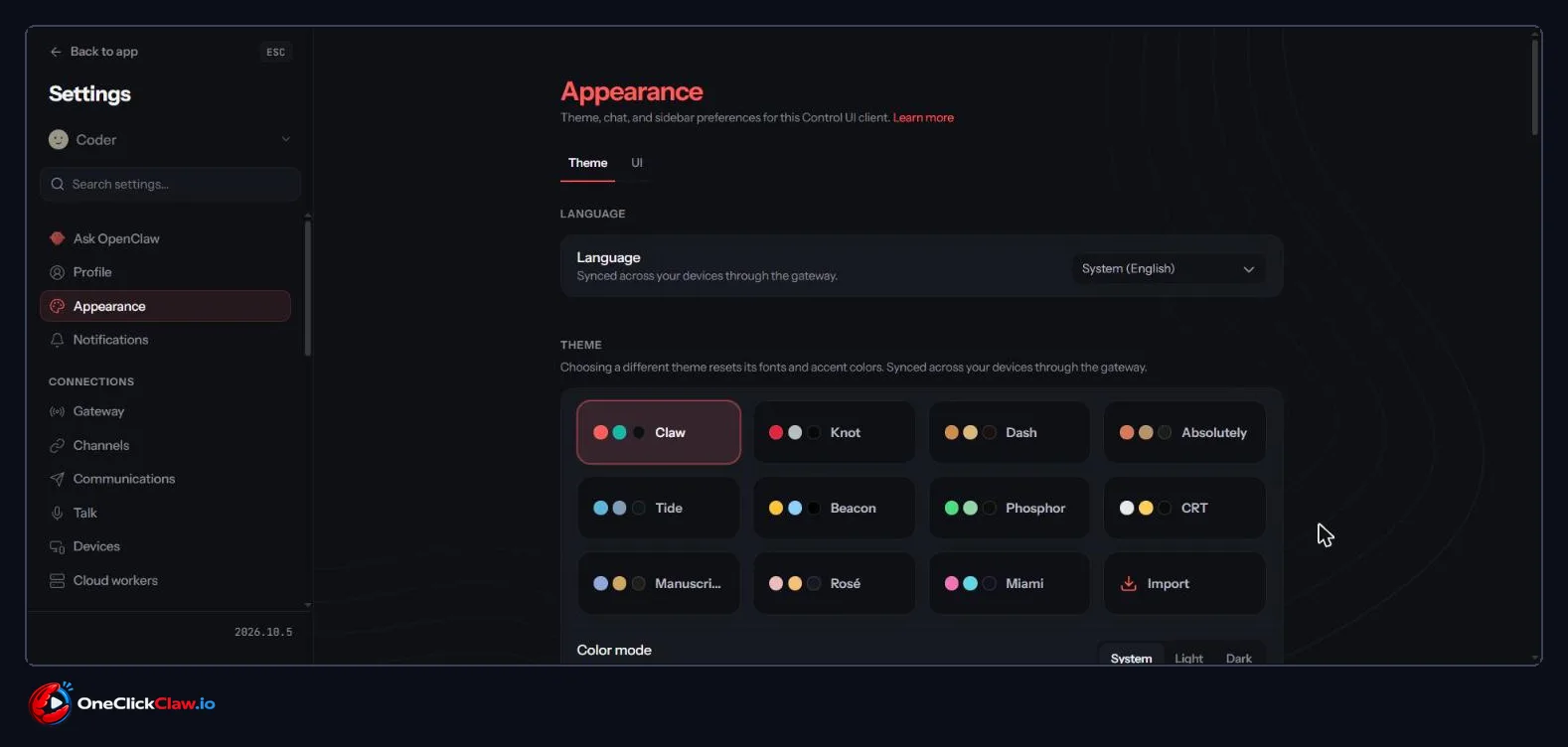
Step 2. The Settings window opens on the Appearance page. On the left you will see a search box that says "Search settings...".
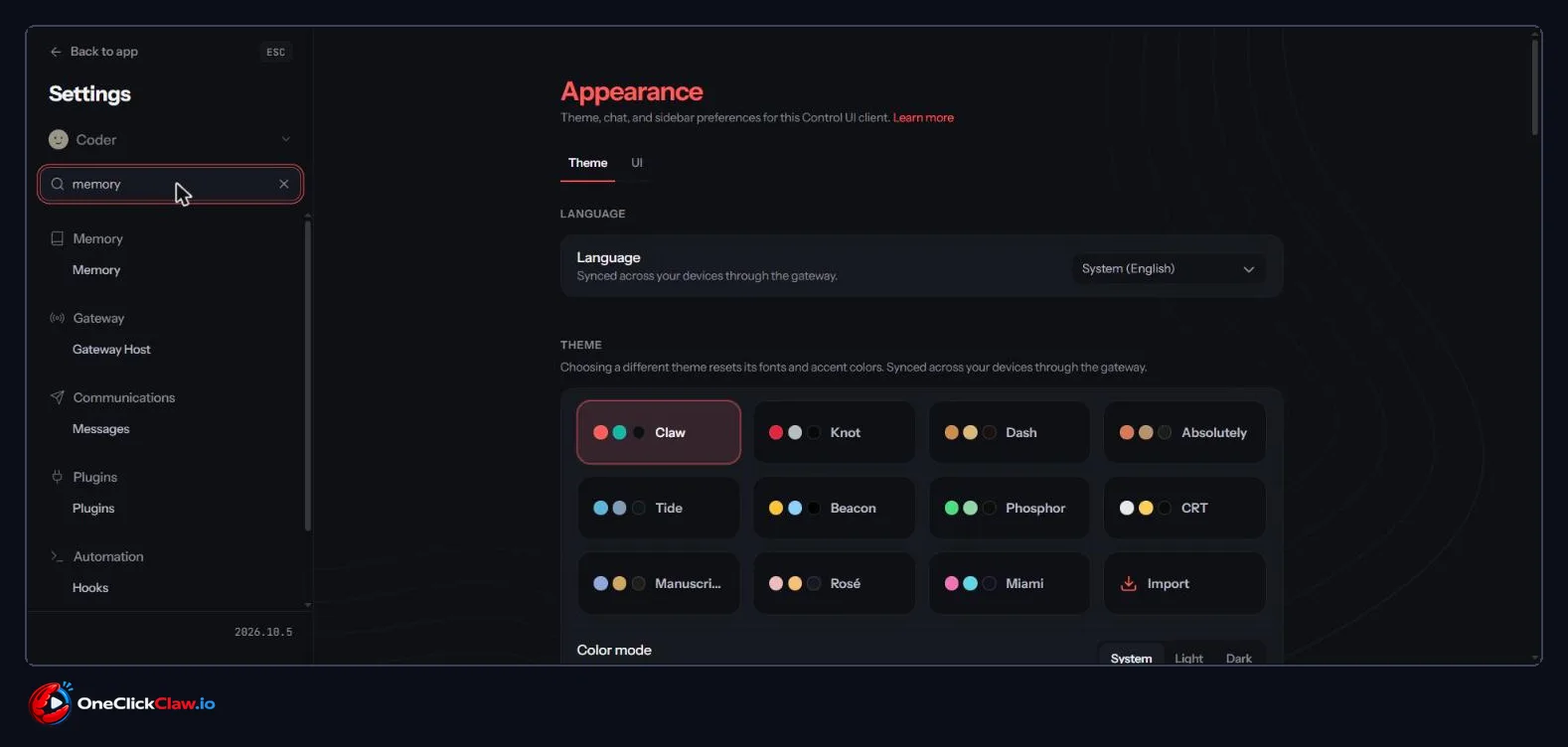
Step 3. Type the word "memory" into the search box. "Memory" appears at the top of the list. Click it.
Step 4. You are now on the Memory page, on the "Overview" tab. A large card says "Memory is awake". At the top you can see four tabs: "Overview", "Memories", "Dreams" and "Settings".
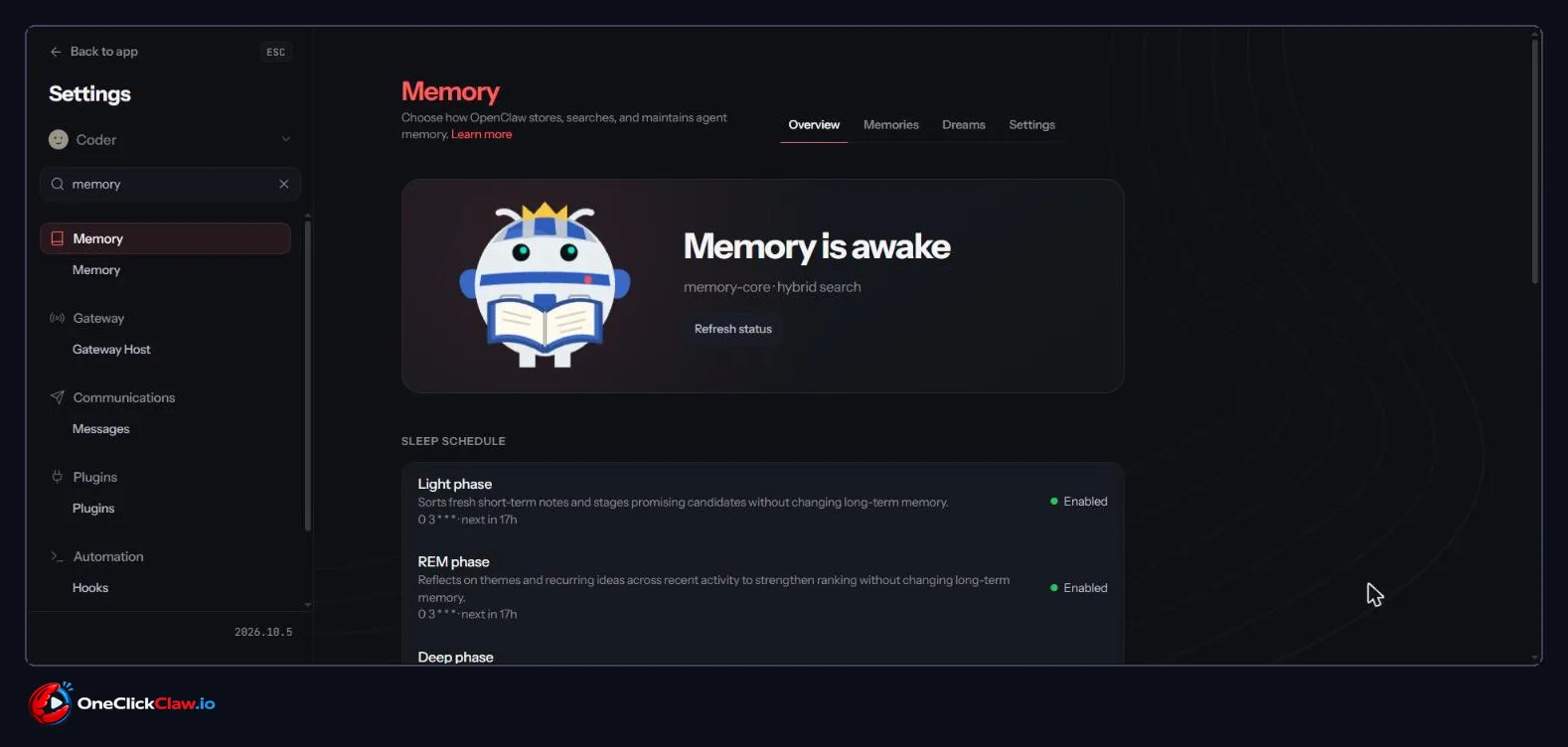
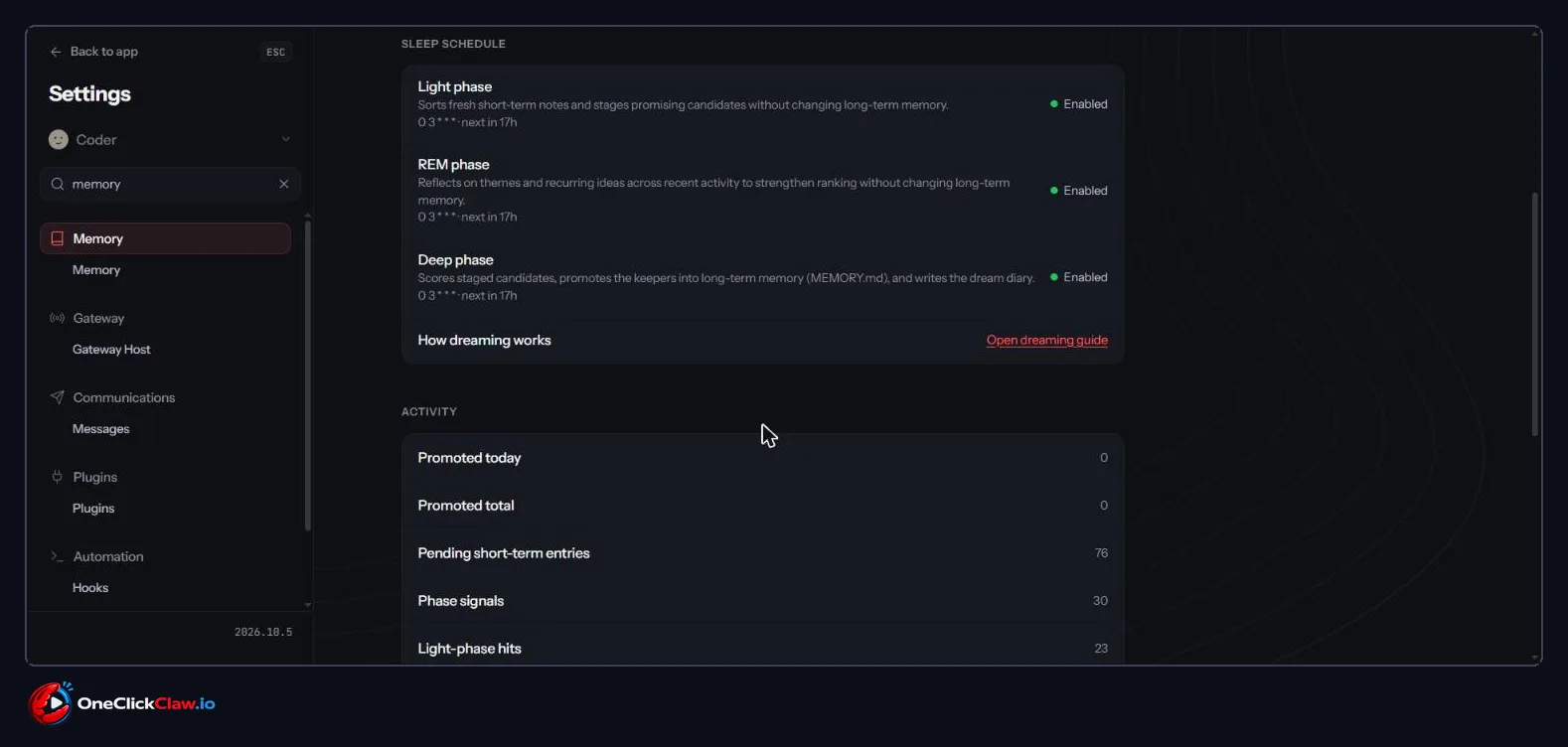
Step 5. Scroll down. A section called "SLEEP SCHEDULE" lists the Light phase, the REM phase and the Deep phase. Each one says "Enabled" and shows when it runs next, which is 3 in the morning. Below that, a section called "ACTIVITY" counts how many notes were promoted today, how many in total and how many are waiting.
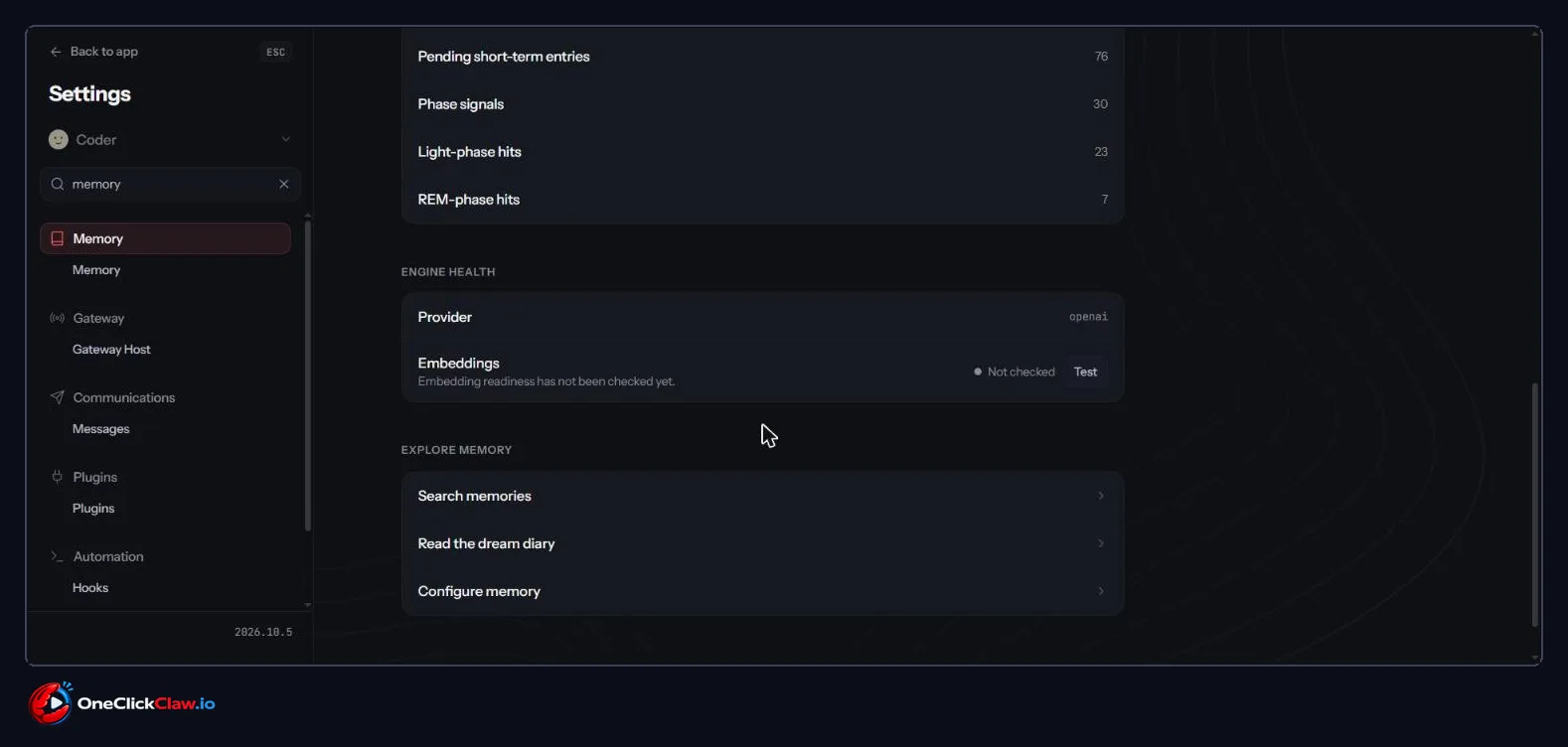
Step 6. Scroll a little further. You will see "ENGINE HEALTH" and a section called "EXPLORE MEMORY" with three shortcuts: "Search memories", "Read the dream diary" and "Configure memory".
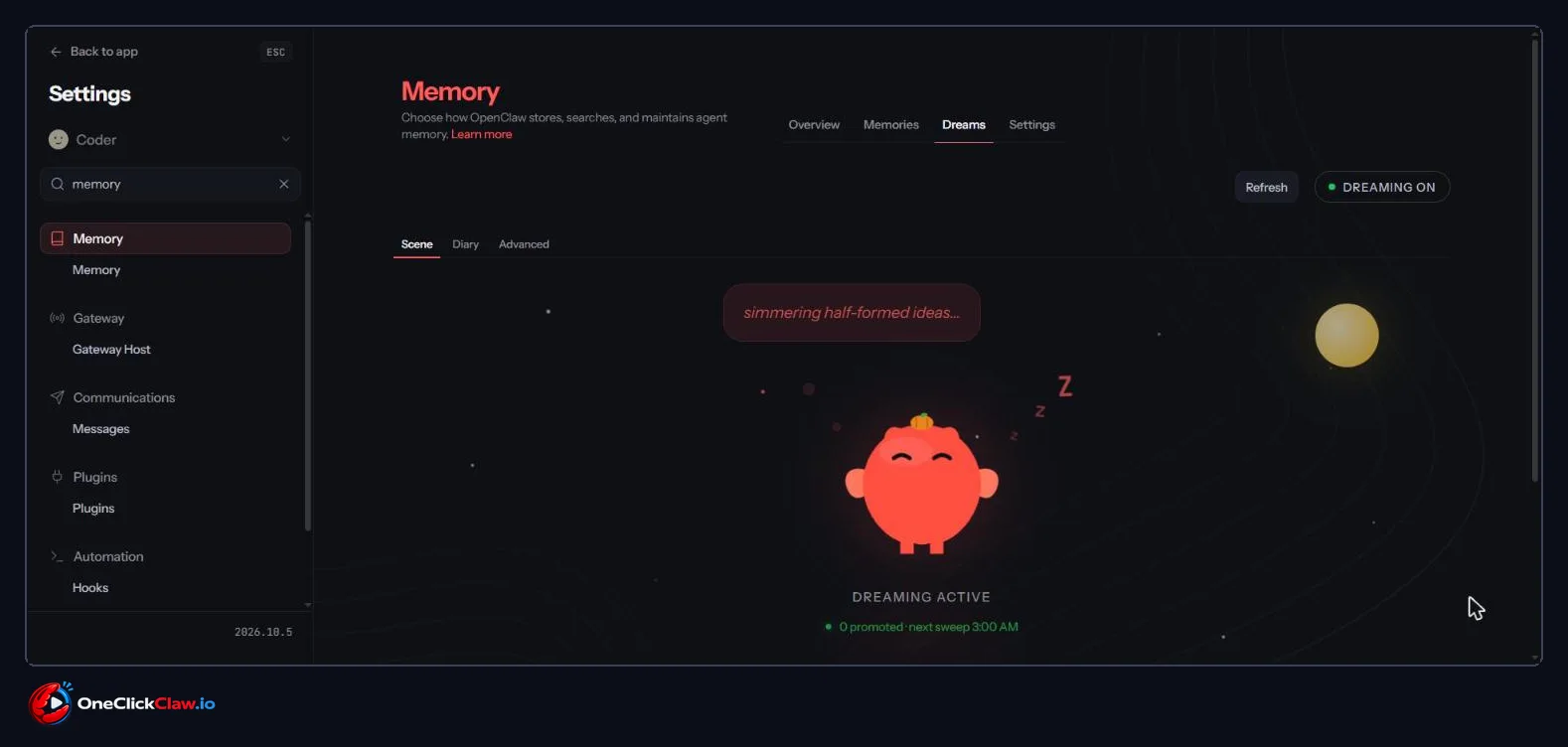
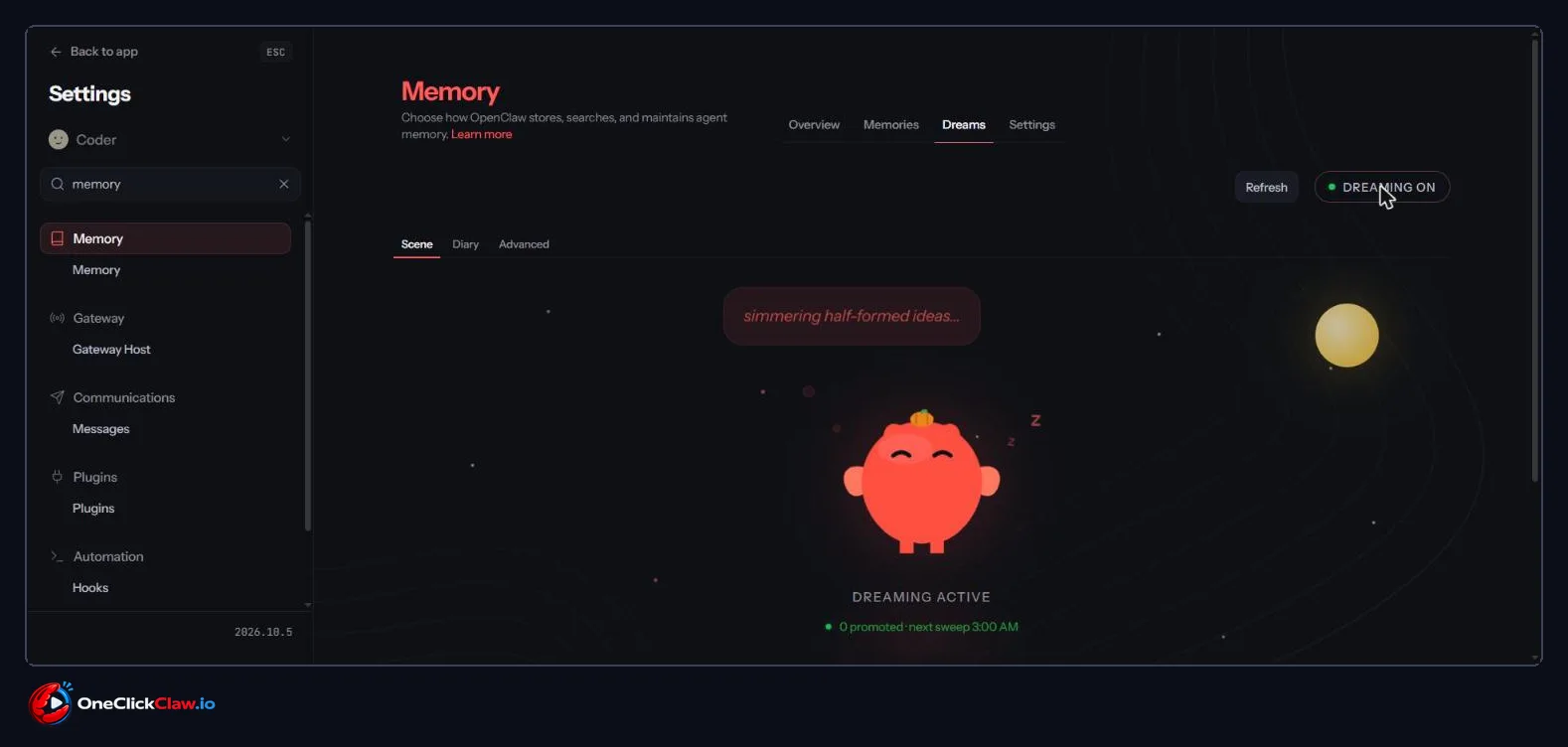
Step 7. Scroll back up and click the "Dreams" tab. A sleeping character under a moon appears, with the words "DREAMING ACTIVE" and the time of the next run, 3:00 AM. At the top right there is a "Refresh" button and a switch that reads "DREAMING ON". Below the picture there are three smaller tabs: "Scene", "Diary" and "Advanced".
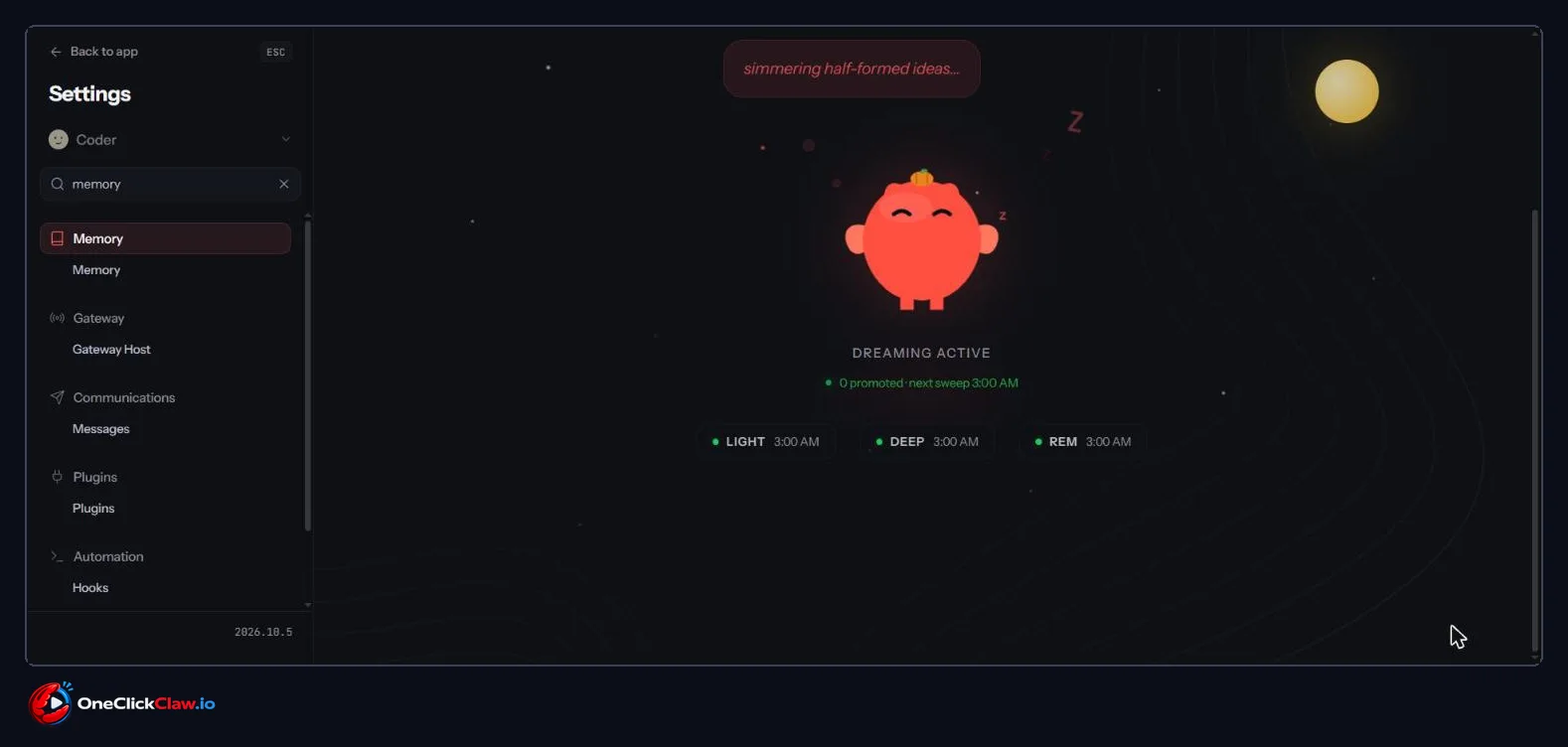
Step 8. Under the picture, three badges show each stage and its time: LIGHT 3:00 AM, DEEP 3:00 AM and REM 3:00 AM. All three run in the same nightly sweep.
How to switch dreaming off (or back on)
Step 9. On the "Dreams" tab, move your mouse to the switch at the top right that reads "DREAMING ON". Click it.
Step 10. A box opens with the title "Turn Off Dreaming for All Agents". Read it before you click. To stop dreaming, click "Turn Off Dreaming". To keep everything as it was, click "Cancel".
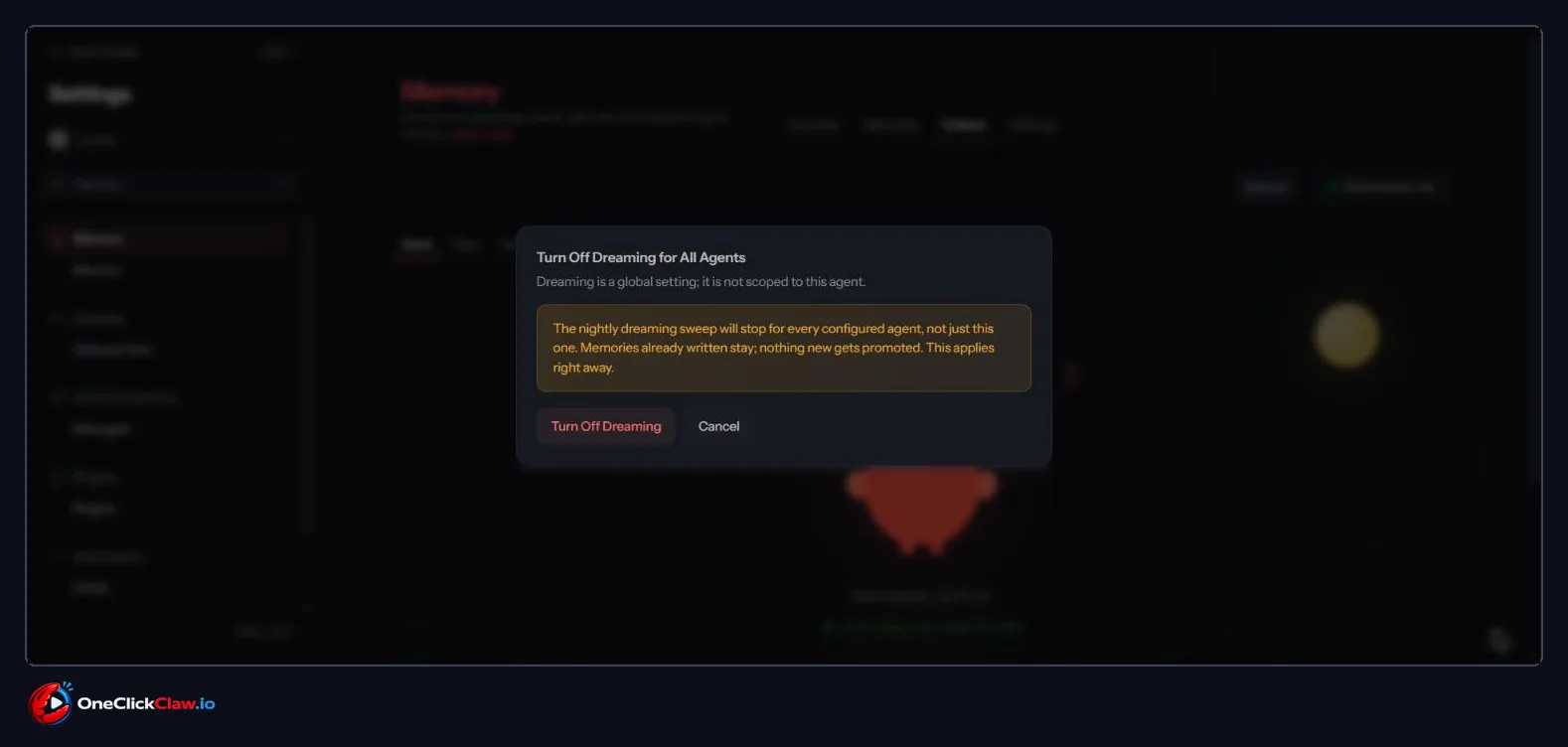
Important: this switch applies to every agent on that OpenClaw, including the ones you are not looking at right now. The change takes effect at once. Memories already saved stay exactly where they are. From then on, nothing new gets added to long term memory by dreaming.
To switch dreaming back on, go to the same "Dreams" tab and click the same switch again.
You can also control dreaming from any chat with your agent, according to the official documentation:
- Type "/dreaming status" to see whether dreaming is on.
- Type "/dreaming on" to switch it on.
- Type "/dreaming off" to switch it off.
- Type "/dreaming help" for a short explanation.
Switching on and off from the chat works for the owner.
Read what your agent dreamed
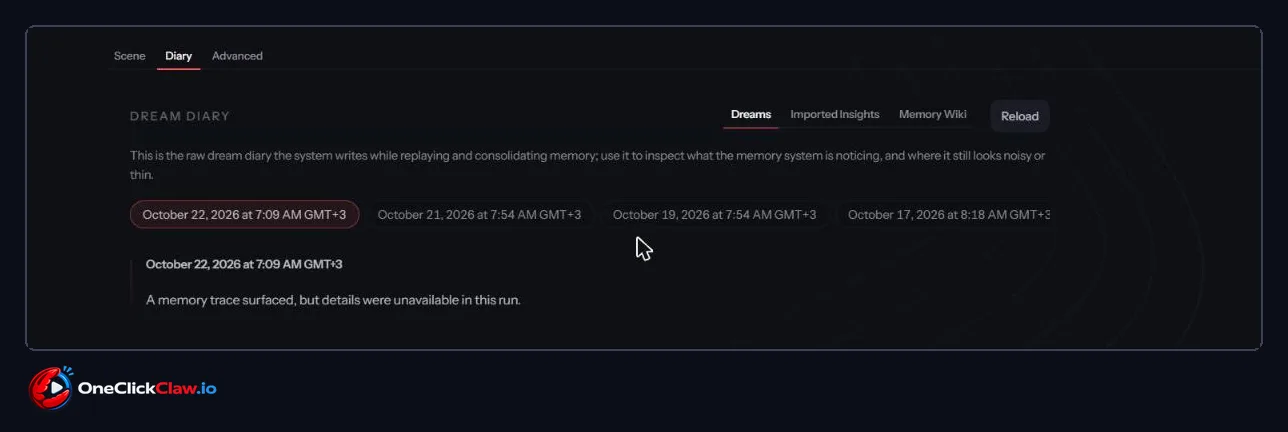
Step 11. On the "Dreams" tab, click the smaller "Diary" tab. The "DREAM DIARY" opens. Each night has its own date button. Click a date to read that night's entry below it. The "Imported Insights" and "Memory Wiki" tabs next to "Dreams" belong to a separate memory wiki add on, so you can leave them for now.
The Advanced tab, for later
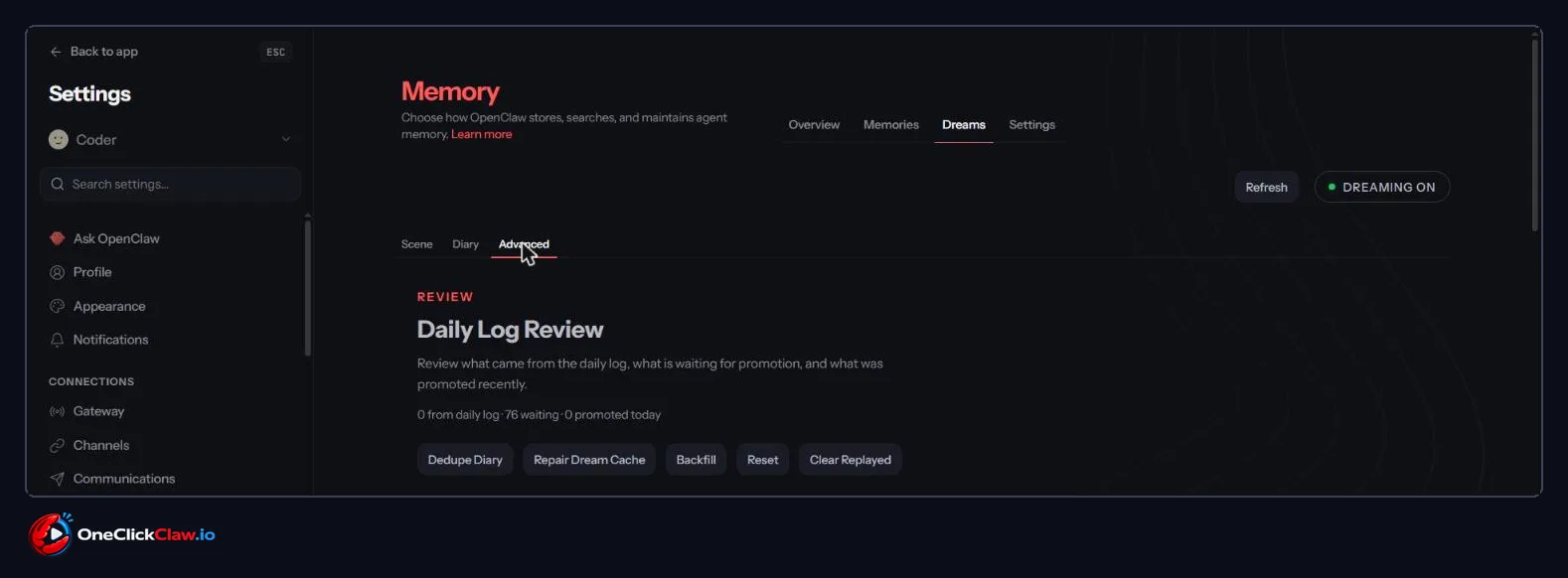
Step 12. The smaller "Advanced" tab shows a "Daily Log Review" with counts of notes waiting and notes promoted. It also has buttons called "Dedupe Diary", "Repair Dream Cache", "Backfill", "Reset" and "Clear Replayed". These are repair tools for special cases. As a beginner, you can simply leave this tab alone.
Changing the time
The nightly time and the time zone can be changed in the OpenClaw settings, and the official dreaming page explains how.
Quick answers
Does switching dreaming off delete my memory? Your saved memories stay. Switching off only stops new notes from being added each night.
Does it run only while I sleep? It runs once a night, at 3 in the morning by default. You can change the time in the settings.
Does the switch affect all my agents? Yes. One switch covers every agent on that OpenClaw.
Does it read my private details? Personal and sensitive details are hidden before dreaming reads anything, according to the documentation.
OneClickClaw runs a managed OpenClaw server for you, from EUR 14.99 a month on the Starter plan, with a 7 day free trial.
Sources: the official OpenClaw documentation page on dreaming, docs.openclaw.ai/concepts/dreaming, read on the 22nd of October 2026.
Source: docs.openclaw.ai
Helpful documentation
Want your own AI agent running without the setup? We host it on a dedicated EU server. Free for 7 days, no credit card.
Start your free trialGet notified when we publish new articles
No spam, unsubscribe anytime.
By subscribing, you agree to our Privacy Policy.